CAPINTEC, INC. CAPTUS
®
4000e
November 16 THYROID UPTAKE 7-9
4. Select the Done button to save the changes or select the Cancel button to cancel the
changes and return to Figure 7-2 Protocols Screen.
• To move between boxes, use the Tab key and to move within boxes, use the or
arrow keys.
• To return to Figure 7-1 Thyroid Uptake Main Screen from the Protocols screen, select
the Exit button or press the Esc key.
Deleting Protocols
Note: If a protocol is presently being used in an uptake, modifying that protocol will not
affect the uptake being performed.
To keep a record of deleted protocols, print the existing protocols before deleting. Select the
Print Protocols button to print a list of all of the existing protocols with their settings.
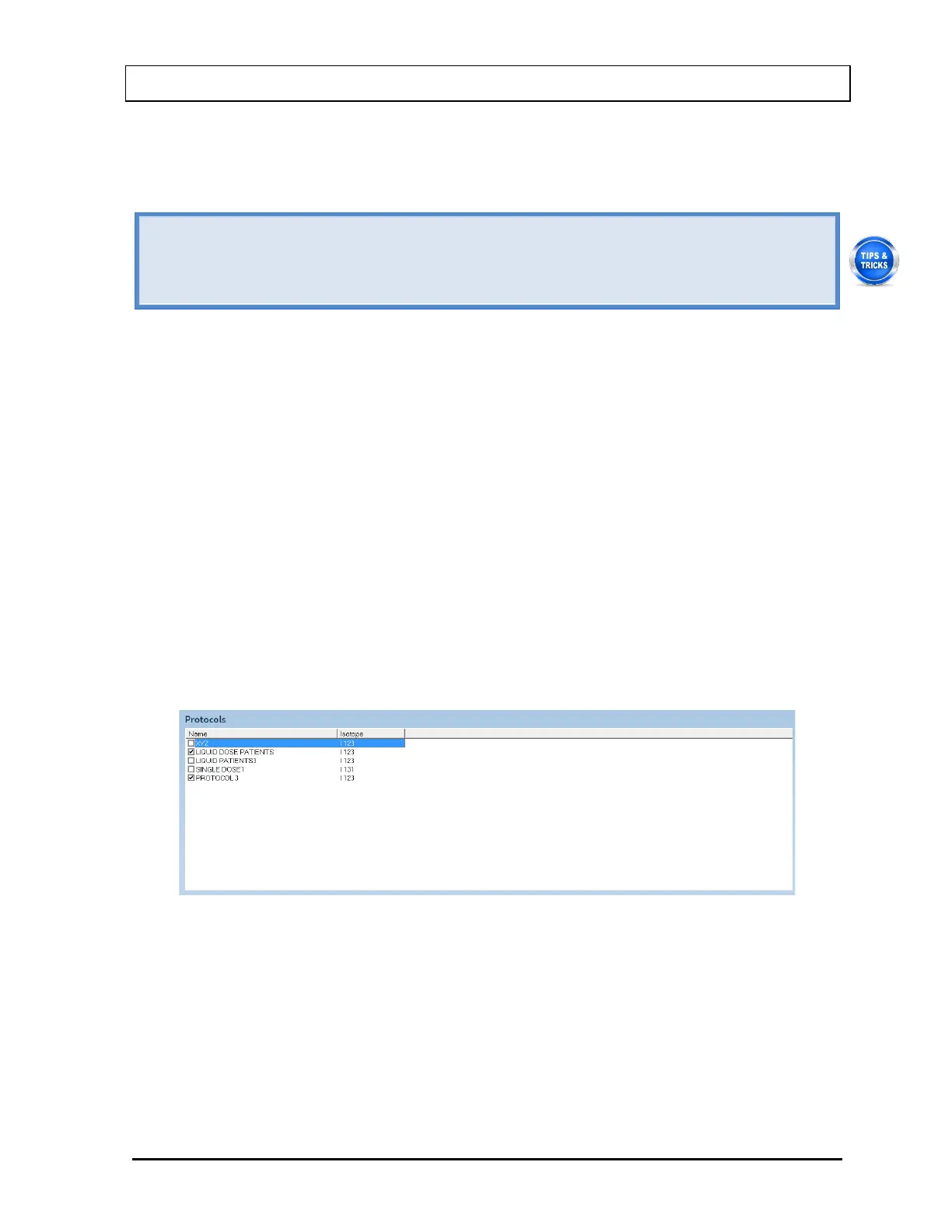
1. To select one or more protocols for deletion, click in the check box to the left of the
protocol name in the Protocols box on the Protocols screen as shown in Figure 7-6. A
check should appear in the check box to indicate it has been selected. The Protocol can
also be selected by first highlighting the desired Protocol by clicking and then double-
clicking anywhere in the grid to place a check in the box. To deselect a protocol, click in
its check box again or double-click anywhere in the grid while the desired Protocol is
highlighted and the check will be removed from the check box.
Note: The status of a check box can be toggled by quickly double-clicking the desired
item.
Figure 7-6
2. Select the Delete button. The message window appears as shown in Figure 7-7
prompting you to confirm the deletion.



 To Next Page