CAPINTEC, INC. CAPTUS
®
4000e
4-10 GENERAL SETUP November 16
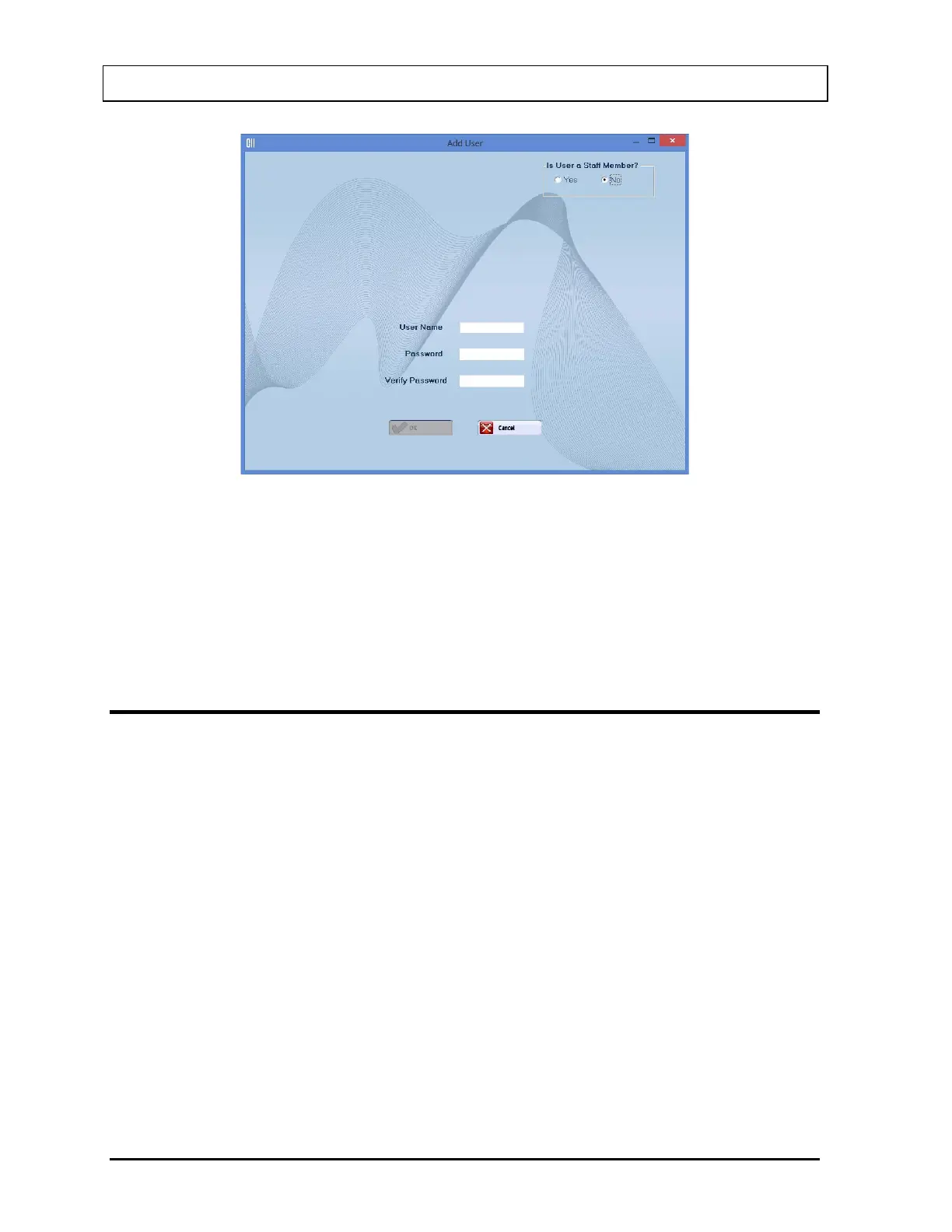
Figure 4-7 Add User (Not a Staff Member) Window
Input the new User Name and then the Password. Input the Password again in the Verify
Password text box.
When the OK button is selected, the new user and password will be accepted and Figure 4-4
Admin Log On will re-appear.
CHANGE PASSWORD
From Figure 4-4 Admin Log On Sign In Window, the Admin may change his/her own
password by selecting the Change Password button.
Note: It is recommended that the Admin password be changed at first log in.
From Figure 4-5 User Log On Sign In Window, a user may change his/her own password by
selecting the Change Password button.
When the Change Password button is selected, Figure 4-8 Change Password Window will
appear.



 To Next Page