CAPINTEC, INC. CAPTUS
®
4000e
15-2 CUSTOM PROTOCOLS December 15
daily use to avoid confusion and/or alteration by the technologist. A report workbook takes
the data from the analysis sheet, and prints a customized report for the study that can be
included in the patient record. The initial configuration of the workbook requires some basic
knowledge of Microsoft Excel (such as creating formulas, linking data from one worksheet to
another, etc.). Once the workbook is configured, no knowledge of Excel is required to
perform the study.
If the workbook is opened directly (normally the CAPTUS
®
4000e program activates the
Workbook), the user is prompted with a patient list for that particular protocol.
For each custom protocol desired, a different Workbook is required.
The user must set up the protocol(s) before making any measurements. In order to avoid
setup difficulties, it is important to have a clearly defined protocol with a list of every data
element needed for the protocol (from patient name, through each measurement required).
STARTING CUSTOM PROTOCOLS
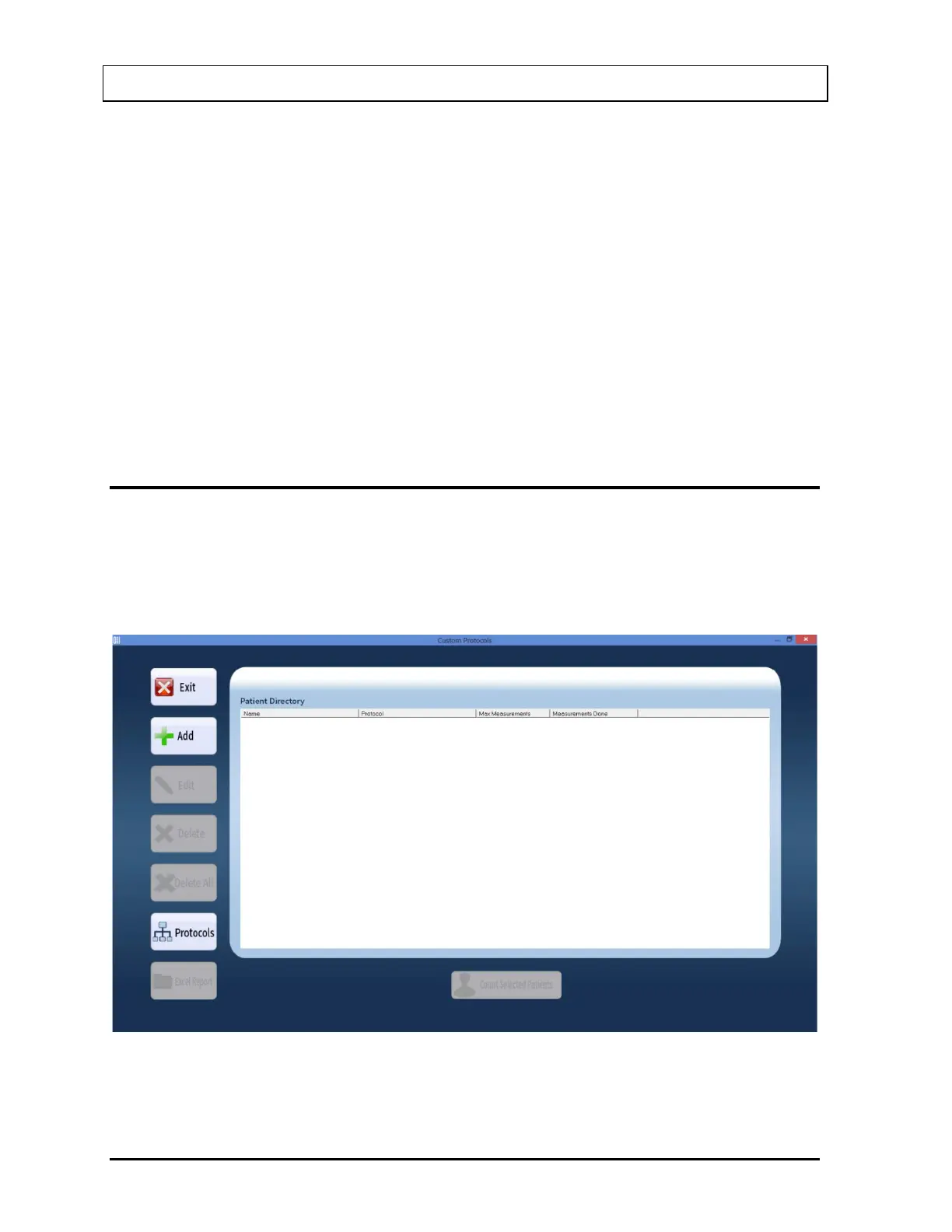
Click the Custom Protocol button or press ALT+C on the Main screen. Figure 15-1 Custom
Protocols Main Screen will appear. The Patient Directory list box will be empty if there are
no existing patients in the database at that time. Each added patient will appear in this box
with its name, Protocol name, maximum number of measurements for the protocol and
number of measurements that have been performed.
Figure 15-1 Custom Protocols Main Screen
To return to the CAPTUS
®
4000e Main Screen from the Custom Protocols Main Screen,
select the Exit button or press Esc key.



 To Next Page