CAPINTEC, INC. CAPTUS
®
4000e
July 16 ISOTOPES 6-5
• To locate an isotope, use the scroll bar, Page Down, Page Up, and arrow keys or
press the first letter of the isotope to bring it into view.
DELETING AN ISOTOPE
Note: Only user added isotopes can be deleted. Isotopes in the system’s pre-existing
Isotope Library cannot be deleted.
1. If the isotope to be deleted is out of view in the Isotope Library box on Figure 6-1
Isotopes Main Screen, scroll the list up or down using the scroll bar, Page Down, Page
Up, and arrow keys or press the first letter of the isotope to bring it into view.
2. Click on the isotope to select it (highlighted) for deleting as shown in Figure 6-4.
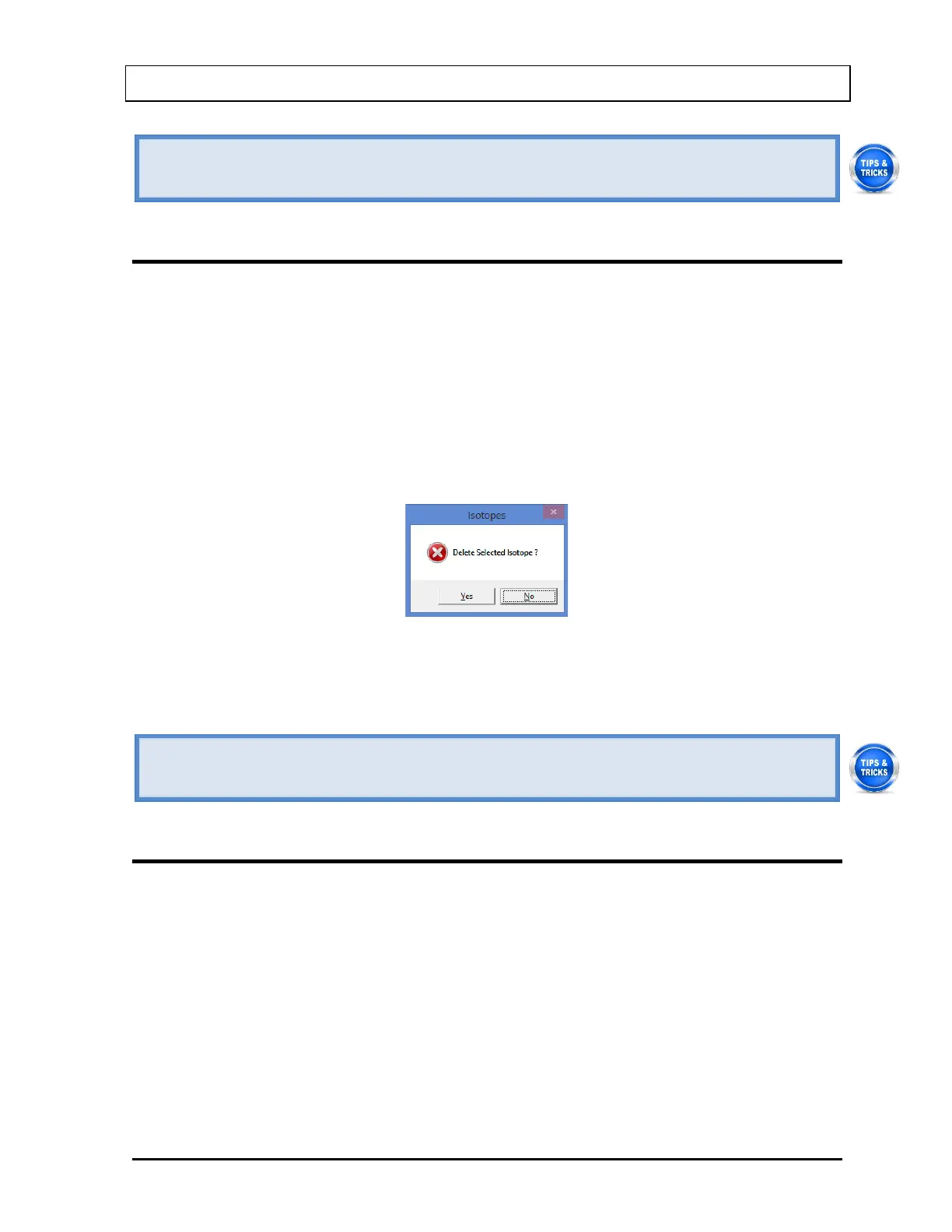
3. Select the Delete button. The message window appears as shown in Figure 6-5.
Figure 6-5
4. Select the Yes button or press the Y key to confirm the deletion. Alternatively, select the
No button or press the N key to cancel the deletion.
• To locate an isotope, use the scroll bar, Page Down, Page Up, and arrow keys or
press the first letter of the isotope to bring it into view.
MEASURING EFFICIENCY
1. If the isotope to be measured is out of view in the Isotope Library box on Figure 6-1
Isotopes Main Screen, scroll the list up or down using the scroll bar, Page Down, Page
Up, and arrow keys or press the first letter of the isotope to bring it into view.
2. Click on the isotope to select it (highlighted) for measuring as shown in Figure 6-4.
3. Select the Measure Efficiency button or press Alt+M. The window will appear as shown
in Figure 6-6 with the name of the isotope at the top.



 To Next Page