CAPINTEC, INC. CAPTUS
®
4000e
3-4 GENERAL OPERATING INSTRUCTIONS August 15
Check Box
Check boxes are also used to select or enable various options; however, check
boxes work as individual controls not in groups. When a check box is true a “√” will
appear in the box.
A check box may be selected in the following ways:
• positioning the pointing device over the desired check box – clicking one time
will activate the box, clicking again will deactivate the box,
• tapping the check box with your finger or stylus – tapping one time will activate
the box, tapping again will deactivate the box,
• by using the Tab key to select a box and then using the Space Bar to activate
or deactivate the box,
• positioning the pointing device over the desired line and double-clicking will
activate the box, double-clicking again will deactivate the box, or
• double-tapping quickly with your finger or stylus will toggle by the desired item.
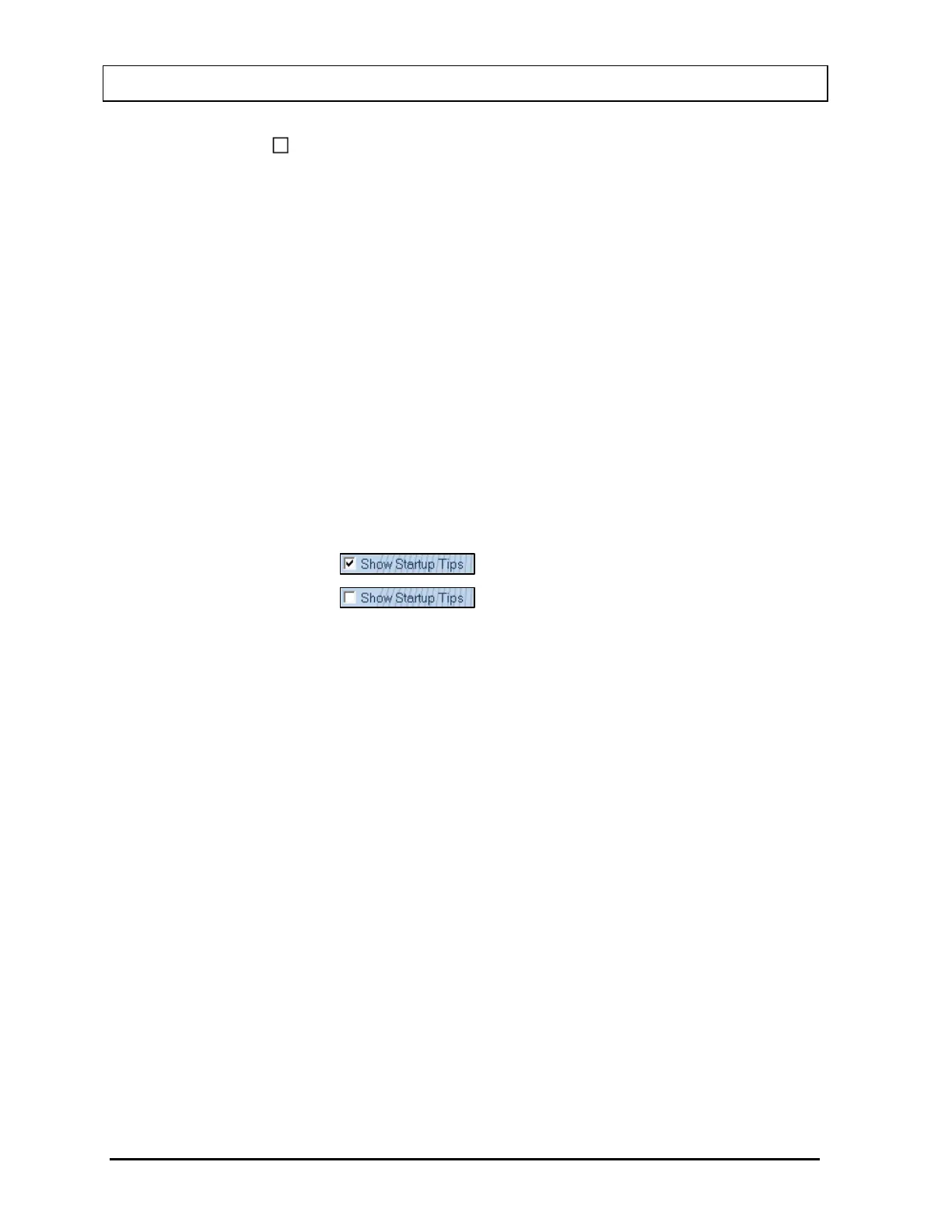
A selected box has a check in the box and an unselected box is unchecked. For
example:
– Selected
– Unselected
Figure 3-3
Text Entry Box
The text box is used whenever input of numeric or alphanumeric information is
required.
A text box can be selected in the following ways:
• positioning the pointing device over the box and clicking the pointing device's
left button once,
• tapping the box with your finger or stylus, or
• using the Tab key on the keyboard to move from control to control until the
desired text box is highlighted or the cursor appears in the text box.
When the information in a box is highlighted, typing will replace the highlighted
information and the previous contents will be lost. If you wish to edit the existing
information, use either the left or right arrow ( or ) to move the cursor to the
appropriate location. As soon as the cursor moves, the highlight will be removed. The
contents of the text box can then be edited. The following control keys are active
during editing:
Delete ....................... Deletes the character after the cursor
Backspace ................ Deletes the character before the cursor
Right Arrow ............... Moves one character to the right



 To Next Page