CAPINTEC, INC. CAPTUS
®
4000e
13-2 MCA August 15
Select the MCA button or press Alt+M on the CAPTUS
®
4000e Main screen to access the
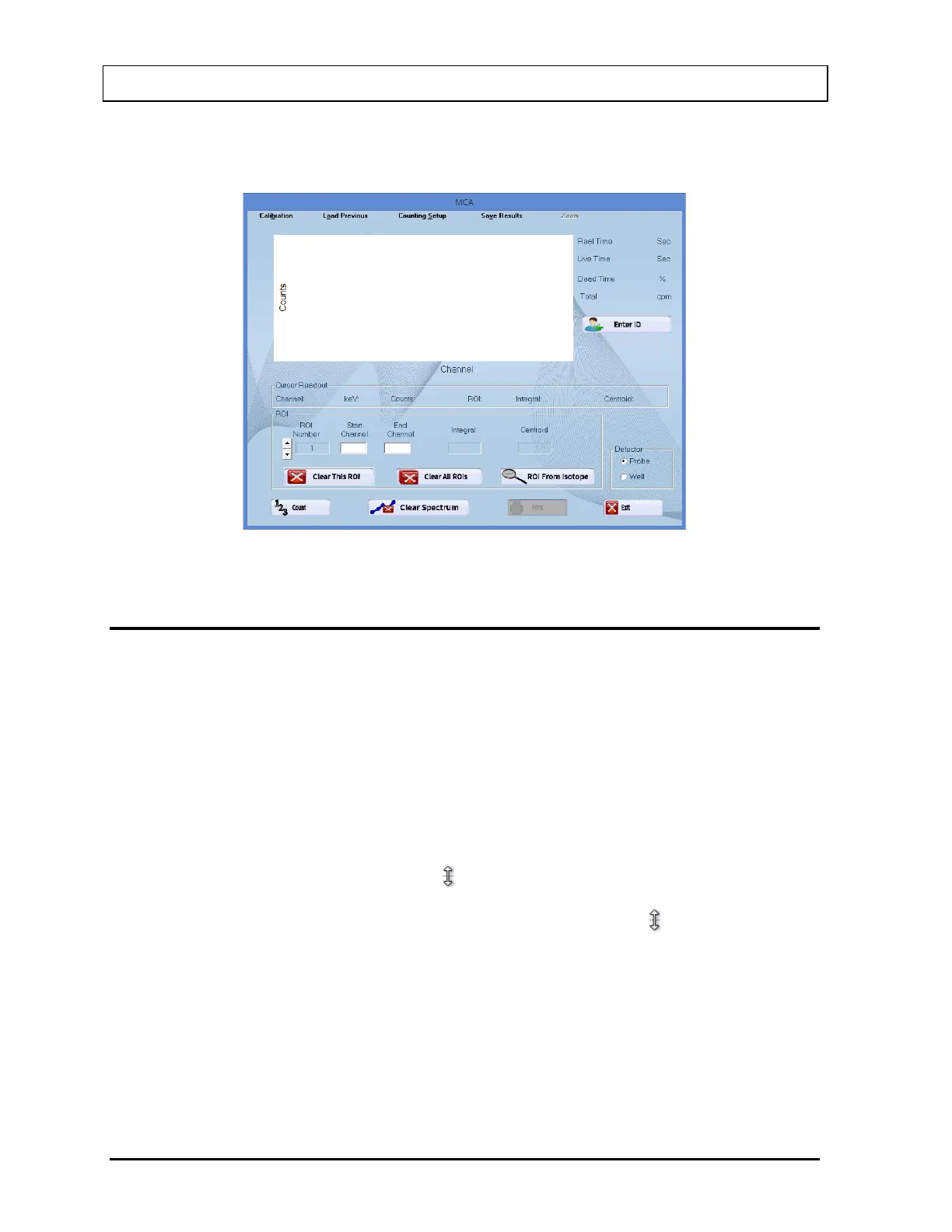
MCA Module. Figure 13-1 MCA Main Screen will appear.
Figure 13-1 MCA Main Screen
ACQUISITION AND COUNT DATA
The MCA Main Screen provides all controls necessary for data acquisition. To begin the
acquisition process, select the Count button. The live counting data will appear in the
spectral display area. The elapsed real time, elapsed live time and percentage of dead time,
and counting rate will be displayed in the upper right of the MCA Main screen. The counts
full-scale value is shown at the upper left edge of the display area. All displayed counting
values are updated at approximately 1-second intervals.
Channel Data Display
Hover the pointing device’s indicator over the spectral display area. The indicator will be
displayed as a double-ended vertical arrow . The channel number, energy, and total
number of counts in the selected channel will be displayed directly beneath the arrow in the
Cursor Readout frame. If an ROI has been defined, placing the arrow inside the red
highlighted ROI area will cause the ROI number, total integral counts, and peak centroid
channel to be displayed in the Cursor Readout frame. To stop acquisition, select the Stop
button (displayed only when counting). To clear the displayed spectrum from the display
area, select the Clear Spectrum button.



 To Next Page