CAPINTEC, INC. CAPTUS
®
4000e
8-10 WIPE TESTS November 16
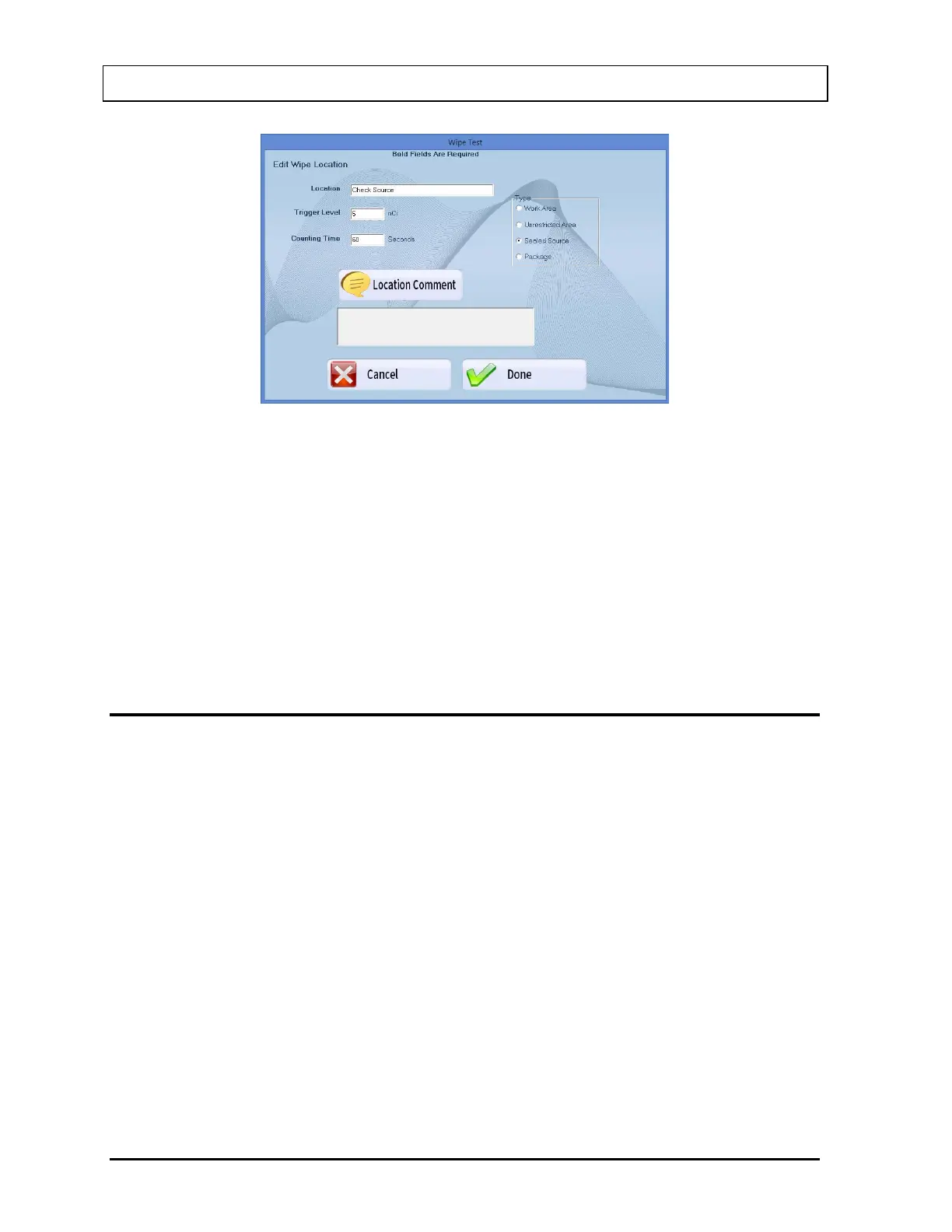
Figure 8-9 Edit Wipe Location Screen
5. Click in the appropriate text box or select the Type frame radio button. Type over the
existing information.
Note: To move between data fields, use the Tab key. To select Type of wipe location,
use the
or
arrow keys.
6. To edit or add comments, select the Location Comment button.
7. Select the Done button to save the changes or select the Cancel button to cancel the
changes. Figure 8-2 Wipe Test Main Screen will reappear.
DELETING WIPE TEST LOCATION
Note: If you wish to save Wipe Location information before deleting, refer to CHAPTER 14:
ARCHIVE.
1. Select a group in the Preset Groups or User Defined Groups frame by selecting its
radio button to view only those wipe locations that belong to that group.
2. Click inside the Wipe Locations box to make it active.
3. To select a wipe location for deletion, use the and arrow keys or Page Up and Page
Down keys to move up or down in the wipe location list. If the list is long, the scroll bar is
also available. To reach a particular location, press the first letter of the location name.
Press the arrow key if necessary, to go further down.
4. To select one or more wipe locations for deletion, click in the check box to the left of the
wipe location name in the Wipe Locations box on the Main Wipe Test Screen as shown
in Figure 8-10. A check should appear in the check box to indicate it has been selected.
The location can also be selected by first highlighting the desired location by clicking and
then double-clicking anywhere in the grid to place a check in the box. To deselect a wipe



 To Next Page