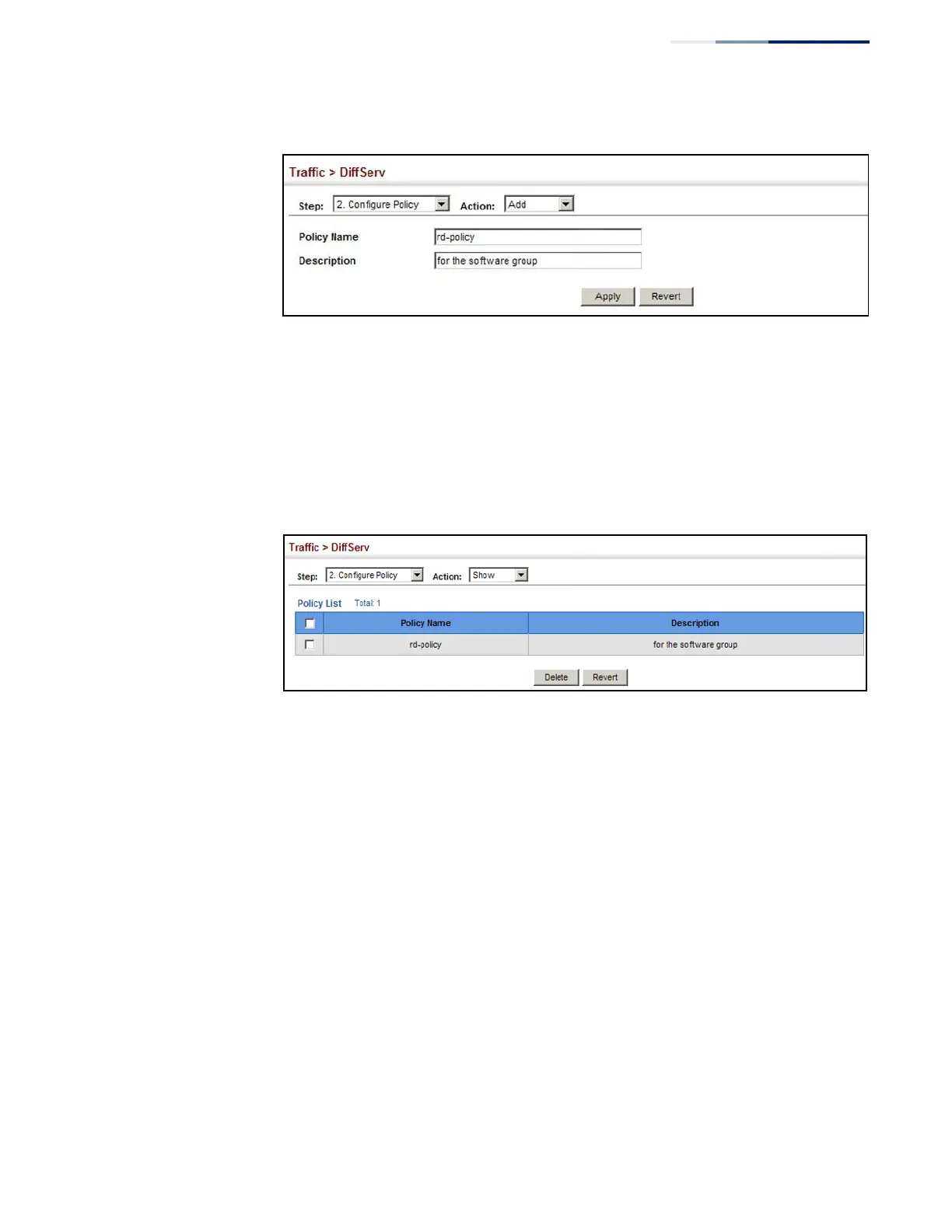
Figure 133: Configuring a Policy Map
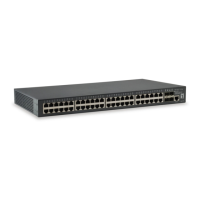
To show the configured policy maps:
1.
Click Traffic, DiffServ.
2.
Select Configure Policy from the Step list.
3.
Select Show from the Action list.
Figure 134: Showing Policy Maps
To edit the rules for a policy map:
1.
Click Traffic, DiffServ.
2.
Select Configure Policy from the Step list.
3.
Select Add Rule from the Action list.
4.
Select the name of a policy map.
5.
Set the CoS or per-hop behavior for matching packets to specify the quality of
service to be assigned to the matching traffic class. Enter a rate limit if required.
6.
Click Apply.




 To Next Page