Matrix ETERNITY NE System Manual 1259
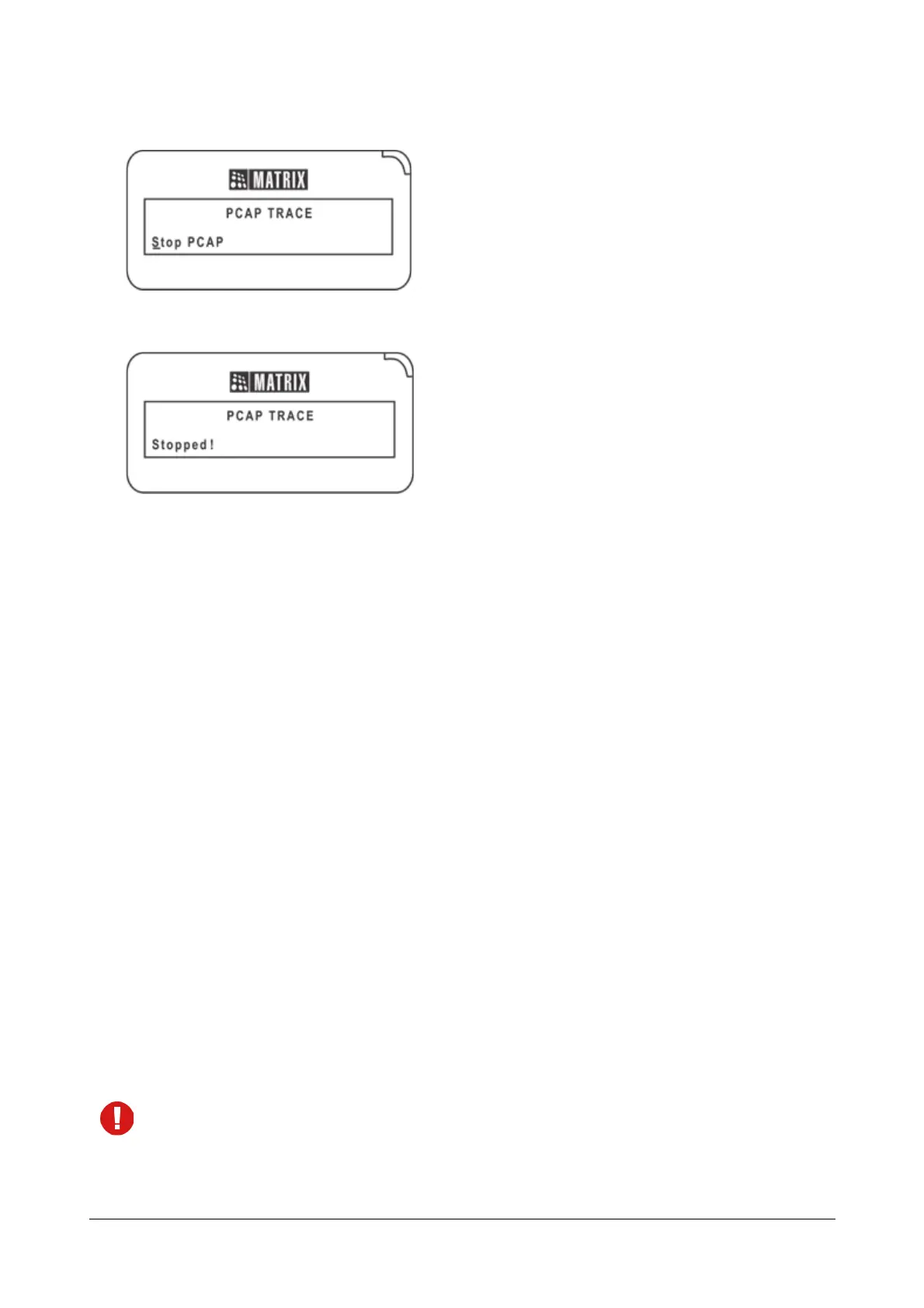
• The message Stop PCAP appears on your phone display.
• Press Enter key. You get the confirmation message: ‘Stopped!’
• Go idle.
You can download the Trace file from the embedded FTP server of the Extended IP Phone. To access the FTP
server using Windows FTP, do the following:
•Go to My Computer.
• Type the current IP Address of the Extended IP Phone in the Address bar. For example: ftp://
192.168.201.134
• Click Go or Press Enter key on your keyboard.
• The Log on as window of the FTP server opens.
•In User Name, type se (lower case).
•In Password, enter the current User Password set for the phone.
• Click Log on.
• On successful login, the FTP window will open. You will see the different folders in this window.
• Click the ramdisk folder.
• In the ramdisk folder, right click the trace.pcap file and copy it on to your local disk.
• Open the trace.pcap file using Wireshark or Ethereal or any other similar software which supports
opening of trace files.
• You may also use FireFTP, if you are using Mozilla Fire Fox. Make sure your browser has the FireFTP
Add-on installed.
• To download the Trace file from the FTP server for SPARSH VP330 and SPARSH VP510, refer to their
respective User Guides.



 To Next Page