138 Matrix ETERNITY NE System Manual
And &, Backslash \, Less than <, Greater than >, Apostrophe ’ , Double Quote " and Space) and digits 0 to
9 are allowed. Default: Blank.
SARVAM UCS validates the Open SIP Phone on the basis of the SIP ID and HTTP Authentication
Password (Third Party IP-Phone) and provides configuration on validation.
To avoid unauthorized access, we recommend you to change the password regularly. Make sure it is
strong and is kept confidential. The password must:
• be of minimum 8 characters and can be a maximum of 12 characters.
• include at least one upper-case, one lower-case, one number and one special character.
To provide additional security, when the authentication fails for 5 times consecutively within 10 minutes due
to wrong Authentication ID / Authentication Password, the system will block the IP Address for registration
of this SIP Extension. However, you can register again after 10 minutes. This activity will be logged in the
“System Activity Log”.
You may also choose to configure simple Authentication Password, if required. However, it is
recommended not to do so. For more details, see “Force Complex SIP/HTTP Authentication Password”
under “Security Settings”.
Make sure, you have configured SIP ID as HTTP User Name and HTTP Authentication Password as HTTP
Password in the Open SIP Phone.
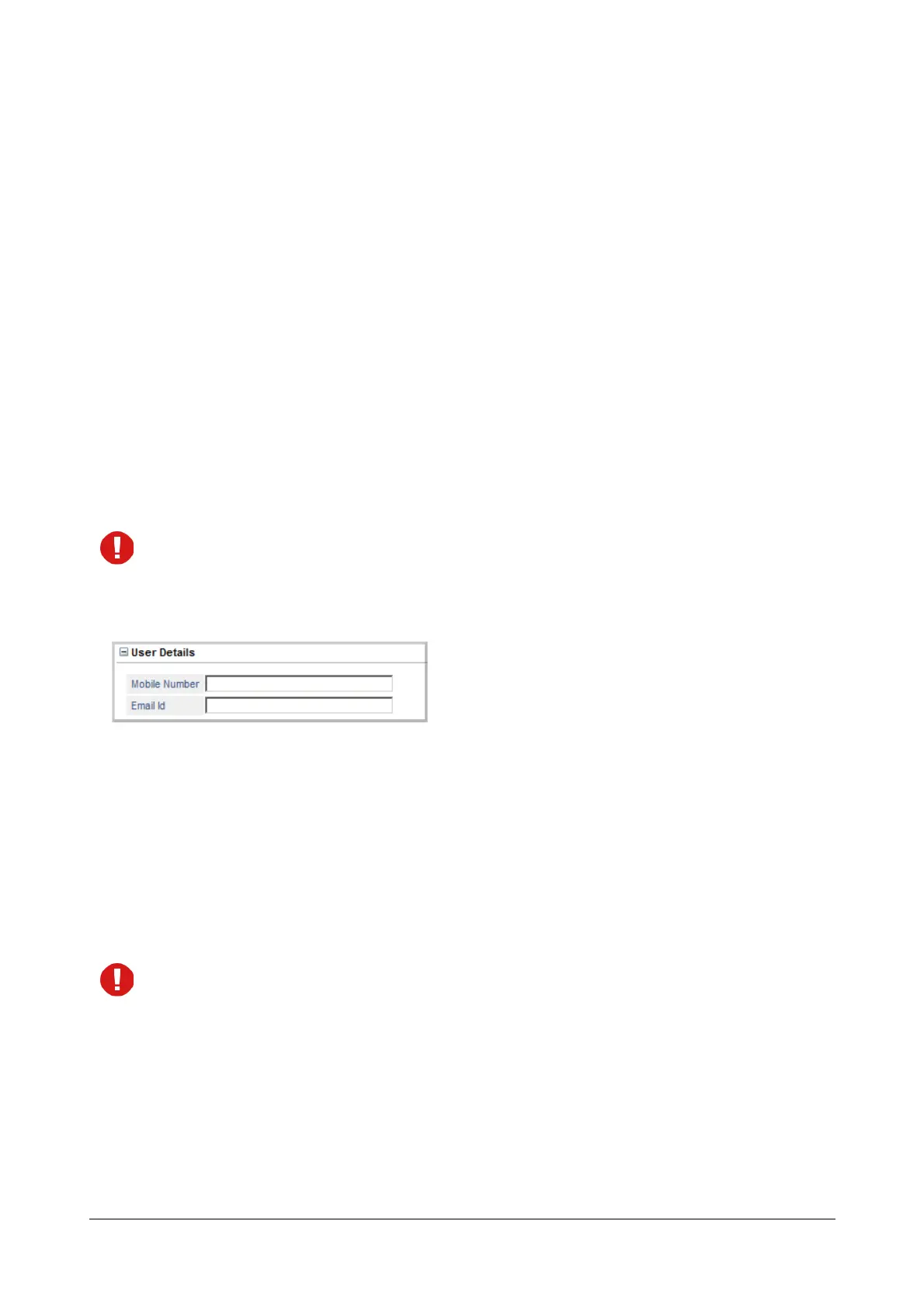
User Details and Auto Sign-In
• Enter the Mobile Number of the extension user. The Number can be a maximum of 16 digits. Default:
Blank.
• Enter the Email ID of the extension user you wish to store. The Email ID can be a maximum of 64
characters. The Auto Sign-In configuration mail will be sent to this ID.
• If you want the Mobile Clients to automatically configure and register with the Server, click the Send
button adjacent to Send Configuration Mail.
The Auto Sign-In Configuration Mail will be sent to the VARTA user on the Email ID configured above.
The Auto Sign-In Mail button will appear only after you have enabled the SIP Extension and configured the
SIP ID, Authentication ID and Password.
Make sure the Auto Sign-In parameters have been configured. For details, refer to “Auto Sign-In
Parameters”.
• The Mail Status will display either sent, failed or sending.
• Click Submit.
These parameters are used by the SMS Server application. To know more about this feature, see “SMS Server”.



 To Next Page