200 Matrix ETERNITY NE System Manual
• By default None is assigned to all the DSS keys, you can now personalize the DSS Key map as per your
requirement.
• Click the key on which you want to assign a feature/function.
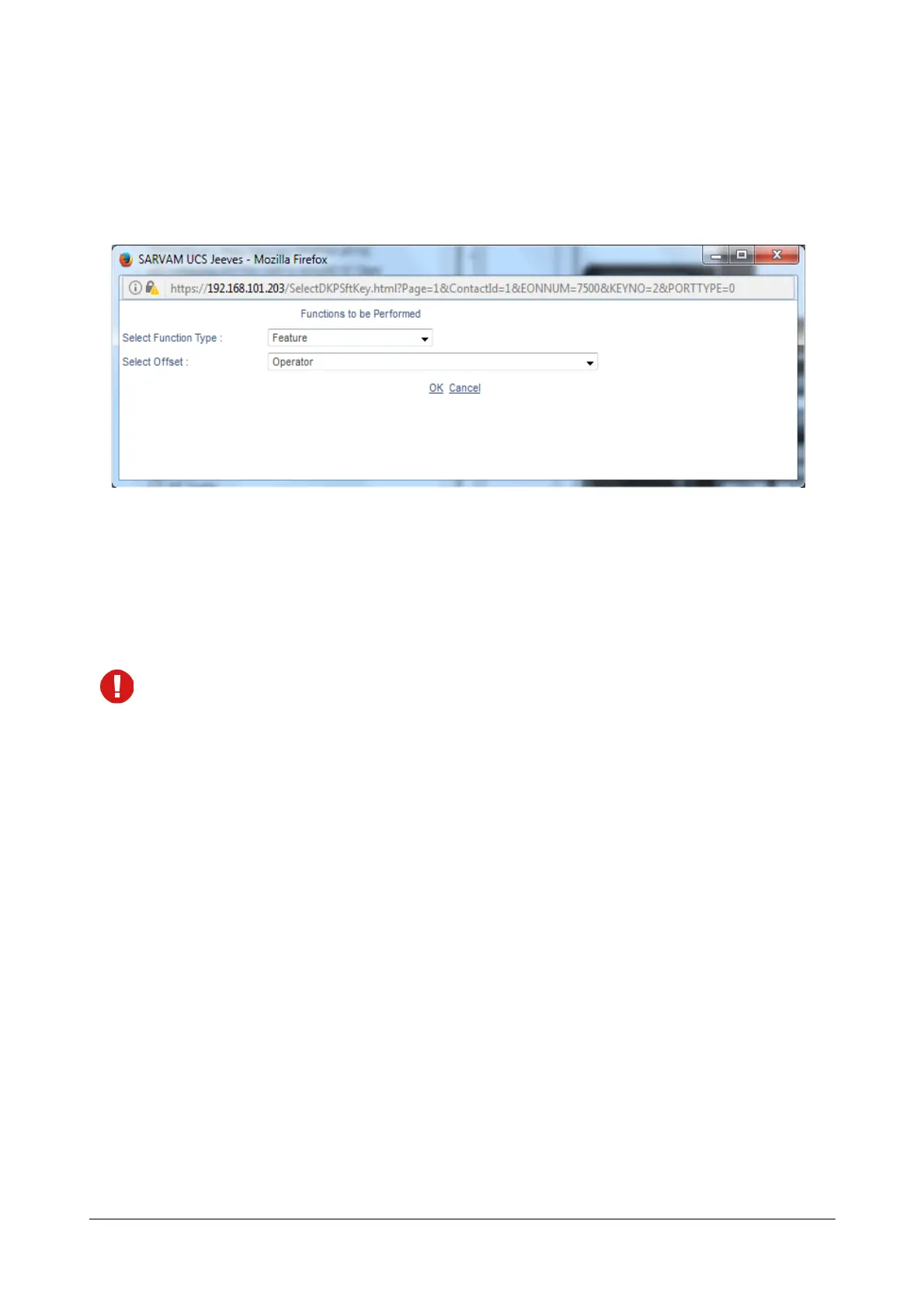
• The options for the Functions to be Performed by the key will open in a new window.
• Select the desired Function Type to be assigned to the key and the desired Offset for the Function Type.
• Click OK.
• The function you selected will appear as the key label.
• Similarly, configure other keys.
The following features cannot be assigned to DSS Keys:
• Headset
• Speaker
• Acknowledge
• Local Menu
• If you wish to clear all the key assignments, click the respective DSS Console check box and then click
Clear Key Assignment.
• If you wish to interchange the key assignments of the DSS, click the check boxes of the respective DSS
Consoles whose keys you wish to swap and then click Interchange DSS Keys.
• If you wish to remove a DSS Console, click Remove DSS.
• Click ADD DSS again to add another Console.
• To view the status of all the DSS Consoles, click “DSS Status” under “System Status”.
If you have completed the configuration of the Matrix IP Phone Settings at location 1, follow the same steps as
described above to configure the Matrix Extended IP Phone at the other two locations.
When you change any of the parameters listed below in the SIP Extension at Location 1, 2, 3, the phone will
restart automatically, if registered.
• Enable SIP Extension
• SIP ID
• Authentication ID



 To Next Page