3. Follow the instructions on the screen. The default location for the c software is C:\Program
Files\Panasonic\HMWIN, change path if needed.
4. If the Select Components step is available, select the components you want to install.
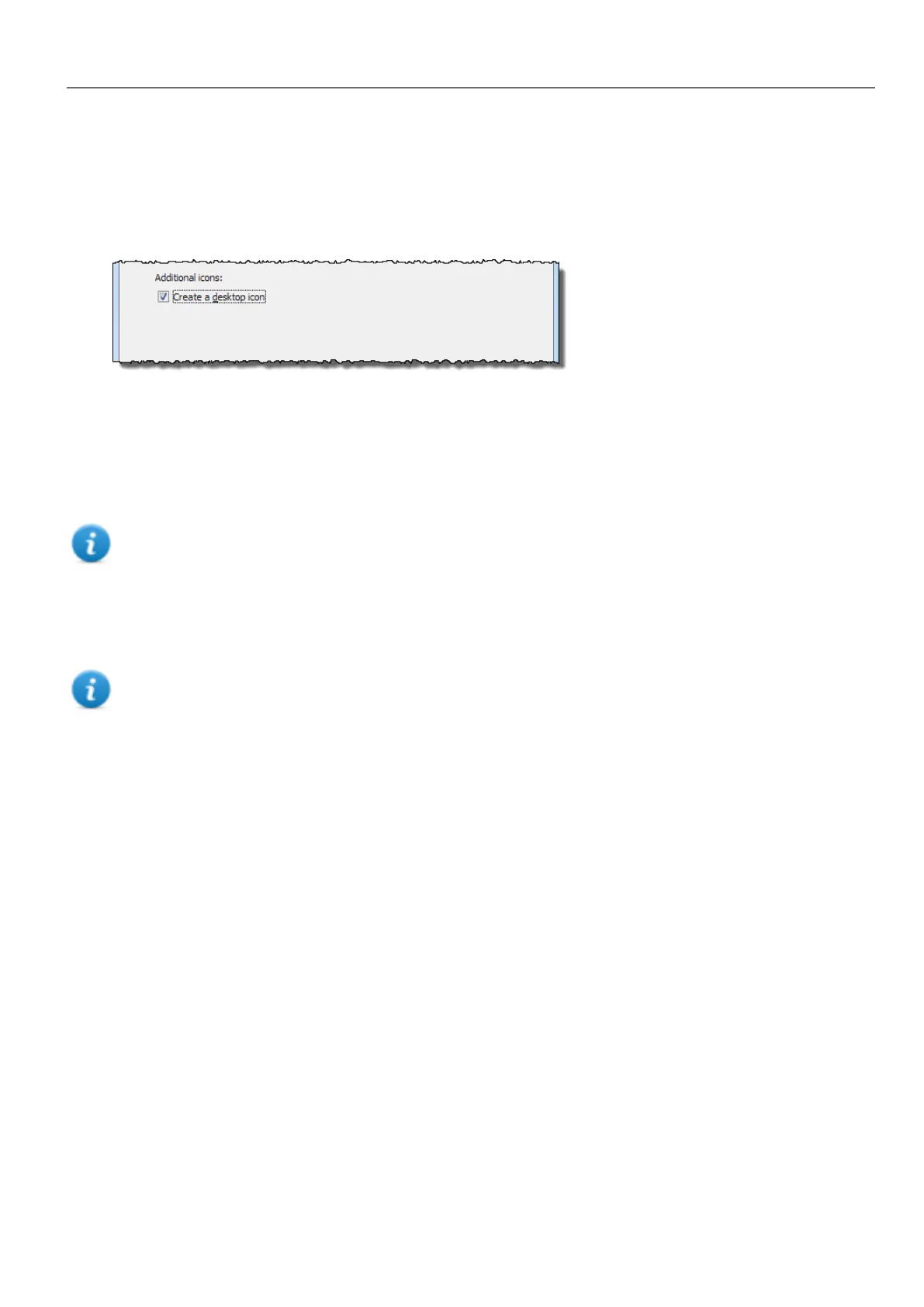
5. Select the Create a desktop icon option to add a HMWIN Studio icon on your desktop. A HMWIN Studio group is
automatically added to the Start menu by the installation procedure.
6. To run the application click the desktop icon or choose Start > All programs > HMWIN Studio.
Trial version
HMWIN Studio is available with a friendly 30 days free trial policy. 30 days after installation a registration form is displayed
to enter a license activation key.
Note: Trial version is not supported on virtual machines, only valid licenses can be used.
Licensing
To register the software before the trial period expires, go to Help > Register.
Note: The registration process requires an Internet connection. Ports TCP 80 and 443 are used for activation.
During registration, a license file is downloaded from the licensing server to the computer. License files are saved in
following folders depending on OS:
%appdata%\Panasonic
Licenses are locked to the BIOS ID or to the Windows product ID of the computer where the software has been installed.
If HMWIN Studio is not able to reach the licensing server (for example, no Internet connection is available), a button is
displayed to activate the license via email.
Pressing the “Send Mail” button the HMWIN Studio will display this form:
HMWIN Studio |User Manual| v206 (2017-06-30) | EN| © 2014-2017 Panasonic Electric Works Europe AG
3
1 Getting started



 To Next Page