Preparing CFast Cards on a Mac OS X Computer
Use the Disk Utility application included with Mac OS X to format your card in the HFS+ or
exFAT formats. Remember to back up anything important from your CFast card as all data will
be lost when it is formatted.
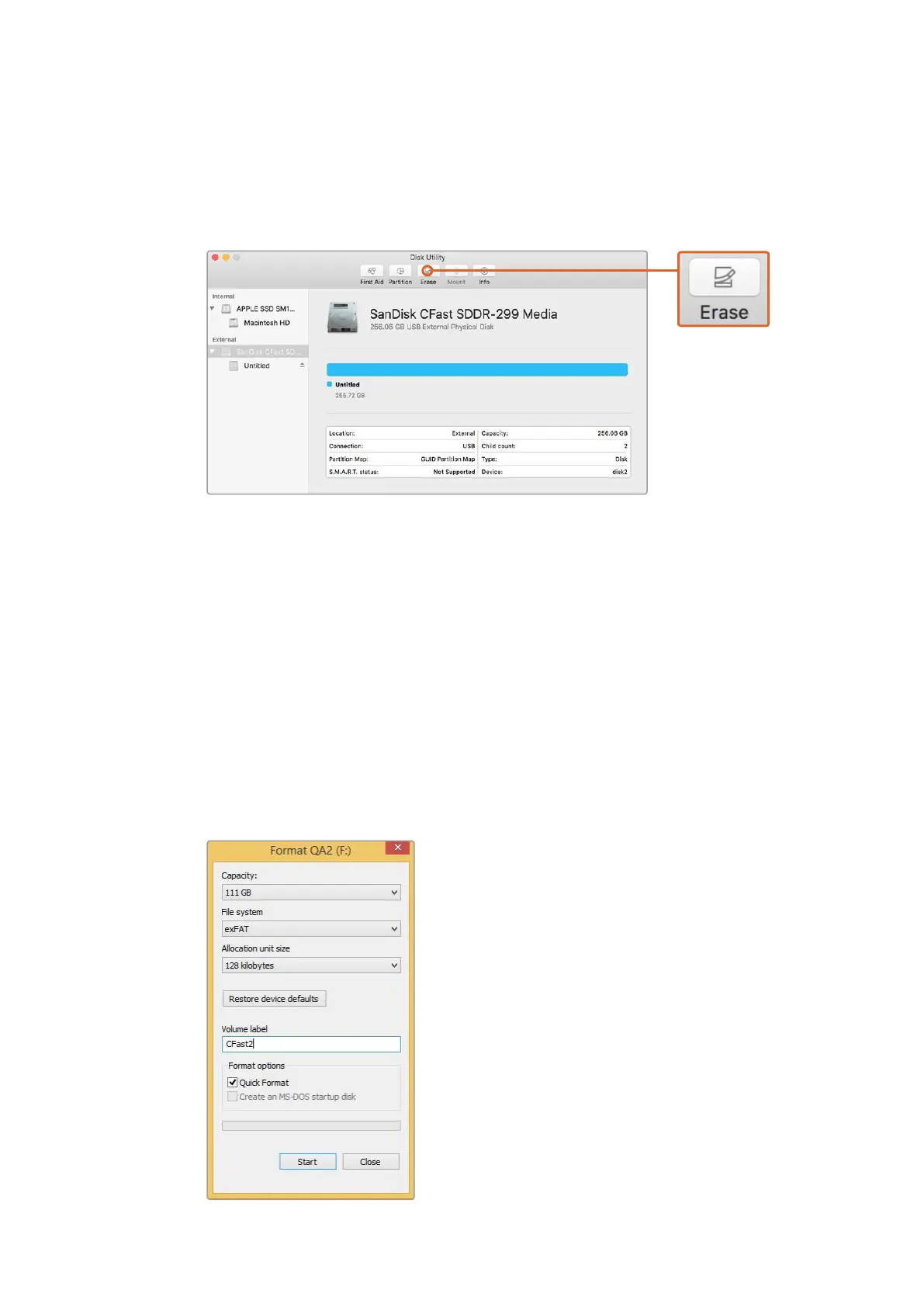
Use Disk Utility on Mac OS X to erase your CFast card
in the Mac OS extended ( journaled) or exFAT format.
1 Connect the CFast card to your computer using a CFast 2.0 reader/writer or CFast drive
and dismiss any message offering to use your card for Time Machine backups.
2 Go to applications/utilities and launch Disk Utility.
3 Click on the disk icon of your CFast card and then click the ‘erase’ tab.
4 Set the ‘format’ to ‘Mac OS extended (journaled)’ or ‘exFAT’.
5 Type a ‘name’ for the new volume and then click ‘erase’. Your CFast card will be quickly
formatted and made ready for use.
Preparing CFast Cards on aWindows Computer
The ‘format’ dialog box can format a drive in the exFAT format on a Windows PC. Remember
toback up anything important from your CFast card as all data will be lost when it is formatted.
Use the ‘format’ dialog box feature in Windows
to format your CFast card in the exFAT format.
12CFast Cards












 To Next Page