Working with RAW files
When you first import RAW files, DaVinci Resolve will decode the sensor data contained in the
files using the ISO, white balance and tint settings used on the camera at the time of shooting.
Ifyou're happy with the look of these settings, you can start editing right away.
The great thing about shooting RAW is that you're not tied to these settings at all!
The breadth of available post processing options when working with RAW files mean that you'll
develop your own workflow over time. Experimenting with the 'clip RAW' settings for each clip
will show you just how powerful and flexible working with RAW can be.
Clip Raw Settings
Once your RAW clips are loaded into the media pool, you can drop them on a timeline in the
edit page and then make adjustments to each clip in the color page.
To make individual adjustments to RAW settings on a per clip basis:
1 Open the 'edit' page, then drag and drop your selected clips into a new timeline.
2 Open the color page. Right click on the clip you want to adjust and choose 'edit
cinemaDNG codec settings' from the 'camera RAW codec settings' menu.
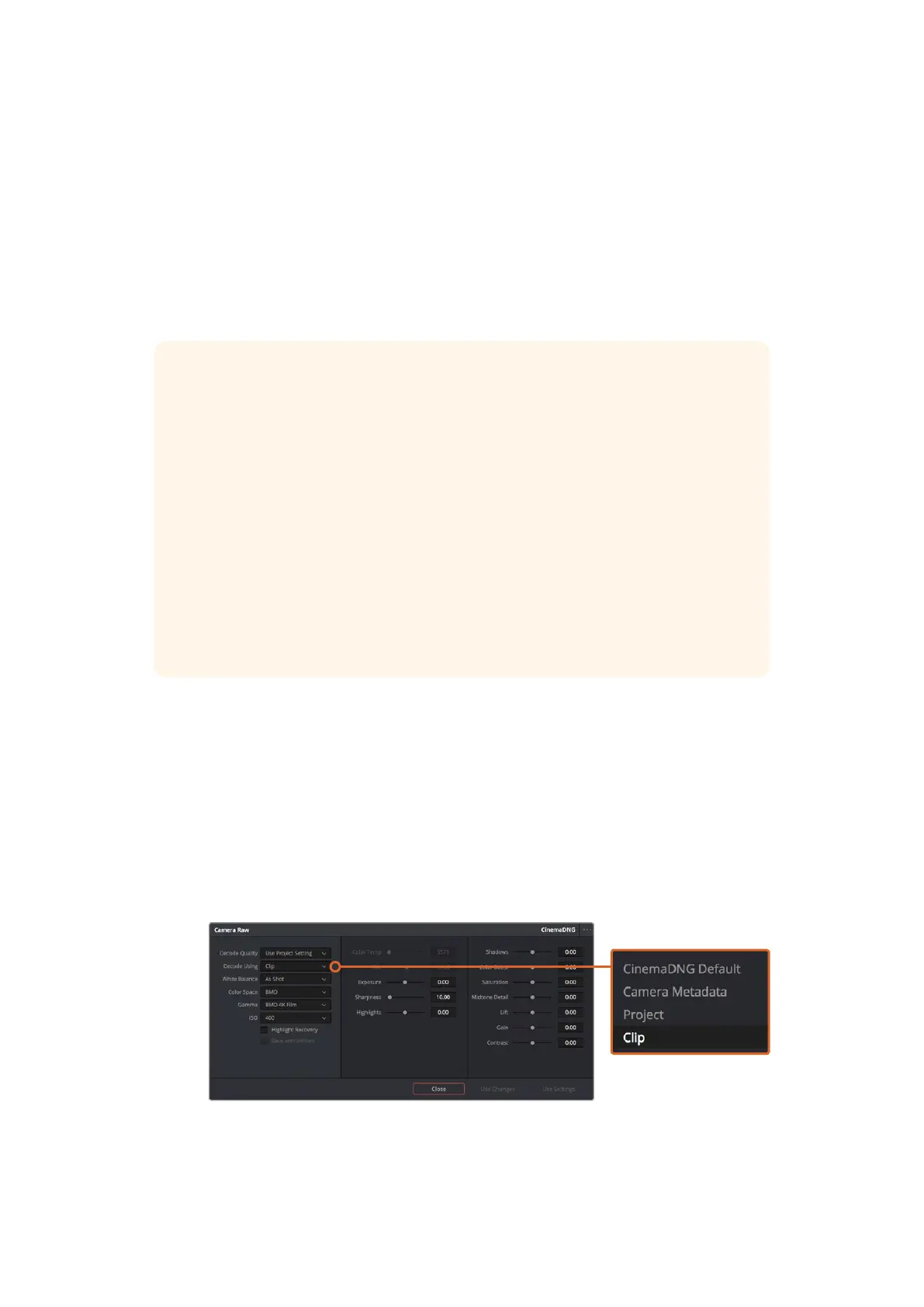
3 Select ‘clip’ from the ‘decode using’ dropdown menu.
Use the 'edit cinemaDNG codec settings' menu to change RAW settings for individual clips.
RAW clips give you maximum flexibility in post production. While ProRes and DNx files,
for example, convert your camera’s sensor data into their respective codecs, RAW clips
keep the original sensor data without conversion. This lets you make adjustments to
clips, such as white balance and ISO settings, as if you were changing the original
camera settings. Working with the original sensor data also retains more tonal
information within shadows and highlights, which is useful for recovering details, for
example in blown out skies and dark areas of the picture.
It’s worth shooting in RAW if you are after the highest possible quality, or for shots
where there is an extreme variance between highlights and shadows and you may
need to push and pull those regions as much as possible in the grade.
RAW files can be large and processor intensive, but you can set DaVinci to
automatically create proxy files to help your computer with real time playback. For more
details on how to get the most out of your RAW files in your grade and how to set up a
real time workflow, refer to the DaVinci Resolve manual.
53Using DaVinci Resolve












 To Next Page