Qualifying a Color
Often you’ll find a specific color in your clip can be enhanced, for example grass by the side
ofa road, or the blue in a sky, or you may need to adjust color on a specific object to focus the
audience’s attention on it. You can easily do this by using the HSL qualifier tool.
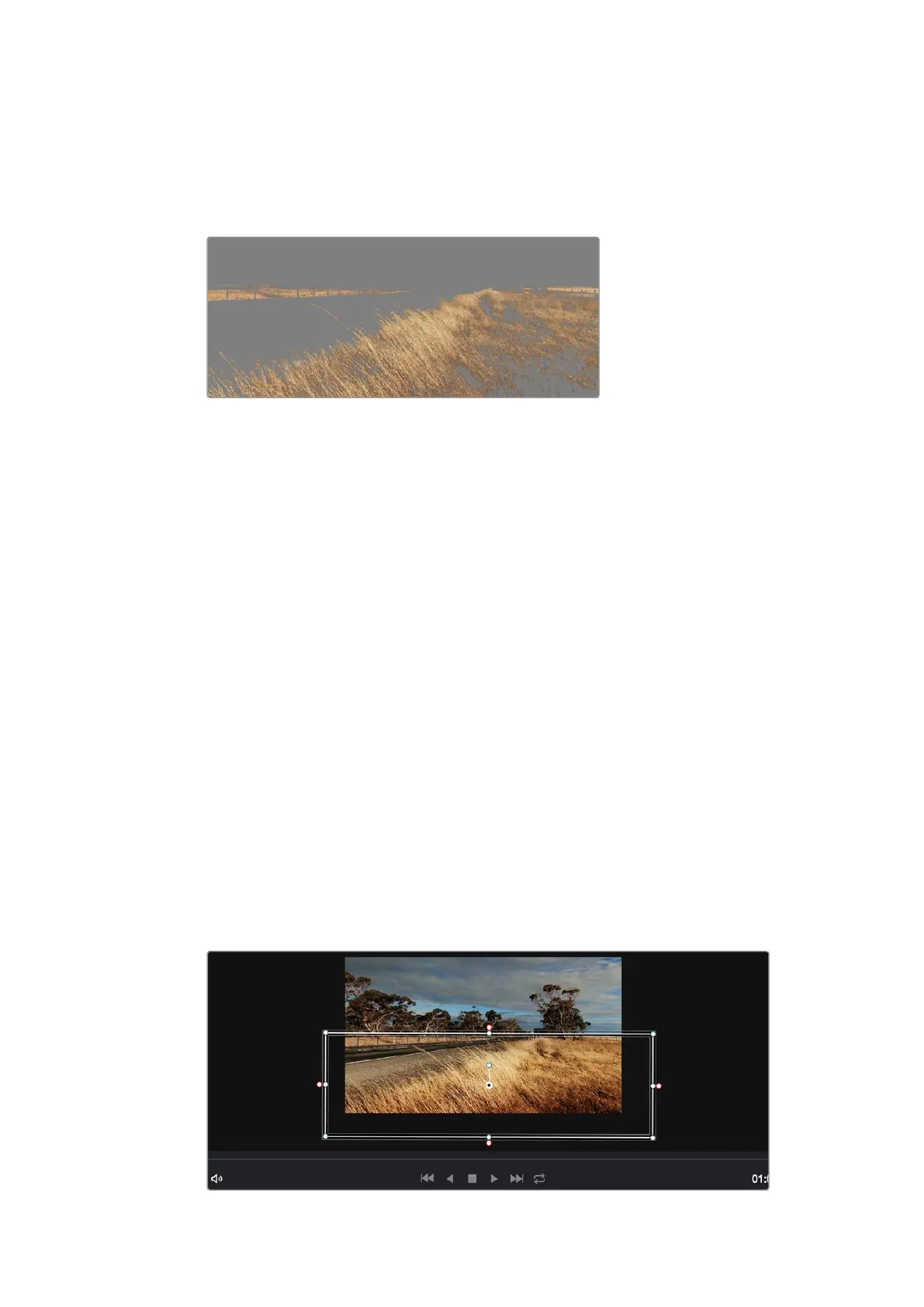
Use the HSL qualifier feature to select specific colors in your image.
Thisishandy when you want to make areas of your image ‘pop’, to add contrast,
or to help draw the audience’s attention to certain areas of your shot.
To qualify a color:
1 Add a new serial node.
2 Open the ‘qualifier’ palette and make sure the ‘color range’ sample eyedropper tool
is selected.
3 Click on the color in your clip you want to affect.
Usually you’ll need to make some adjustments to soften the edges of your selection and
limit the region to only the desired color. Click on the ‘highlight’ button to see your selection.
4 Adjust the ‘width’ control in the ‘hue’ window to broaden or narrow your selection.
Experiment with the high, low and softness controls to see how to refine your selection. Now
you can make corrections to your selected color using the color wheels or custom curves.
Sometimes your selection can spill into areas of the shot you don’t want to affect. You can easily
mask out the unwanted areas using a power window. Simply create a new window and shape it
to select only the area of color you want. If your selected color moves in the shot, you can use
the tracking feature to track your power window.
Adding a Power Window
Power windows are an extremely effective secondary color correction tool that can be used to
isolate specific regions of your clips. These regions don’t have to be static, but can be tracked
to move with a camera pan, tilt or rotation, plus the movement of the region itself.
Use power windows to mask out areas you don’t want to be
affected by the HSL qualifier secondary adjustments.
62Using DaVinci Resolve












 To Next Page