2 Adjusting the ‘gain’
Click on the ‘gain’ dial and slide it back and forth. This adjusts the highlights which are
the brightest areas of your clip. The highlights are shown on the top section of the
waveform on the parade scope. For a brightly lit shot, these are best positioned just
below the top line of the waveform scope. If the highlights rise above the top line of the
waveform scope, they will clip and you will lose details in the brightest regions of
your image.
3 Adjusting the ‘gamma’
Click on the ‘gamma’ dial underneath the color wheel and slide it back and forth. As
you increase the gamma you’ll see the brightness of the image increase. Notice the
middle section of the waveform will also move as you adjust the gamma. This
represents the mid tones of your clip. The optimal position for mid tones generally falls
between 50 to 70% on the waveform scope. However, this can be subjective based on
the look you are creating and the lighting conditions in the clip.
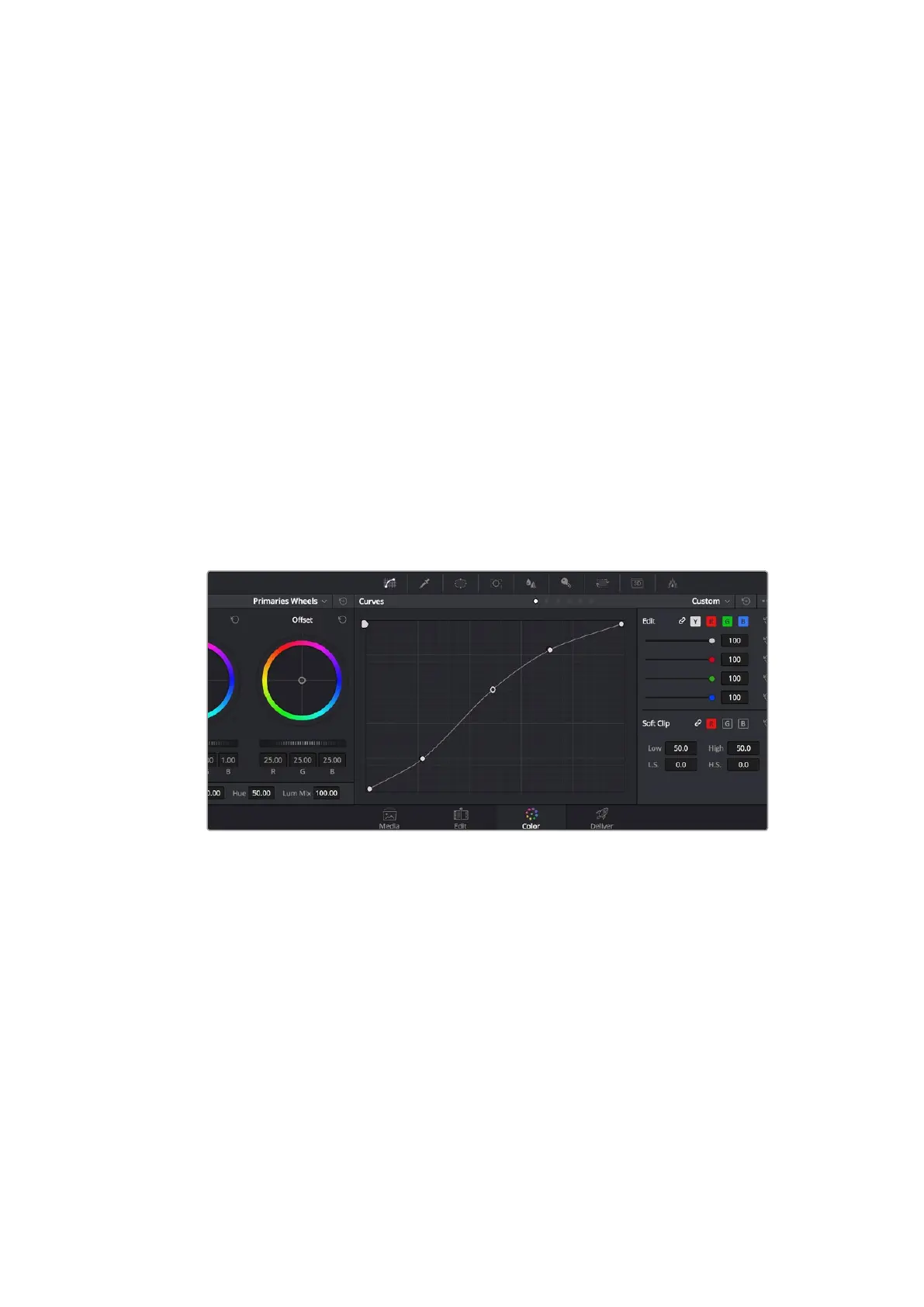
You can also use the curves palette to make primary color corrections. Simply click to create
control points on the diagonal line inside the curve graph, and drag them up or down to adjust
the master RGB contrast at different areas of image tonality. The optimum points to adjust are
the bottom third, mid, and top third of the curve line.
There are many more ways of doing primary color correction in DaVinci Resolve. Check the
DaVinci Resolve manual to learn how to use them all.
The curves palette is another tool you can use to make primary color corrections,
or enhance specific areas of your clip when using a power window.
Secondary Color Correction
If you want to adjust a specific part of your image then you need to use secondary corrections.
The adjustments you have been doing up until now using the color wheels and lift, gamma
andgain adjustments affect the whole image at the same time and so they are called primary
color corrections.
However if you need to adjust specific parts of your image, say for example you wanted to
improve the color in the grass in a scene, or you wanted to deepen the blue in a sky, then you
can use secondary corrections. Secondary color corrections are where you select a part of the
image and then adjust just that part. With nodes, you can stack multiple secondary corrections
so you can keep working parts of your image until everything is just right! You can even use
windows and tracking to allow the selections to follow movement in your images.
61Using DaVinci Resolve












 To Next Page