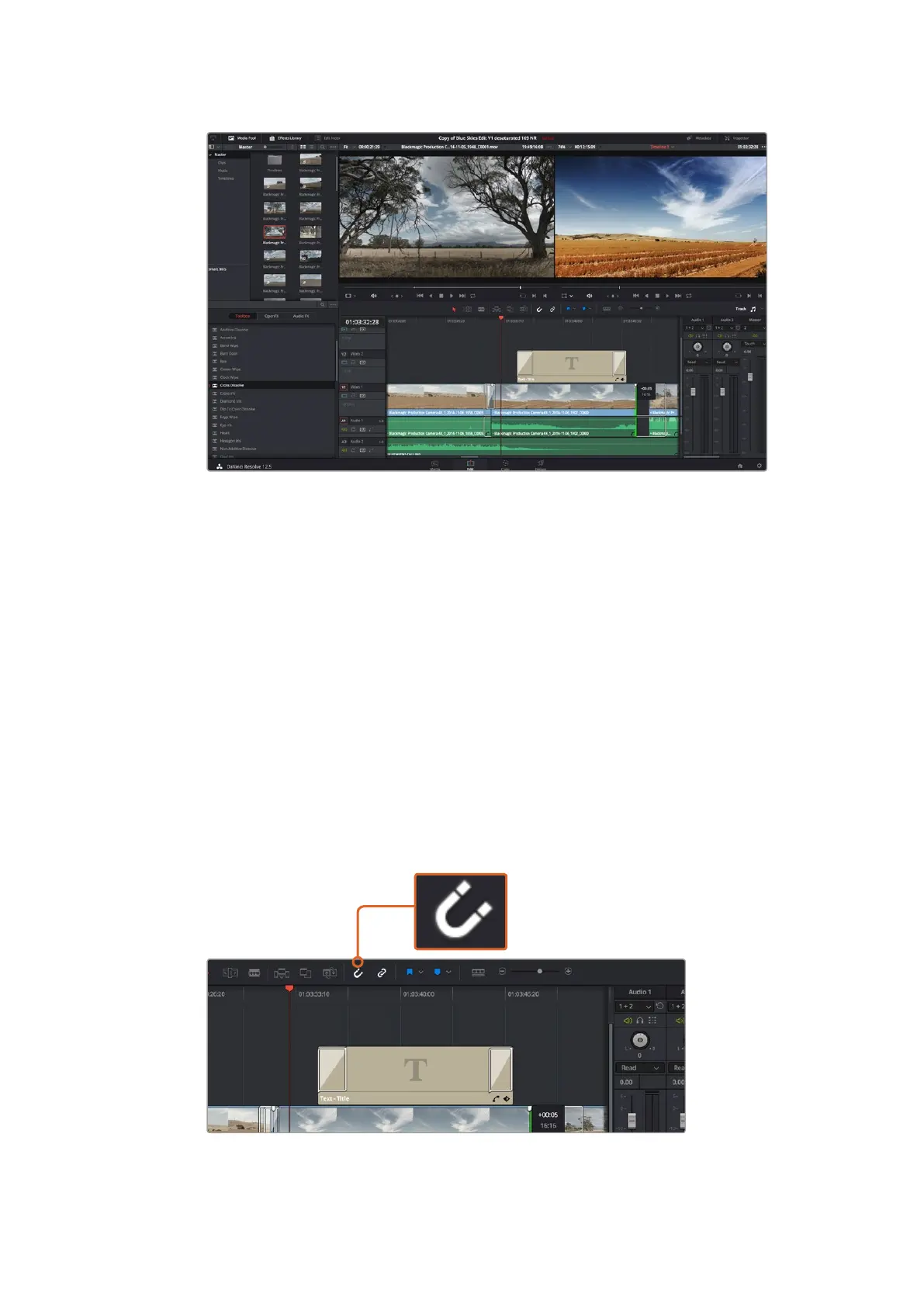
The ‘edit’ page. You can trim your clips, change their order, move them
around and add transitions between them using the timeline editor.
Mapping Keyboard Shortcuts
If you are familiar with keyboard shortcuts using other editing software, you can easily map your
own in DaVinci Resolve to increase speed and optimise your workflow.
To map your own keyboard shortcuts:
1 Click on the project setting ‘gear’ icon at the bottom right of your DaVinci workspace,
then select ‘keyboard mapping’ from the settings list.
2 Select the shortcut you want to change from the categories provided, for example
timeline cut and paste shortcuts will be in the ‘edit’ category.
3 Click on the shortcut once to highlight the setting. Double click on the shortcut to
enable the change.
4 Press your new shortcut keys on the keyboard. If you make a mistake you can easily
undo the change by clicking the ‘undo’ icon next to the setting.
5 Click ‘save’ to confirm your new shortcut setting.
Trim your clips by dragging their start and end points left or right.
The‘snapping’ feature can be turned off when making fine adjustments.
56Using DaVinci Resolve












 To Next Page