1 Connect the CFast card to your computer using a CFast 2.0 reader/writer or
CFast drive.
2 Open the ‘start’ menu or ‘start’ screen and choose ‘computer’.
Right-click on your CFast card.
3 From the contextual menu, choose ‘format’.
4 Set the file system to “exFAT” and the allocation unit size to 128 kilobytes.
5 Type a volume label, select ‘quick format’ and click ‘start’.
6 Your CFast card will quickly be formatted and made ready for use.
Recording
Recording Clips
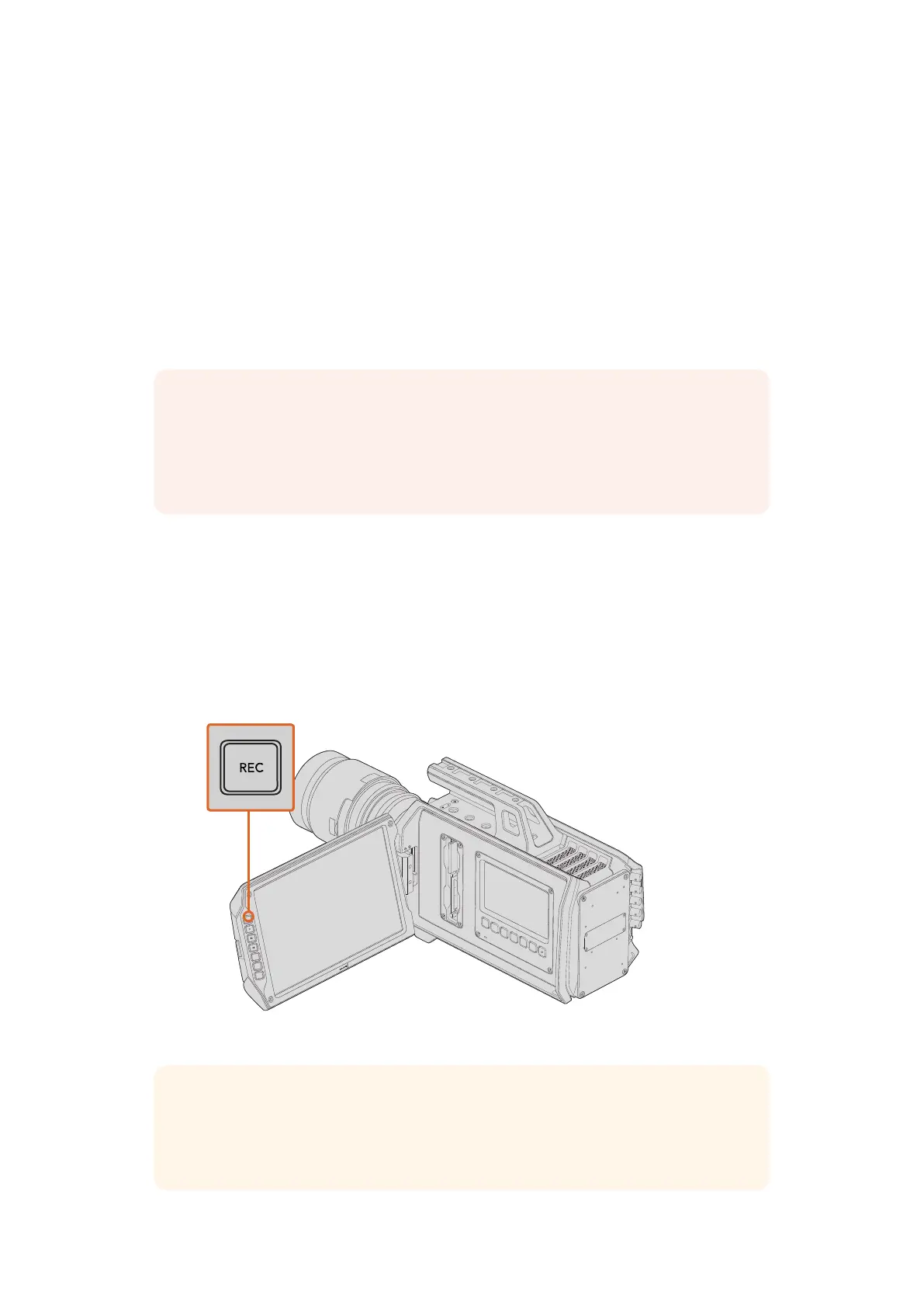
Press the ‘record’ button marked REC on Blackmagic URSA’s monitor controls. A ‘record’ button is
also on the outside of the fold out monitor. This is helpful when using Blackmagic URSA Viewfinder
with the fold out monitor closed, for example shooting with the camera on your shoulder.
To record a clip, press the ‘record’ button marked REC on the fold out monitor.
NOTE If your CFast card is dropping frames during recording, check the card is on our
list of recommended media for the codec and frame size you are using. For lower data
rates try lowering your frame rate, frame size, or try a compressed codec such as
ProRes. Check the Blackmagic Design website for the latest information at
www.blackmagicdesign.com
IRIS
FOCUS
PEAK
DISP
MENU
SLATE
REC
ZOOM
DISP
PGM
TIP Blackmagic URSA has a LANC input so you can easily attach an external LANC
controller and trigger the record externally. Forexample, you may want to attach a
LANC controller to your tripod so you can trigger the recording without taking your
hands off the focus ring and tripod handle.
1313Recording












 To Next Page