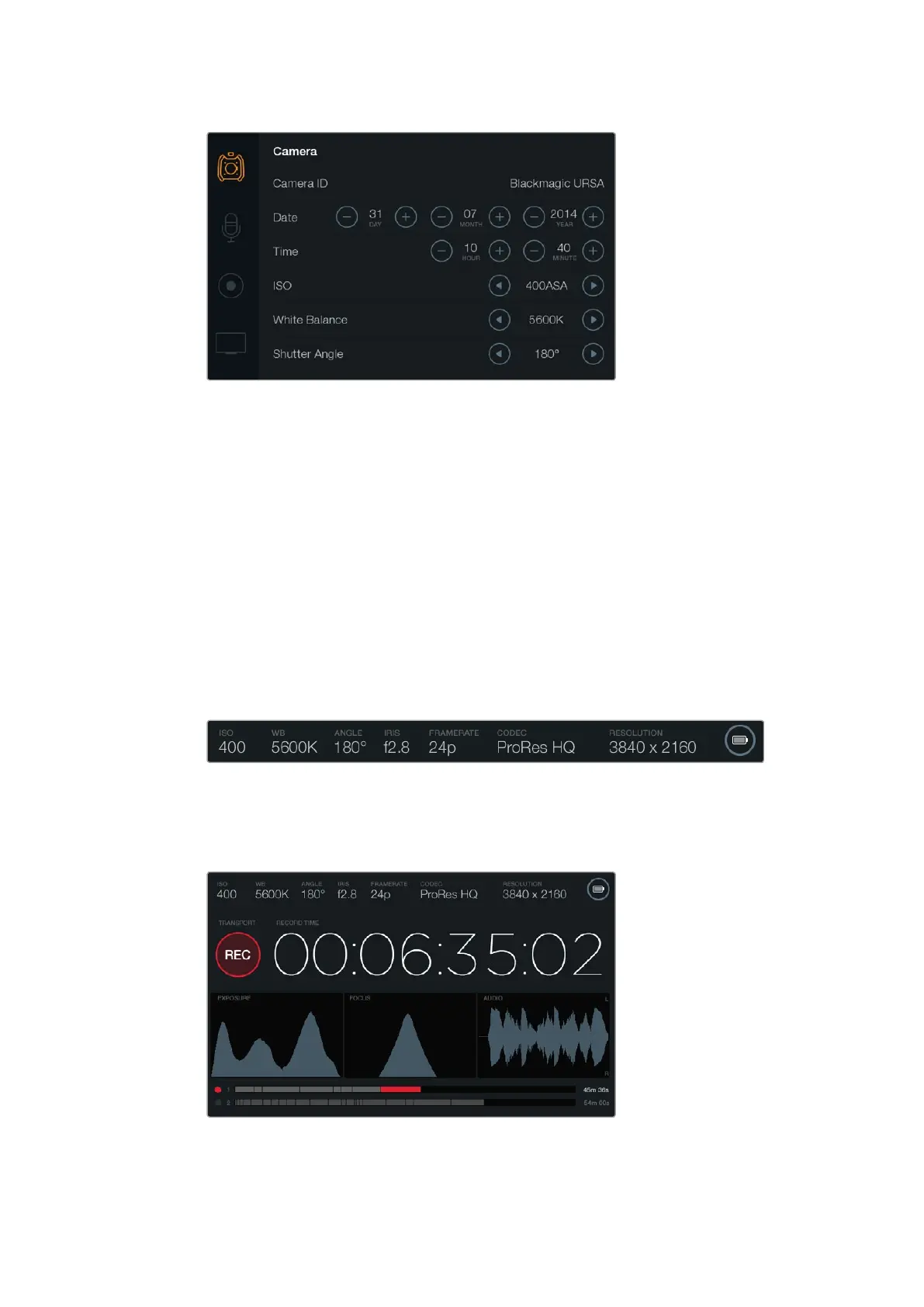
By pressing the display button marked DISP on your camera's control panel, you can switch
between viewing your clips during recording and playback, you can open the dashboard where
you can access camera features and apply settings, or you can view scopes and status
information. Scopes are provided to assist with focusing, setting exposure and audio monitoring.
Settings can be accessed using the touchscreen menus. Press the ‘menu’ button to open the
touchscreen settings. Navigate the settings bytapping the icons on the left side of the screen.
Scroll downthrough the menu to reveal any additional settings. You can also access camera
settings by pressing the ‘disp’ button below a touchscreen until the dashboard appears, then
tapping the settings icon.
Touchscreen Features
Status Strip
Your chosen settings are always displayed on a status strip at the top of each touchscreen,
showing a convenient summary of your camera’s settings.
Power Indicator
The power indicator displays a battery icon when using battery power, or an external power
icon when plugged into external power via the 12-20 Volt XLR input.
The touchscreens provide scopes to help set optimum exposure, focus
and audio quality. The battery indicatorchanges to the external power
icon when external power is plugged into the 12-20V XLR input.
2626Blackmagic URSA Overviewand Connectors












 To Next Page