CAPINTEC, INC. CAPTUS
®
4000e
November 16 WIPE TESTS 8-5
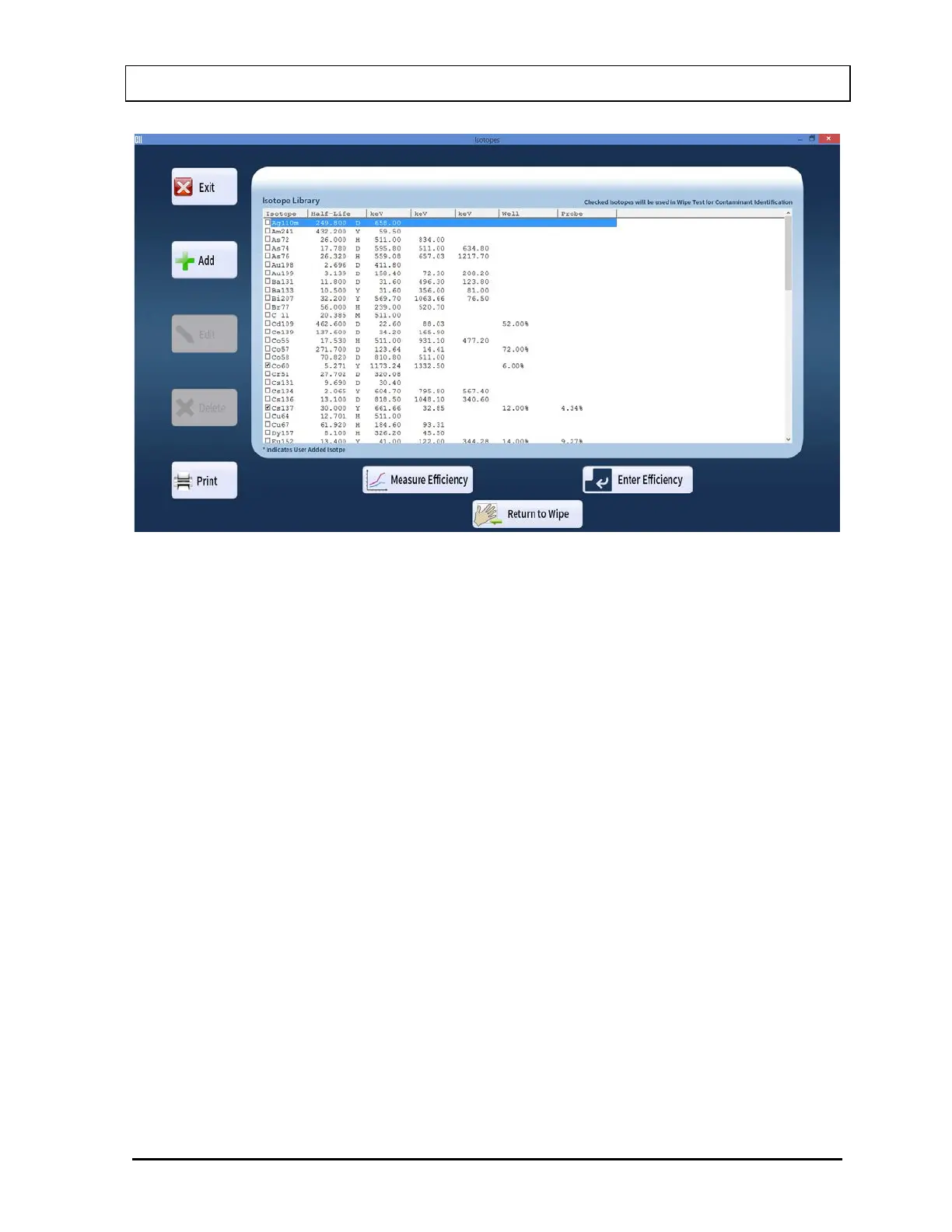
Figure 8-4 Isotope Library Screen
2. To select the isotopes to be detected in the Wipe Test, click in the check box to the left of
the isotope name in the Isotope Library box on Figure 8-4 as shown. A check should
appear in the check box to indicate the isotope has been selected. The isotope can also
be selected by first highlighting the desired isotope by clicking and then double-clicking
anywhere in the grid to place a check in the box. To deselect an isotope, click in its check
box again or double-click anywhere in the grid while the desired isotope is highlighted
and the check will be removed from the check box. Select all the isotopes you would like
to be identified by the Wipe Test.
Note: The status of a check box can be toggled by quickly double-clicking the desired
item.
Note: If all the isotopes are selected for identification, the automatic peak finding
program will report any isotope whose peak keV is within
±
5% of the energy listed
in the Isotope Library. Since at least 76 isotopes are stored in memory, selecting
all isotopes does not provide a useful interpretation of the Wipe Test results.
The recommended procedure for Wipe Test identification is to select only those
isotopes that may be found in your facility.
For more details about the Isotope module functions, refer CHAPTER 6:
ISOTOPES.
3. Select the Return to Wipe button or press Alt+R to return to Figure 8-2 Wipe Test Main
Screen.



 To Next Page