CAPINTEC, INC. CAPTUS
®
4000e
11-16 BIOASSAY August 15
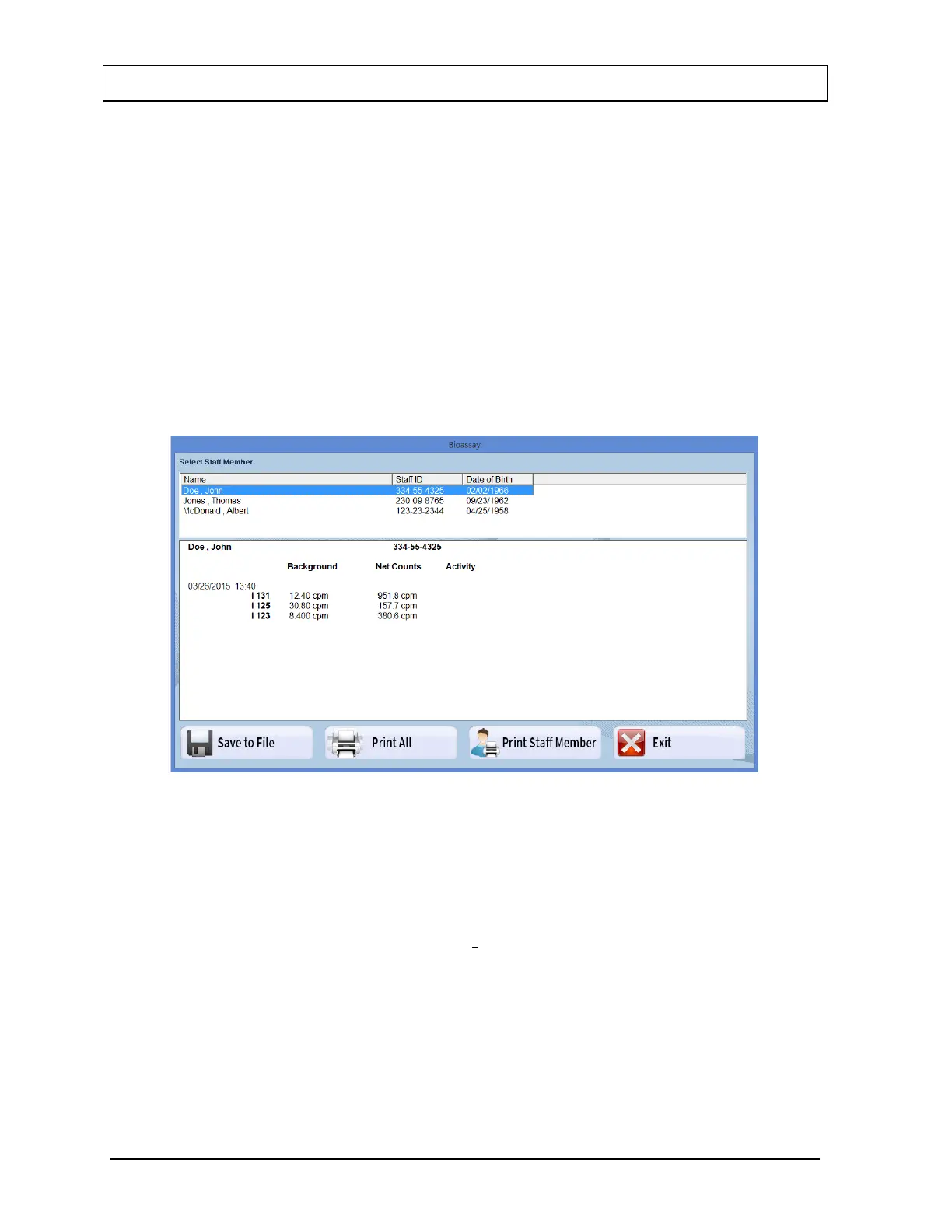
3. The top section displays the Staff Directory box with the previously selected Staff
Member highlighted and the Staff Member’s report in the lower section. To view another
Staff Member’s report, click on that Staff Member in the upper section.
The lower section of the screen contains
• the Staff Member’s name,
• staff ID,
• count data,
• calculated activity (if efficiency was entered in the setup),
• the date of test for each Bioassay test done.
If a measured activity is out of Investigational Level specified limit, it will be flagged. To
view the complete report, scroll down the report screen.
Figure 11-24
4. To save the report displayed on the screen, select the Save to File button or press Alt+S.
The Save As box appears as shown in Figure 11-25. Reports are saved as a rich text
format file (.rtf file) in the C:\Captus4000e\Reports\ directory by default. They can be
opened in WordPad or MS Word.
Note: It is recommended that the Save as type: is not changed from RTF Files (*.rtf)



 To Next Page