Configuring ACS in Wizard Mode
100
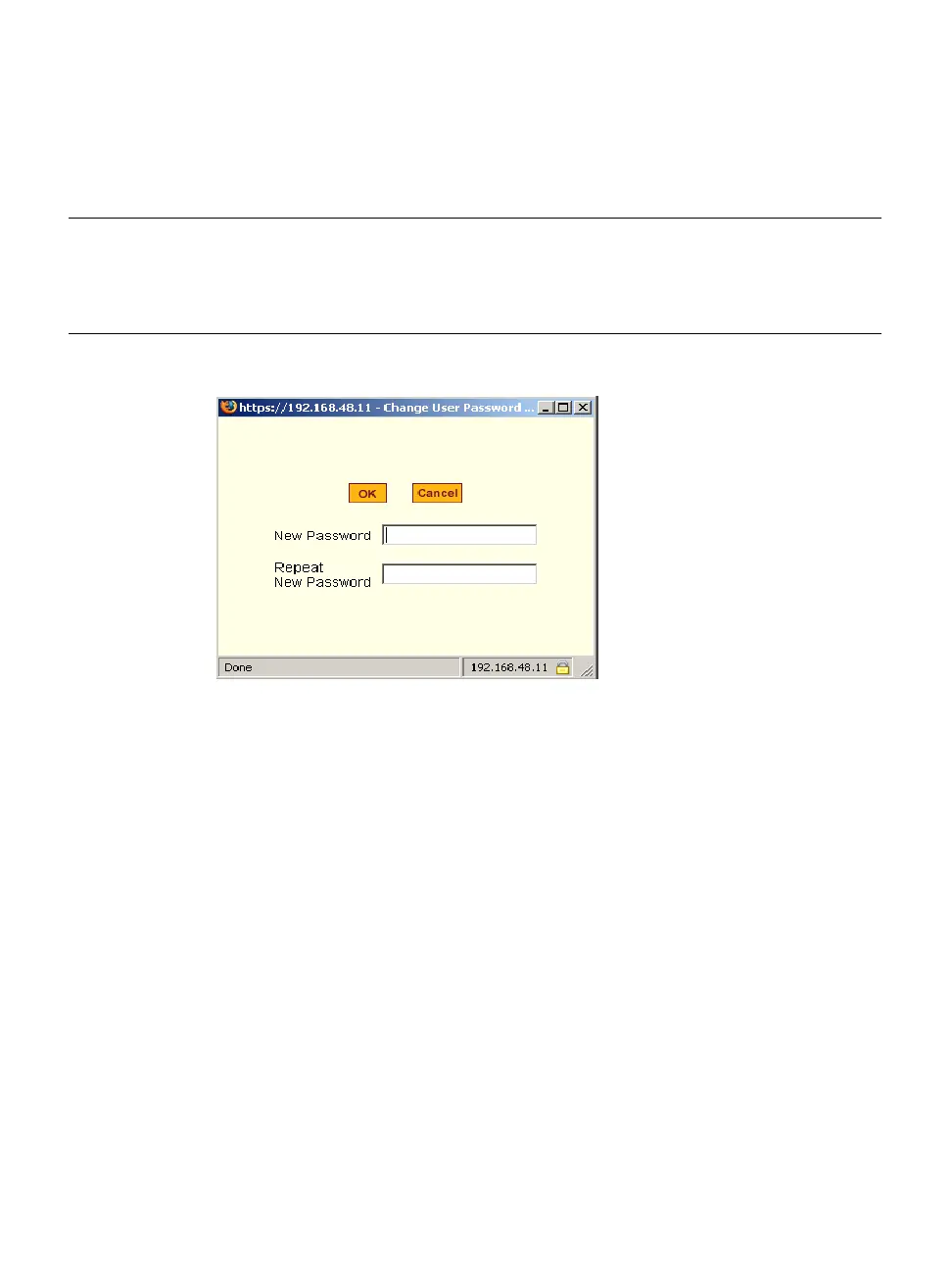
If you click the “Change Password” button, the following dialog box appears.
Figure 5-11:Wizard > Step 4: Change Password Dialog Box
T To Add a User
1. Select “Step 3: Access”
The Access form displays.
1. Click Add.
The “Add User” dialog box appears.
2. Enter the user name and password in the “User Name” and “Password”
fields, and enter the password again in the “Repeat Password” field.
3. Select from the “Group” menu options.
a. To create a regular user account without administrator privileges,
select “Regular User” [Default] from the “Group” pull-down menu.
Shell
Optional. The default shell when the user makes an SSH or a Telnet
connection. Choices are: sh [Default] or bash.
Comments
Optional notes about the user’s role or configuration.
Table 5-5: Wizard > Add User Dialog: Field Names and Definitions
Field Name Definition


 To Next Page