Matrix ETERNITY NE System Manual 311
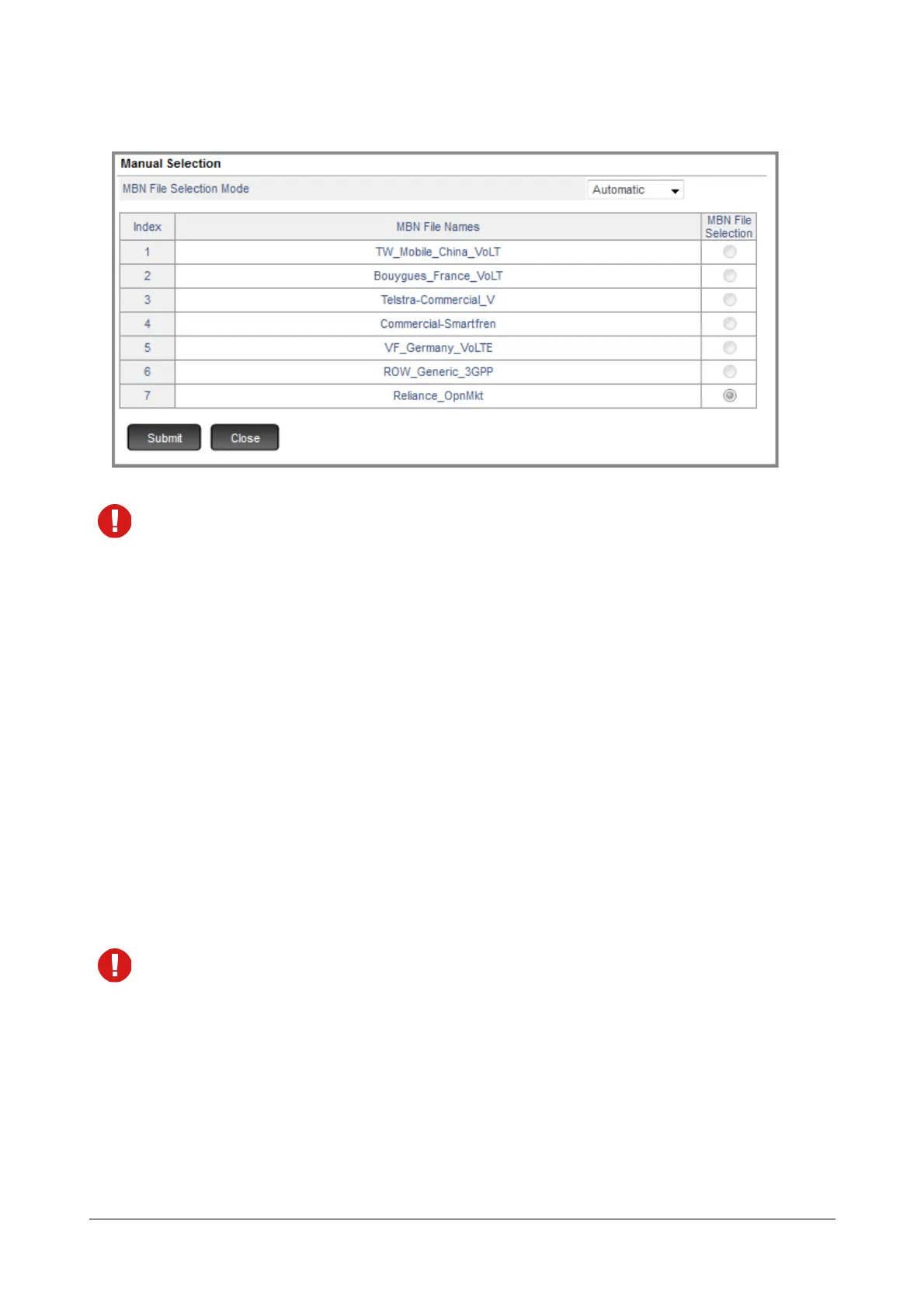
A window pops up which displays the Manual Selection Table.
The list of MBN Files will be visible only when 4G SIM is inserted.
•In MBN File Selection Mode, select the desired option - Automatic or Manual. By default, it is
Automatic. The MBN files of different service providers are pre-loaded inside the module and the
same are displayed in the table.
• When you select Automatic mode, the system automatically selects the MBN file of the mobile
service provider depending upon the SIM card inserted into the slot.
The table is un-editable and displays the selected MBN file.
• When you select Manual mode, then make sure you select the MBN file from the list of available
MBN files.
The table displays all the MBN files supported by the module. Click on the corresponding radio
button to select the desired MBN file.
You can also upload MBN file of a newly emerged VoLTE supporting service provider in the market.
To do so, refer “MBN File Upload”. After the file is uploaded it appears in the list.
• Click Submit to save your settings.
MBN File Selection Mode and Manual Selection table will be disabled when the 4G SIM is registered with
2G/3G network.
• The module stores varies MBN files. MBN File Used displays the name of the MBN file being used by
the particular Mobile Port.
MBN File Upload
To upload a new MBN file,
• Click MBN File Upload button. A new window pops up.


 To Next Page