312 Matrix ETERNITY NE System Manual
•In Select MBN File, click Browse button to reach the location where the MBN file is stored.
Make sure the file to be uploaded is in .mbn format.
• Click Upload.
The maximum number of MBN files that can be manually uploaded is 20.
While uploading the MBN, make sure:
• you do not remove or insert any SIM.
• the Mobile Port is in Idle state or no SIM is inserted.
• you check all the ports for the updated MBN files.
On successful upload a message is displayed.
To view uploaded file in the list of MBN files,
•In MBN File Selection Mode, click .
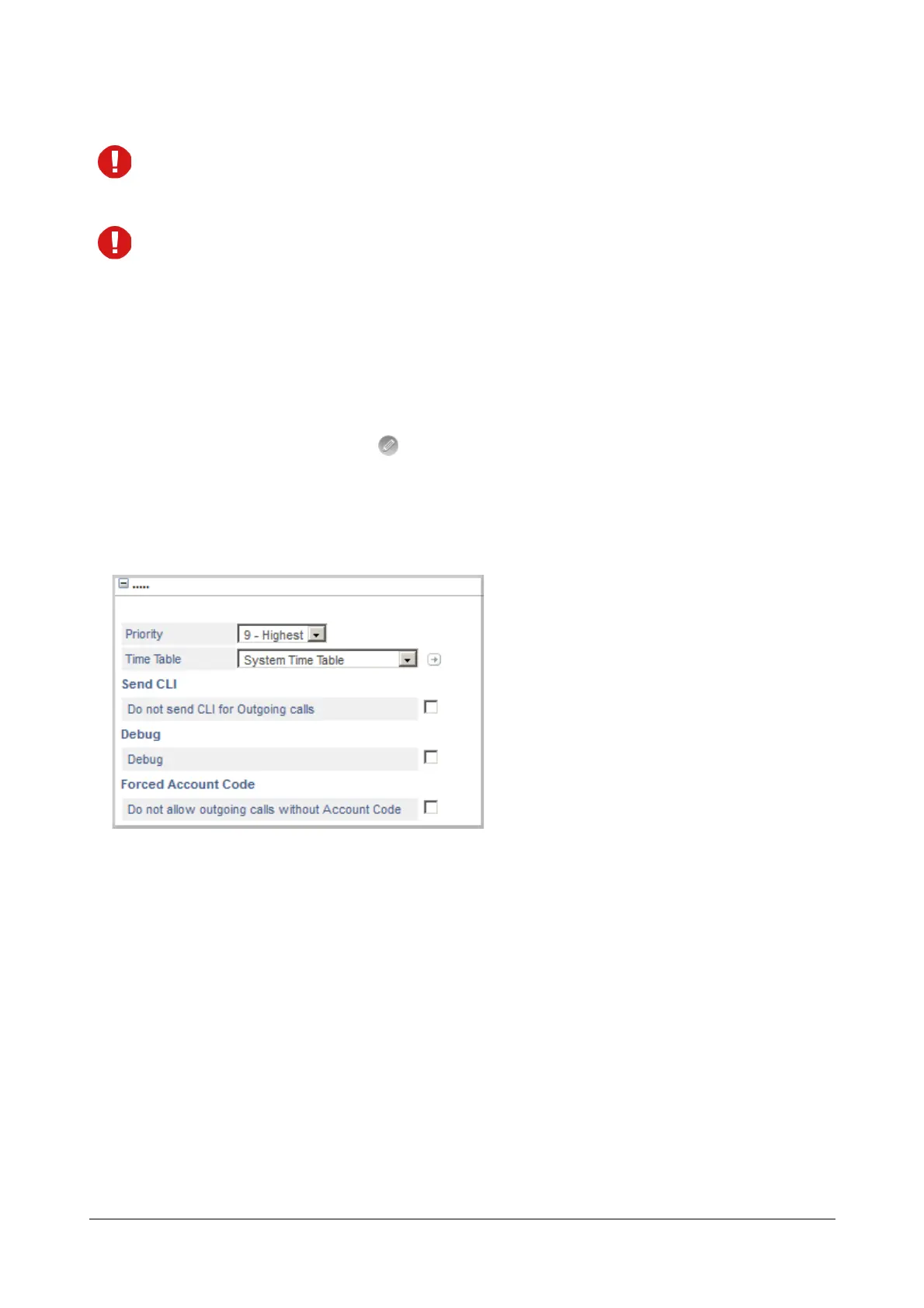
More Features
• Click More... link to expand.
Priority
Each trunk of the SARVAM UCS can be assigned a Priority Level starting from 1, 2, 3... to 9, with '1' being
lowest Priority and '9' being highest Priority. Whenever there are incoming calls on multiple trunks, the call
on the trunk with higher priority will be answered by the Operator extension first. To know more, see
“Priority”.
• Select a Priority level from 1 to 9 for the trunk. Default: 9-Highest.
Time Table
• Select a Time Table for the Mobile trunk. Default: System Time Table.
If you have not configured Time Table, you may do so now,
• Clicking the Settings icon.
• The Time Table page opens.


 To Next Page
 Loading...

