Matrix ETERNITY NE System Manual 521
•In Email Reply Text, enter the message you want to send in the Email. The message can a maximum of
100 characters. Default text: Your Message is delivered to Receiver.
• Select the Send an Email if SMS is not delivered to phone check box, if you want a confirmation email
to be sent when the delivery report is not received by the Server from the network. Default: Disabled.
• If you have enabled Send an Email if SMS is not delivered to phone, in Send delivery report status to,
select the recipient to whom the delivery status report must be sent. You can select Sender, System
Administrator or Both. Default: Sender.
If you select System Administrator, the email will be sent to the email IDs configured in “System
Administrator Email ID”.
•In Email Reply Text, enter the message you want to send in the Email. The message can a maximum of
100 characters. Default text: Your Message is not delivered to Receiver.
• Enable the Send Footer/Signature in SMS check box and select the desired option to be sent:
• Specific Text: Enter the text/message to be sent to the recipient as signature in the SMS.
• Send Email ID of Sender: Enter the Email ID of the Sender to be sent to the recipient as signature in
the SMS.
• Send Name of Sender: Enter the Name of the Sender to be sent to the recipient as signature in the
SMS.
It is recommended that you configure the parameter Send Footer/Signature in SMS, so that the recipient
knows the sender of the message. If this parameter is not configured, only the mobile port SIM number will
be displayed to the recipient.
• Click Submit.
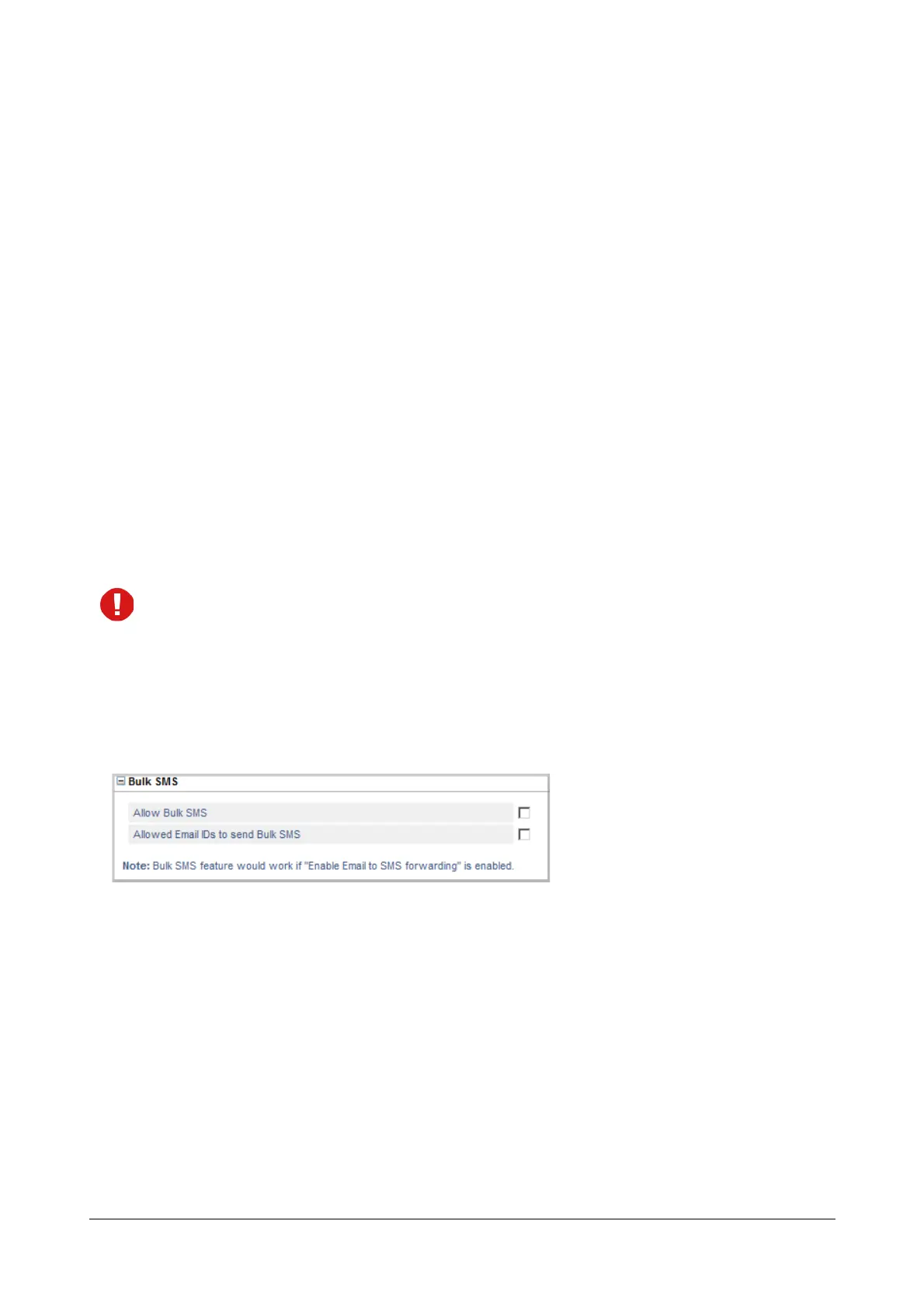
Bulk SMS
• Click Bulk SMS to expand.
Configure the following parameters:
• By default Bulk SMS is disabled. If you want the SMS Server to send Bulk SMS, select the check box.
• Select the Allowed Email IDs to send Bulk SMS check box and configure the Allowed Email IDs to
send Bulk SMS list. Only these users will be able to send Bulk SMS. To configure the Email IDs,
• Click on Allowed Email IDs to send Bulk SMS and the Allowed Email IDs List for sending Bulk
SMS table opens. You can configure up to 64 Email IDs.
• Enter the Email IDs of the users who can send Bulk SMS.
• You can also configure this list by clicking the Allowed Email IDs List for sending Bulk SMS link
under SMS Server
Default: Disabled.



 To Next Page