Matrix ETERNITY NE System Manual 783
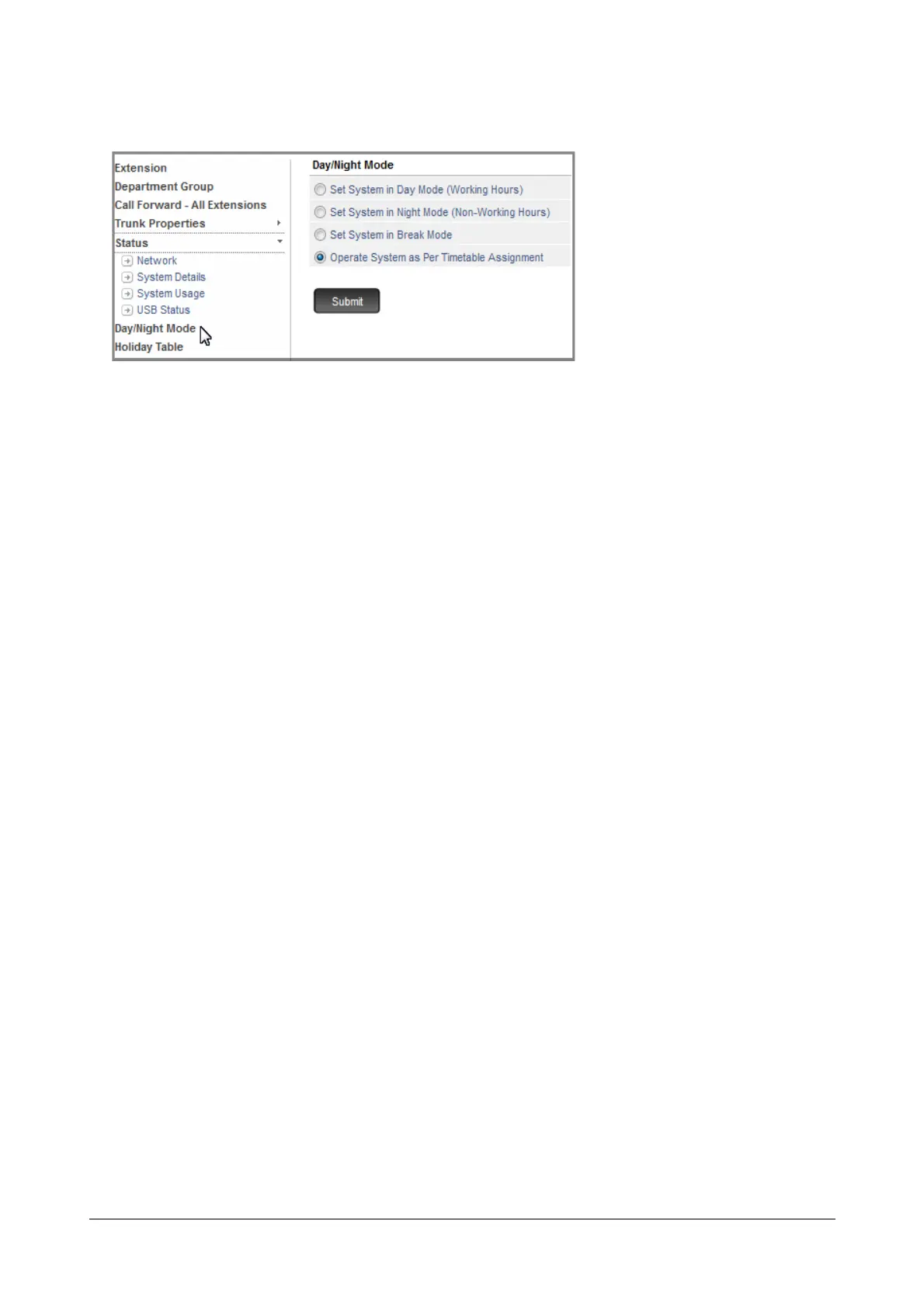
• Click Day/Night Mode.
• Select the desired option:
• Set System in Day Mode (Working Hrs)
• Set System in Night Mode (Non-Working Hrs)
• Set System in Break Mode
• Operate System as per Timetable assignment (default).
• Click Submit.
Setting Day Night Mode from SA mode using a Telephone
• Enter SA Mode from a SLT/Extended IP Phone.
• Dial 1072-018-Code
Where,
Code is from 1 to 4
1 is for Day Mode
2 is for Night Mode
3 is for Break Mode
4 is for Operate system as per Time Table.
• Exit SA Mode.
Setting Day Night Mode using DSS key
SARVAM UCS offers to the extension users the flexibility to manually switch to Day/Night Mode, at any point in
time, by pressing the DSS key.
How to Configure
• Log into Jeeves as System Engineer.
• Assign a DSS Key for Day/Night Mode to the required extension. To know more about assigning a DSS
Key for a specific feature, see Phone Key Settings under “Configuring Matrix SPARSH VP248”,
“Configuring Matrix SPARSH VP310”, “Configuring Matrix SPARSH VP330” and “Configuring Matrix
SPARSH VP510”.
• Select the check box Toggle Day/Night mode through ‘Set Day/Night Mode Key’ to enable the toggle
functionality for the DSS Key. To know more, refer to “Setting Day Night Mode from SE Mode using
Jeeves”.



 To Next Page