260
4 Adjusting knitting machine
Working with files
Call up "Go to" selection
window
You can jump to the corresponding point in the loaded file by entering line
numbers or names and selecting the keys.
Go to key
"Go to" key
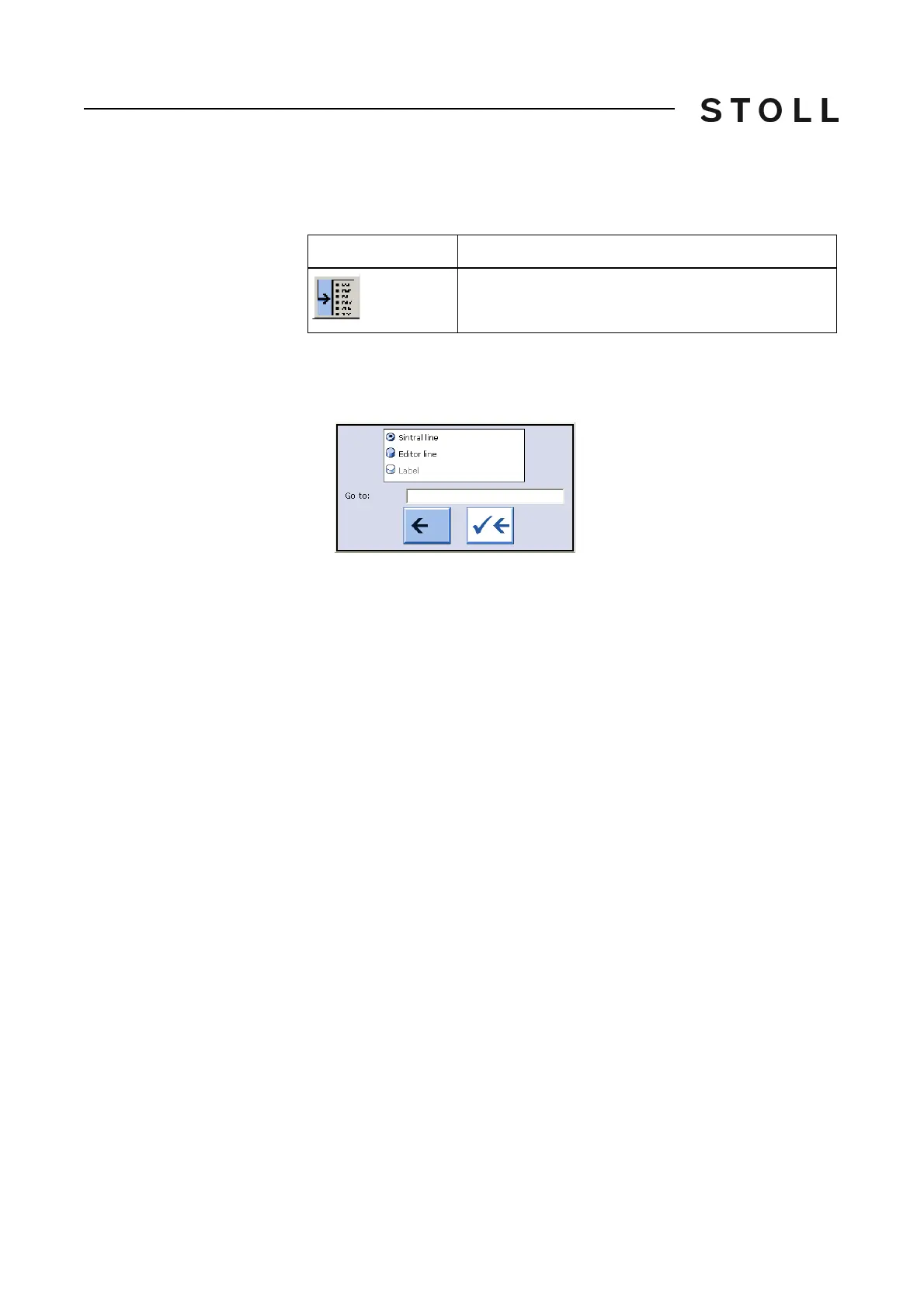
1. Call up the "Go to" selection window with the "Go to" key.
The "Go to" window appears.
Selection window for Go to function key
Selection window for "Go to" function key
2. Enter the line number or name to be searched for with the virtual keyboard.
3. To go to Sintral line numbers, tap the "Sintral line" k
ey,
- or -
➜ To execute a real line jump, tap the "Edito
r line" key,
- or -
➜ To jump to the
named line, tap the "Label" key.
4. To activate the search, tap the right
arrow key,
- or -
➜ To exit the window, tap the left ar
row key.
Key
Function
"Go to" a certain position



 To Next Page