535
Machine Management Tools 11
Display the virtual keyboard
Display the virtual keyboard
11.2 Display the virtual keyboard
For inputs that are not integrated in the user interface, an external keyboard
or a virtual keyboard is required.
Display the virtual keyboard
Keys for c alling u p Send emai l window
Keys for calling up "Send email" window
1. Call up the "Service" window.
2. Call up "Diagnosis" window.
3. Call up "Machine Management Tools" window.
4. Tap on the "Virtual keyboard" switch.
Th
e virtual keyboard is open.
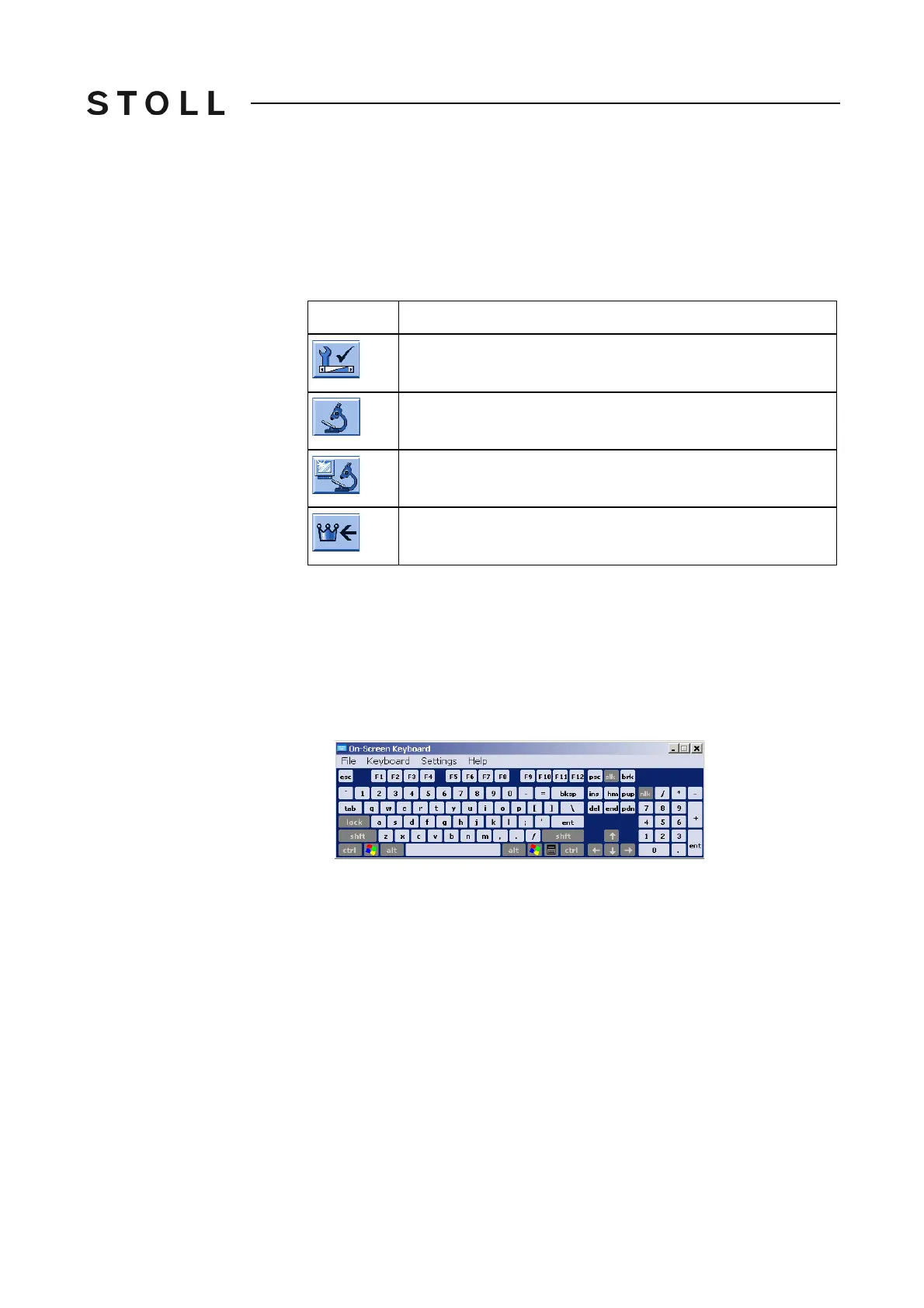
Virtual keyboard
Virtual keyboard
With the virtual keyboard you can make inputs as if an external keyboard has
been connected.
You can find information for usage of the virtual keyboard in the"Help" menu.
Tip
s for working with the virtual keyboard:
A locked key
(e. g. alt) must be activated finally again to achieve a double
key function.
Various key layouts can be selected ("Keyboard" menu).
Key
Function
Call up the "Service" window
Call up "Diagnostics" window
Call up "Machine Management Tools" window
Call up "Main menu"



 To Next Page