171
Adjusting knitting machine 4
Basic settings
Configurat ion symbol bar
4.1.17 Configuration symbol bar
The configurable toolbar allows you to jump directly to the individual windows
without having to take the "Detour" through the main menu or using the
"Additional functions" key. The toolbar is the headline or title bar of a window.
You can include the symbols of those windows which you use most often in
the toolbar.
The symbols can be called up in any window. To do so, tap the sym
bol
on the
top left of the title bar and the symbols are displayed. (Exception: Tap on "Go
to mask" key in SINTRAL editor). To close the symbols again, tap the empty
field next to them.
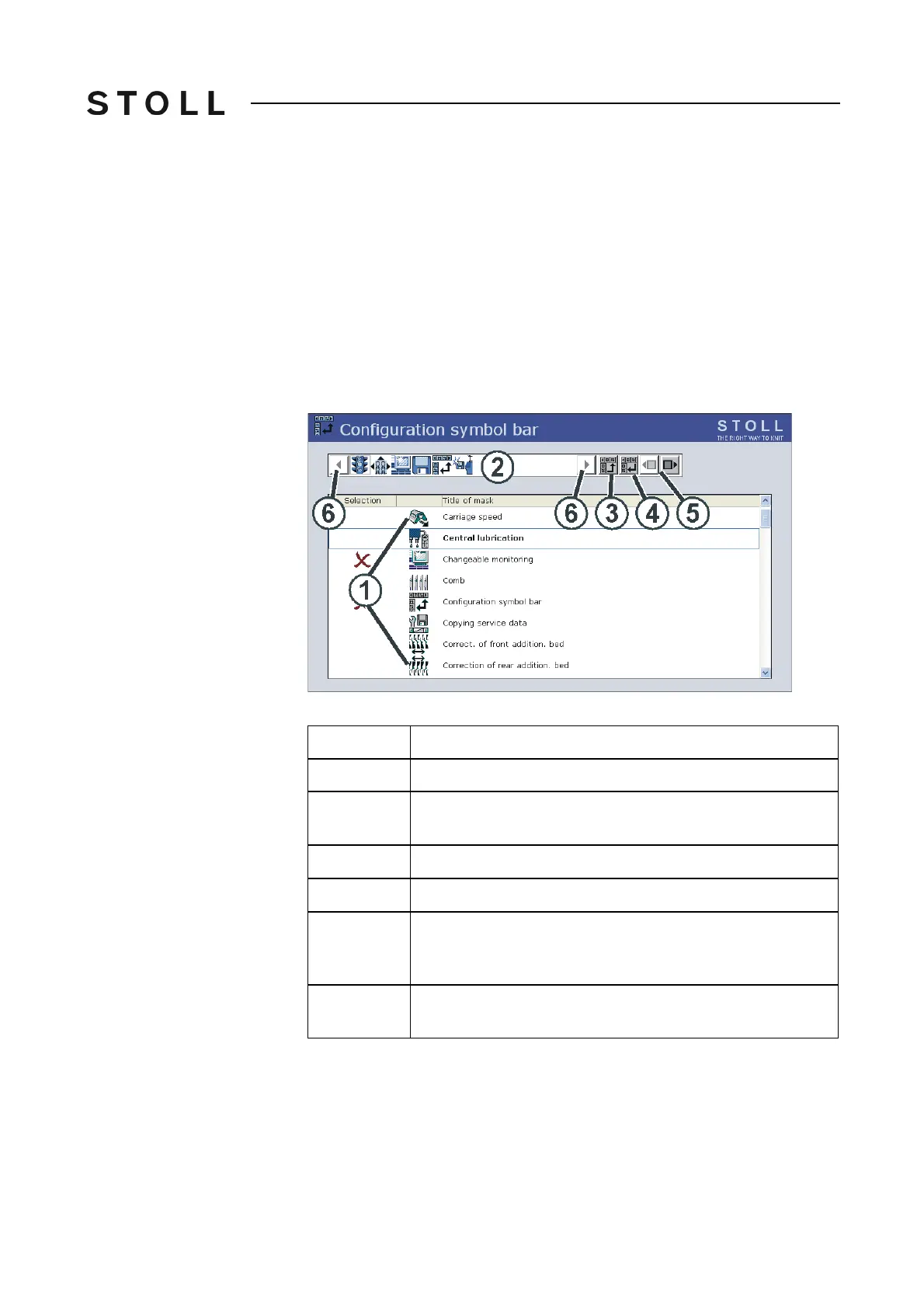
Configuration toolbar Window
"Configuration toolbar" Window
Field/Key
Function
1
List of the windows which can be selected for the toolbar.
2
The toolbar contains the symbols of the selected windows. In
the above figure the carriage speed has been selected.
3
Key used to set a symbol in the toolbar (2).
4
Key used to remove a symbol from the toolbar (2).
5
Change the position of a symbol in the toolbar (2). To do so,
tap the symbol in the toolbar and use the corresponding key
to move it forwards or backwards.
6
If there are more than 11 symbols in the toolbar, the display
can be moved to the left or right with the arrow keys.



 To Next Page