538
11 Machine Management Tools
Remote control with the software VNC
Configurin g the remote control VNC on the machine
11.3.2 Configuring the remote control VNC on the machine
The remote control VNC is activated on the machine.
The "Machine Management Tools" window is displayed.
1. T
ap on the "Remote operation - settings" switch.
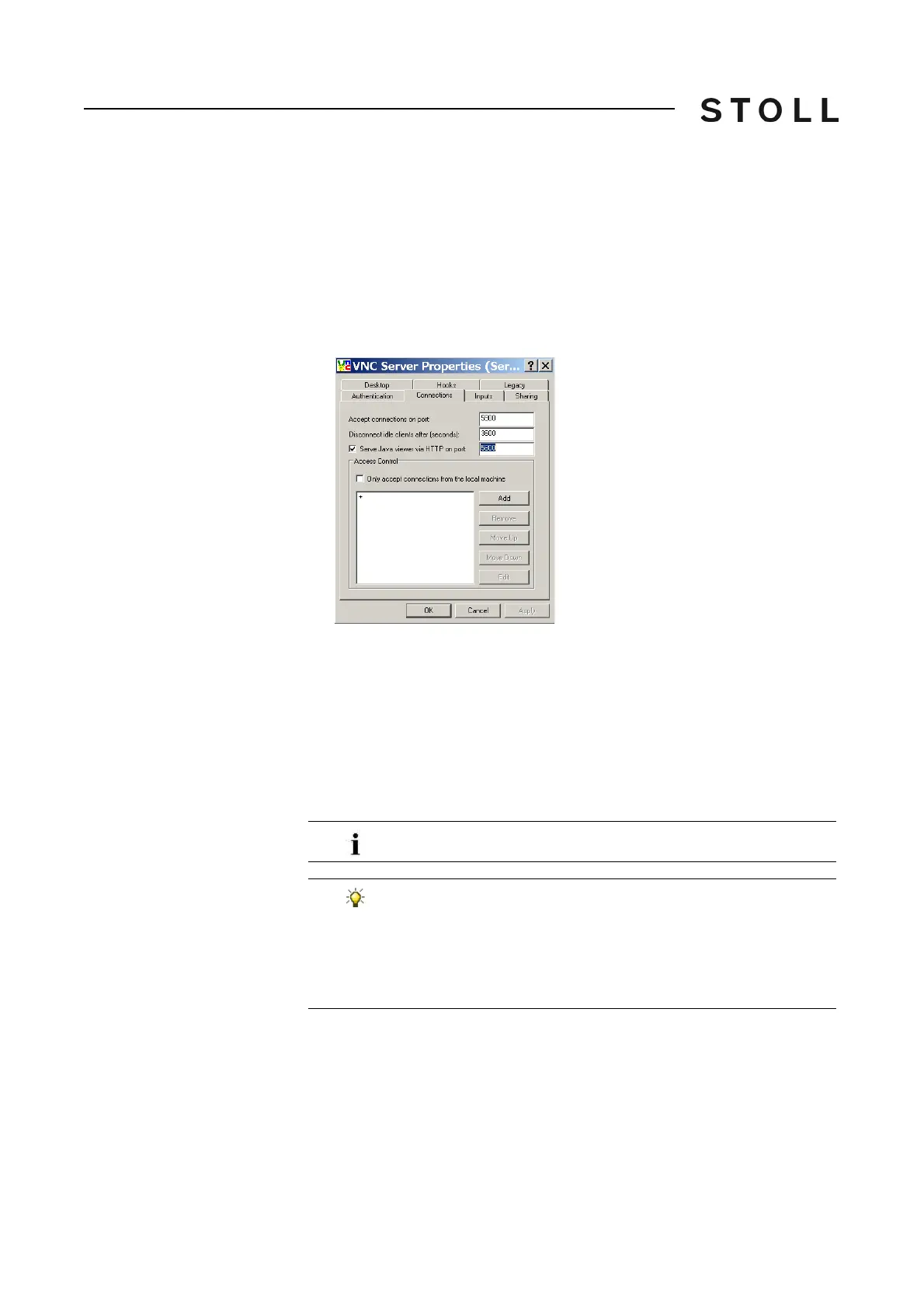
The "VNC Server Properties (service mode)" window opens with
different tabs.
VNC Server Properties (service mode) window with the Connections tab
"VNC Server Properties (service mode)" window with the "Connections" tab
2. Activate "Connections" tab.
Here all the fields are set to their default values.
3. Should another port be activated as the standard port5900 th
e number of
the port is to be entered in the "Accept connections on port:" field.
4. If the machine has to be controlled remote also via a web browser, activate
the c
heck box "Serve Java viewer via HTTP on port:" and enter 5800 as
port.
Any other adjustments on the various tabs are not necessary.
The value in the "Disconnect idle clients after (seconds):" field
causes the automatic disconnection of a VNC connection when
the value entered here is exceeded and within the mentioned
time no operation is carried out. Thereafter, the connection can
be established again without any problem. By default one hour
= 3600 seconds is adjusted.



 To Next Page