510
8 Software - Installation and basic settings
Diagnose Control
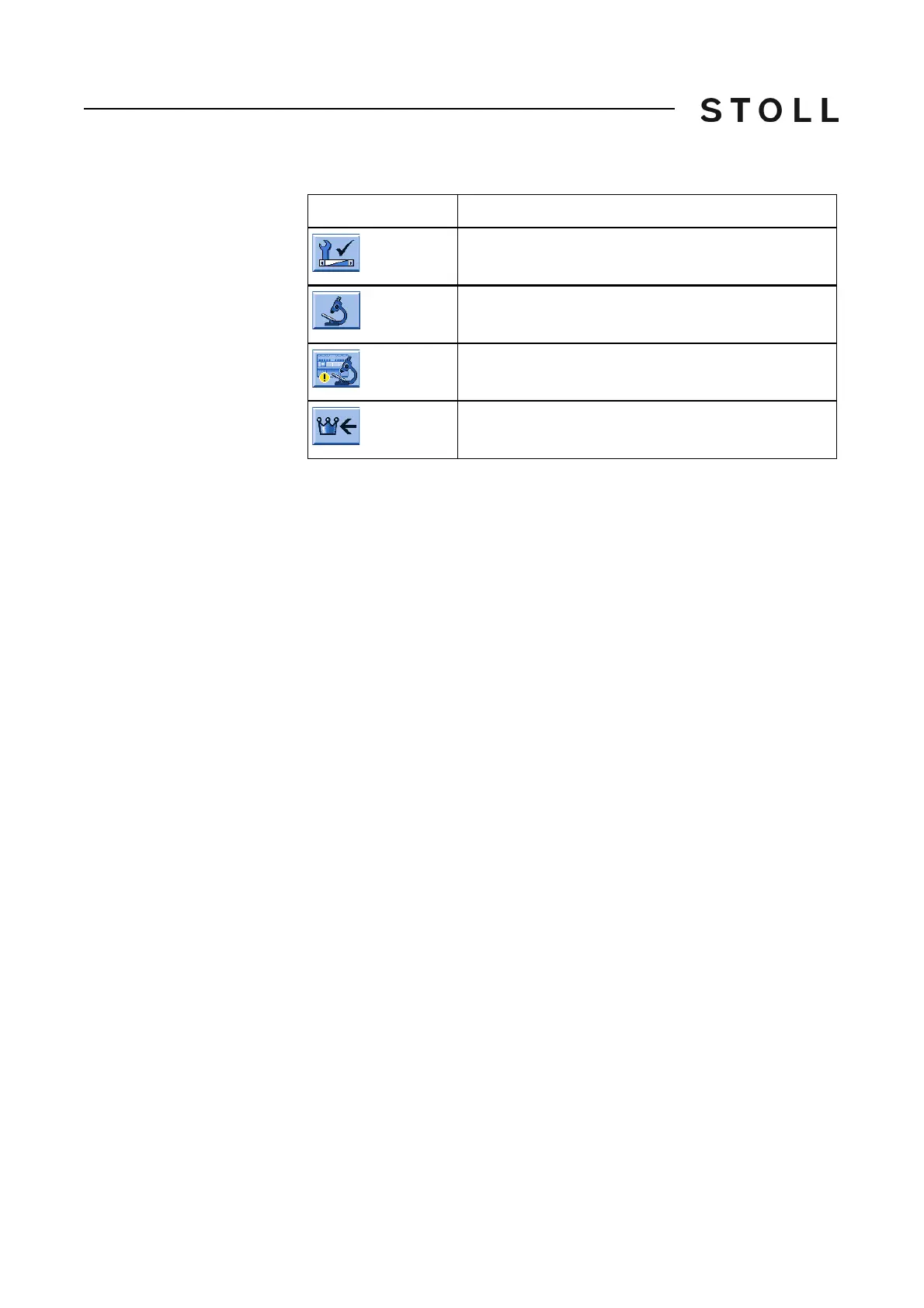
Buttons for calling up the Diagnostic control window
Buttons for calling up the "Diagnostic control" window
Carry out diagnoses:
1. In the "Main menu", tap on the
"Service" key.
The "Service" window is displayed.
2. T
ap on the "Diagnostics" key.
The "Diagnostics" window is displayed.
3. T
ap on the "Diagnostic control" key.
The "Diagnostic control" window is displayed.
4. Tap
the desired button. The diagnose i
s starting, you can see the work
progress in the message window.
5. If other diagnoses are needed, then tap the corresponding button.
6. When all diagnoses are generated
, tap on the
"Copy All Logfiles" key.
The data (Logfiles) are saved on the selected data carrier. It will be s
aved
on the data carrier that is set in the "Copy service data" window.
Further information:
Copying service data [201]
Key
Function
Call up the "Service" window
Call up "Diagnostics" window
Call up "Diagnostic control" window
Call up "Main menu"



 To Next Page