X35 ConsoleField / Job
9.6
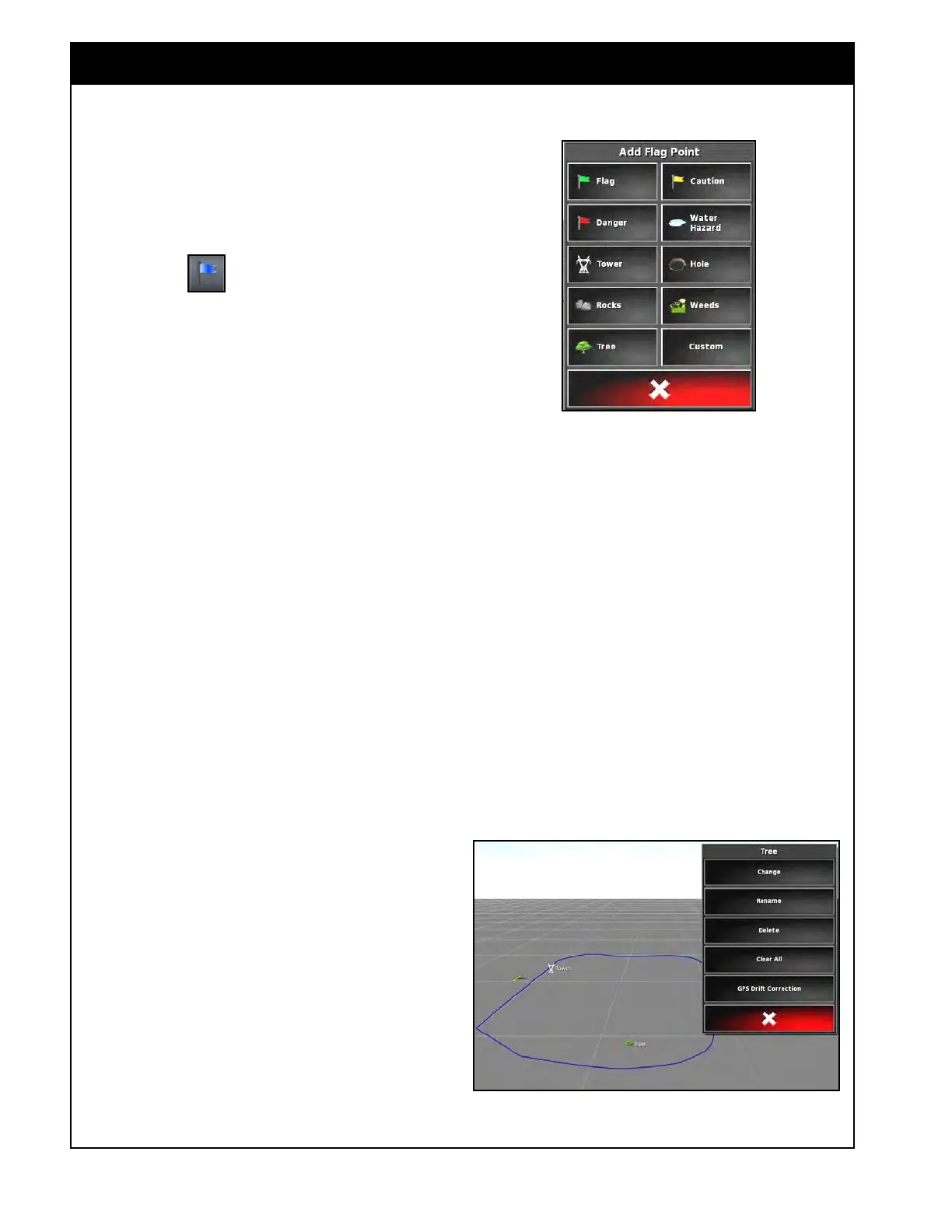
Figure 9.8 - Add Flag Point Menu
9.2.4 Setting Flag Points
Flag points are used on the guidance map to
indicate obstacles and noted items in the field.
1. Drive to item to be flagged.
2. Select the
icon.
3. To flag the obstacle, choose a flag symbol to
be placed at that spot on the map, refer to
Figure 9.8.
a.
To change Flag Point presets, refer to
Section 4.6 - Flag Points.
4.
To customize flag points, choose the Custom
button to define a particular flag point.
a. Select the symbol for the flag point.
b. Enter the name for the flag point.
5. If an exclusion zone is needed around
the obstacle, refer to Section 9.2.5.2 -
Manipulating
Field Boundaries.
6. If an exclusion zone is not needed, repeat steps
1 - 5 for the rest of the obstacles on the field.
9.2.4.1 Removing Or Changing Flag Points
Once created, flag points can be renamed, changed,
or deleted.
1. Pressing and holding for half a second on the
guidance screen will enter selection mode.
a. If you slide your finger over a flag point;
the name will appear for that particular
flag point.
b. You can then slide over other flag point to
display their names.
2. When you release overtop of a flag point it
will bring up an edit window for the flag
point.
3.
Choose an action that you would like to
perform:
a.
Select Change to choose a different flag
point.
b.
Select Rename to change the name
showing
on the flag point.
c. Select Delete to remove the selected flag
point
from the field.
d. Select Clear All to clear all flag points
from the field.
e. Select GPS Drift Correction to move
the vehicle to a flag point location to
compensate for GPS drift. This can be
used when reloading a field if it has
drifted.
Figure 9.9 - Flag Point Edit Menu



 To Next Page