X35 Console Field / Job
9.9
9.2.5.2 Manipulating Field Boundaries
After field boundaries are created they can be
named and categorized as areas to apply product
within or to exclude. They can also be enabled or
disabled from year to year.
1.
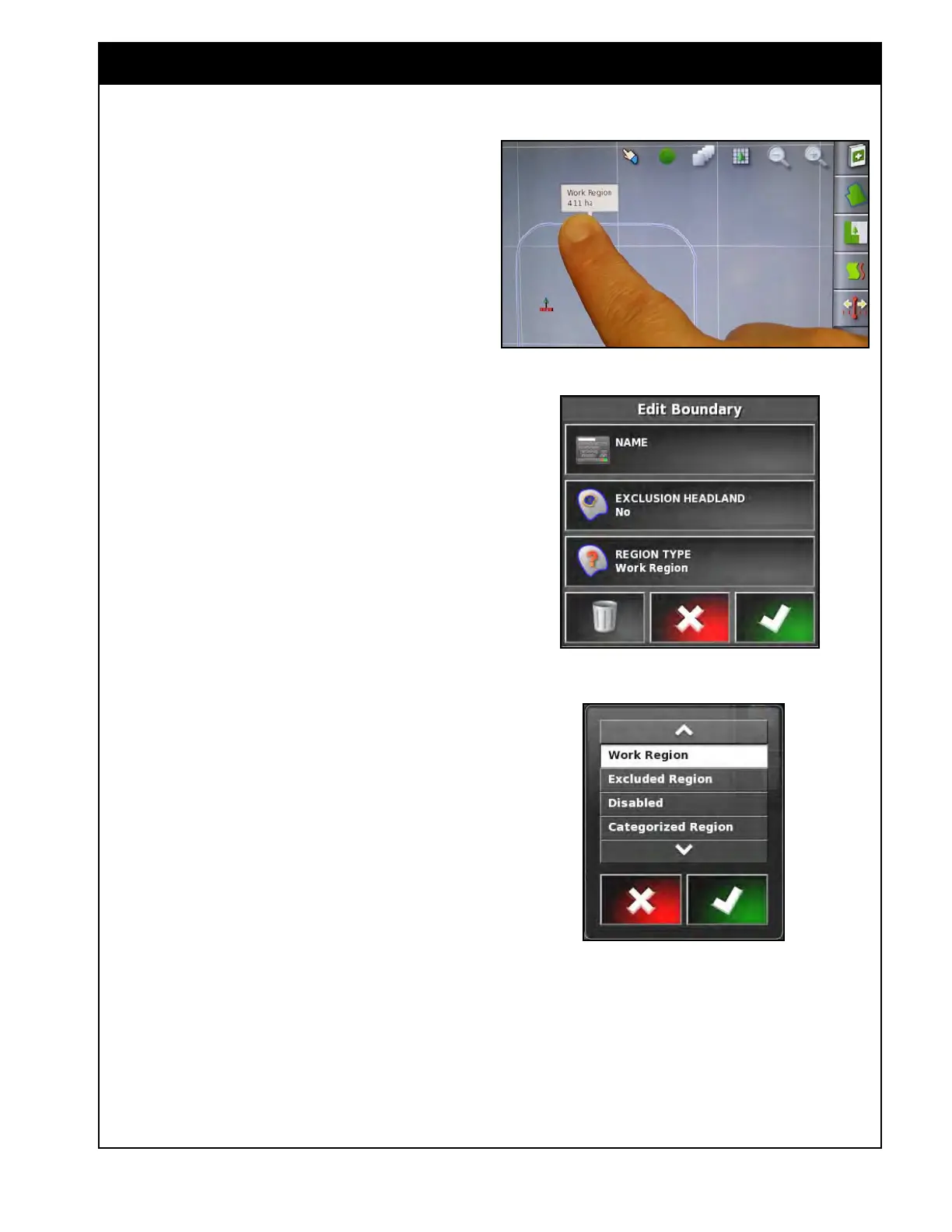
Pressing and holding for half a second on
the guidance screen will enter the selection
mode and if you slide your finger over a
blue boundary line; the info about the name,
category and area will be displayed for that
particular boundary. You can then slide over
other boundaries to see their info, refer to
Figure 9.12.
2. When you release overtop of a boundary it
will bring up an Edit Boundary window. Refer
to Figure 9.13.
3. Select the Name tab to enter a name for that
particular boundary.
4. The Exclusion Headland option can be set to
Yes or No to apply headland control to that
particular boundary, as well when it is set to
an excluded region.
5. By default, the boundaries are set to work
regions, but they can be changed to any of the
following, refer to Figure 9.14:
a. W
ork Region - will allow application of
product inside the boundary.
b. Excluded
Region - will prevent application
of product inside the boundary.
c. Disabled - the boundary will be ignored.
d. Categorized
Region - will allow you to
create a group of regions that can be set to
work regions, excluded regions or ignored
for specific jobs. For instance sloughs
that may be enabled or disabled,from
year to year, depending on the moisture
versus dugouts that are permanent. Refer
to Section 9.3.3 - Configure Job Regions
to setup the categorized regions for a
particular job.
i. The Category tab allows you to
assign the boundary to a category or
create a new one.
Figure 9.12 - Boundaries Information
Figure 9.13 - Edit Boundary Window
Figure 9.14 - Region Type
ii. There is a Category Deletion button
to delete unused category
names, to clean up the list.
6. Any boundary can be deleted by pressing on
the Trash Can icon.



 To Next Page