X35 Console General Operations
8.39
8.11 Virtual Section Switches
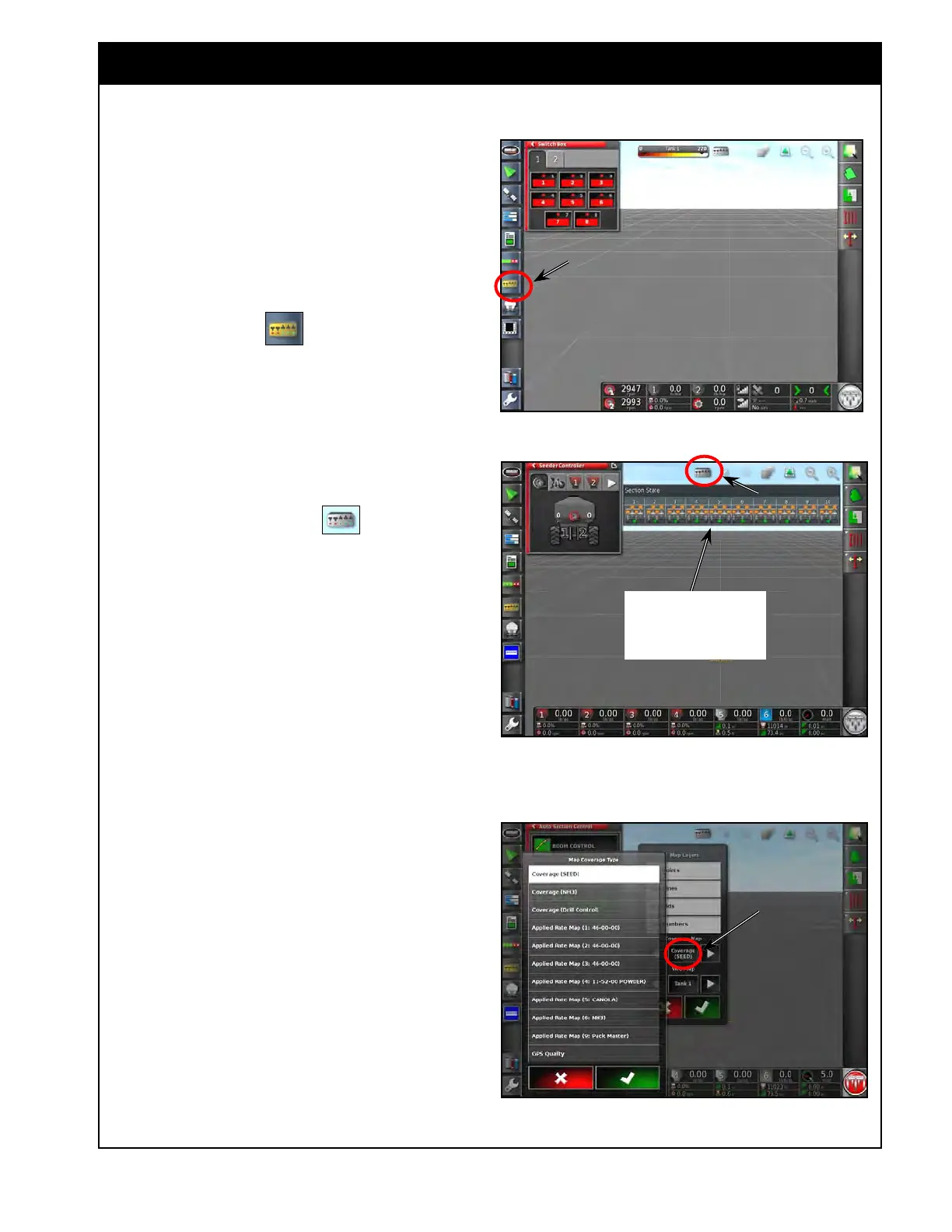
Figure 8.72 - Virtual Section Switches - Mini View
Figure 8.73 - Virtual Section Switches - Guidance
Screen
Figure 8.74 - Map Coverage Type
c. Refer to Figure 8.74.
d. In this example:
i. If the Coverage (SEED) or Applied
Rate Map (1, 2, 3, 4 or 5) is
selected, a multi-sectional boom
panel for Granular will be displayed.
ii. If the Coverage (NH3) or Applied
Rate Map (6:NH3) is selected, the
multi-sectional boom panel for NH3
will be displayed.
This boom can be placed
at the top or bottom of the
screen by dragging it up or
down.
For Virtual Section Switches setup refer to Section
6.6.3 - Sections Switch.
When the virtual section switches are enabled
they can be accessed for each multi-section boom
from the operator's screen in several ways:
1. From the Mini-View menu. Refer to Figure
8.72.
a.
Selecting the
icon, will open up the
Virtual Section Switches mini-view.
b. There are tabs to represent each respective
boom.
2. From the guidance screen. Refer to Figure
8.73.
a.
If displaying the layer for a boom with
sectional control, the
icon will
appear on the top tool bar.
b. If selected it will open up a panel for that
boom (refer to Section 2.5 - Guidance/
Coverage
Map).



 To Next Page