X35 Console Overview
2.9
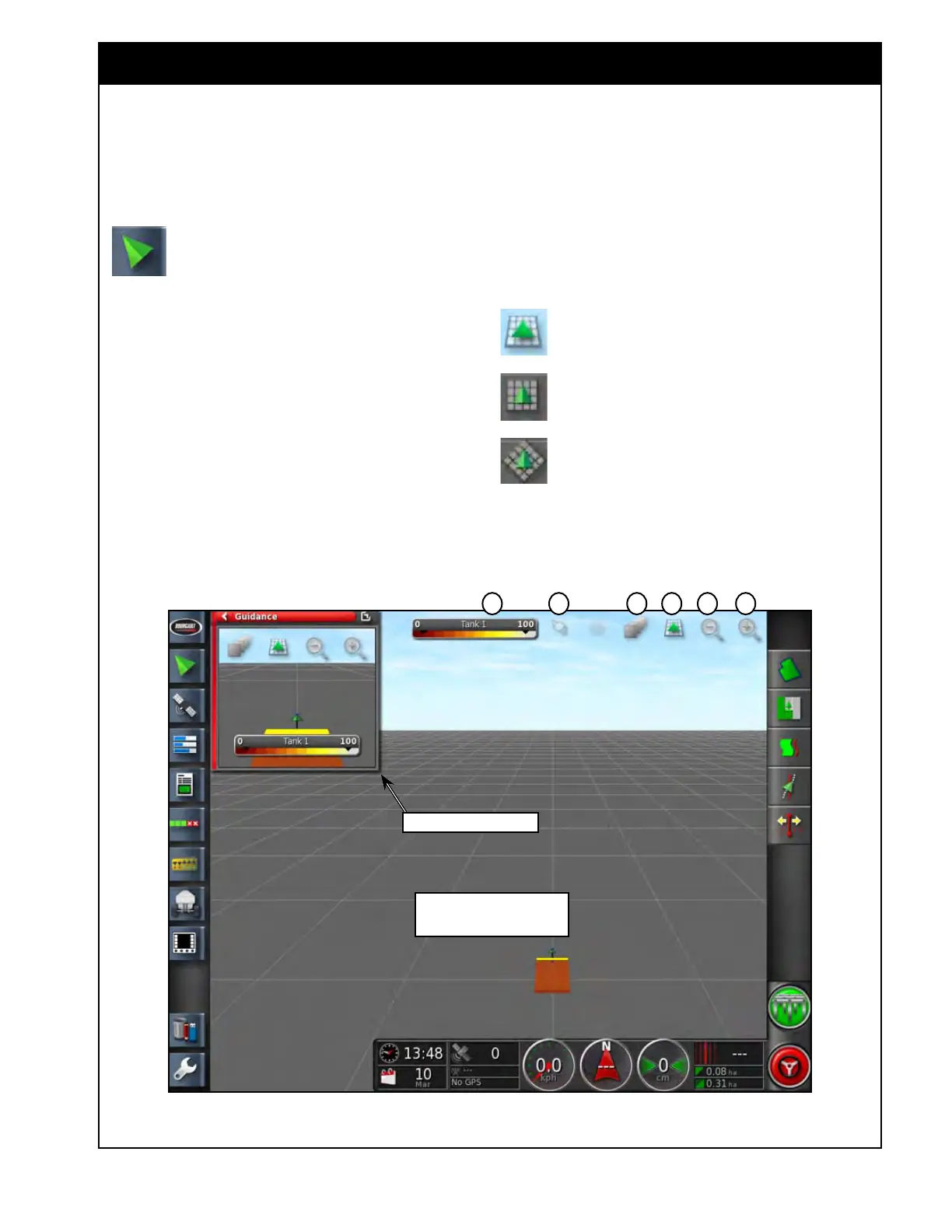
The Full Guidance screen opens as default when
the Operations screen is accessed for the first time.
In addition to full screen mode, it can be viewed
in a mini-view.
Select this icon to open the secondary
guidance window, refer to Figure 2.13.
The
purpose of this window is to allow
you to have a secondary view of your tractor
path, other than in your main guidance screen (for
instance, you may have an overhead view on your
main guidance screen but have a perspective view
on your secondary guidance window).
Both the main and secondary guidance screens
display following viewing control buttons (refer to
Figure 2.13):
1. Zoom
In
Helps you to get a closer view of your implement
and map on your guidance screen.
2.5 Guidance/Coverage Map
Figure 2.13 - Main Guidance Screen and Secondary Guidance Window
2. Zoom Out
Allows you to get a wider view of your implement
and map on your guidance screen.
3. Change
viewing perspective
Allows you to change perspective view. The
available viewing perspectives are:
Perspective view - view of your virtual
map as you might see your path from
behind the implement.
Overhead view - top down view of your
implement and map.
North up view - is similar to overhead,
except that your implement is always
facing North relative to the screen.
Secondary Guidance
Main guidance screen is set to
perspective view
2 1346 5



 To Next Page