X35 Console Field / Job
9.13
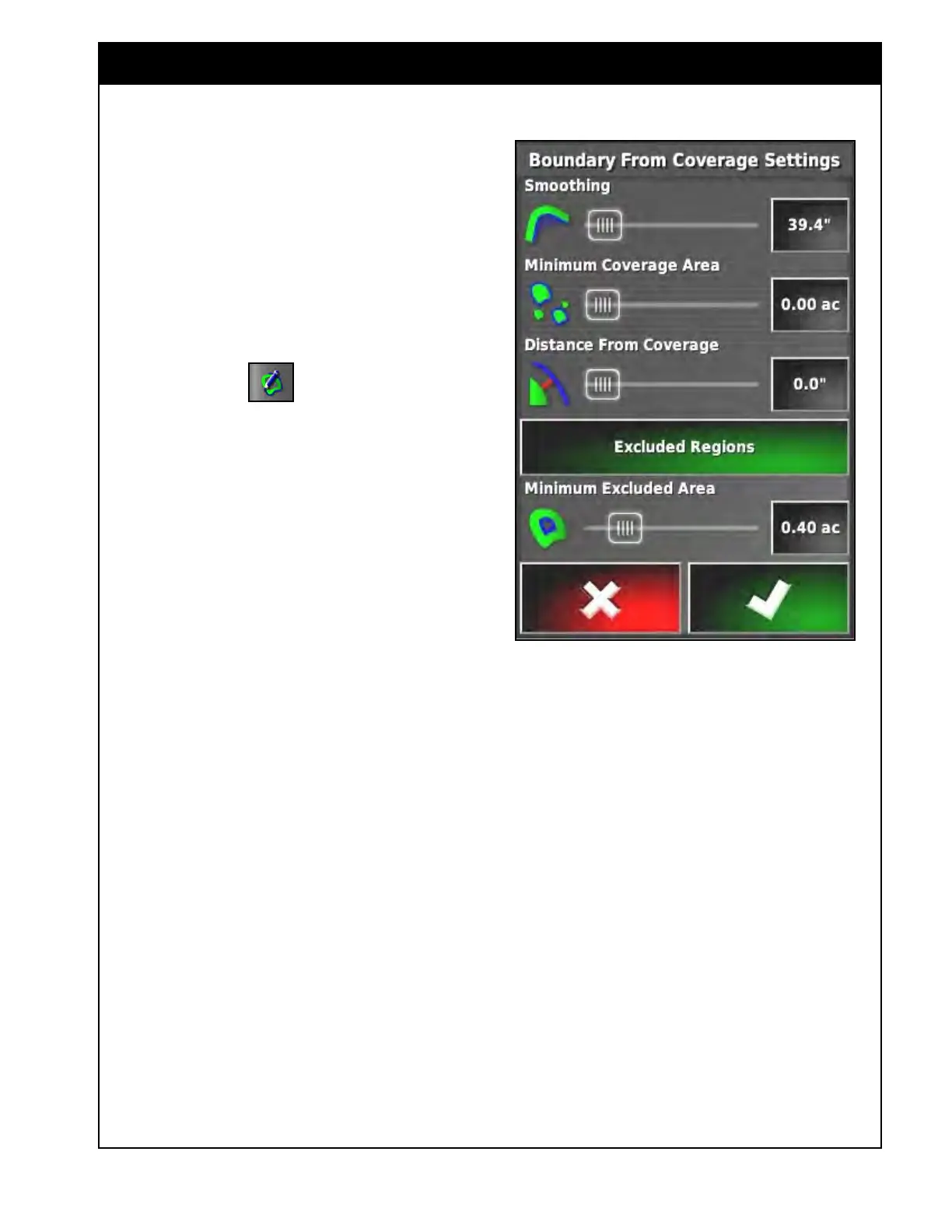
Figure 9.20 - Creating Boundary
9.2.9 Creating a Field Boundary from a
Coverage Map
1. You are able to either load up an existing
coverage map for the current field or apply
new coverage.
a. The Outside Swath needs to be complete
to create a boundary around the outside of
the field.
2. Select the Create Field Boundary from
Coverage icon
on the field menu.
a. This can be performed again later to create
multiple boundaries.
3. A Boundary from the Coverage Settings
window will open to apply settings on how the
boundaries will be generated. You can either
use the slider to change values or use the
Select button and enter a value.
a. Smoothing - set minimum radius for
curves
to smooth corners.
b. Minimum
Coverage Area - will ignore
small patches of coverage when generating
boundaries (e.g. test strips).
c. Distance
from Coverage - will apply an
outwards offset to the boundary from the
edge of the coverage.
d. Excluded
Regions - enable if you want to
generate boundaries around areas within
the field that were not seeded.
e. Minimum
Excluded Area - will ignore
small unseeded areas within the coverage
when generating boundaries.
4. Select OK and Boundaries will be generated,
applying these settings.



 To Next Page