X35 ConsoleSetup
3.8
3.2.4 Map
From the Main Setup menu select User/Map. The
following settings will allow the set up of how
the console screen will work with maps during
operation:
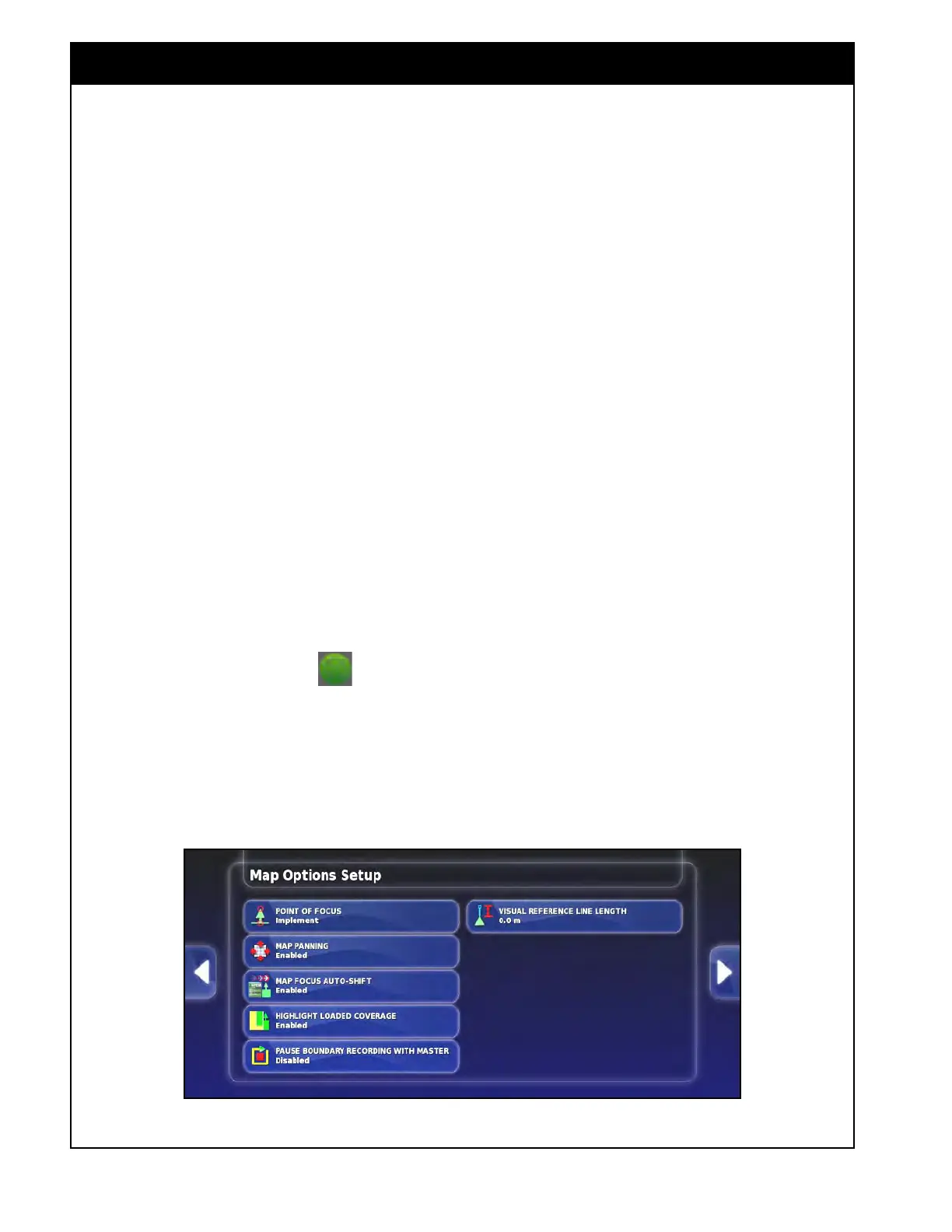
1. Point
of Focus - set the point of focus of the
vehicle icon to either the vehicle body or the
implement. The selection will depend on what
the point of focus is set to. Then either the
vehicle or implement will be centred on the
map.
2. Map
Panning - enables or disables the map
panning.
a. When enabled, you will be able to pan
along the guidance screen by placing your
finger on the screen and dragging it in the
direction you wish to pan.
i. This is useful if you would like to
view a section of your field that is
not visible due to the auto-centering
of the vehicle icon on the guidance
screen.
b.
When enabled, this icon
will appear
in the map menu at the top of the screen.
It is green when map panning is in use and
can be pressed to re-center to the location
of the implement.
i. The icon is grey when the map is
centered on the implement.
3. Map
Focus Auto-Shift - enables or disables
the map focus auto-shift.
a. When enabled, the map will automatically
refit in the main viewing area when
opening a mini-view window on the left
side of the screen.
b. When disabled, the map will be partially
covered with mini-view windows while
they are opened.
4. Highlight
Loaded Coverage - this allows you
to enable or disable the highlighting of the
previously and newly covered areas in different
colors.
a. When enabled, as product is being applied,
the new covered areas will be green, while
previously saved covered areas from before
a console restart or a job change will be
yellow.
5. Pause
Boundary Recording With Master -
allows you to enable or disable pausing of the
boundary recording with a master switch.
a. When enabled, you can use the master
switch to pause recording when
establishing boundaries.
6. V
isual Reference Line Length - allows you
to set a length for a visual reference line
that extends out of the front of the tractor/
implement icon (on the map viewing area) for
projecting direction.
Figure 3.13 - Map Options Settings



 To Next Page