X35 ConsoleSetup
3.2
On the main operator's screen select this
icon, left lower corner, to access setup
screen.
This
screen is where you can setup and configure
the X35 console environment, vehicle, implement
and air seeder. You may also enable the additional
features such as auto steering and section control
etc.
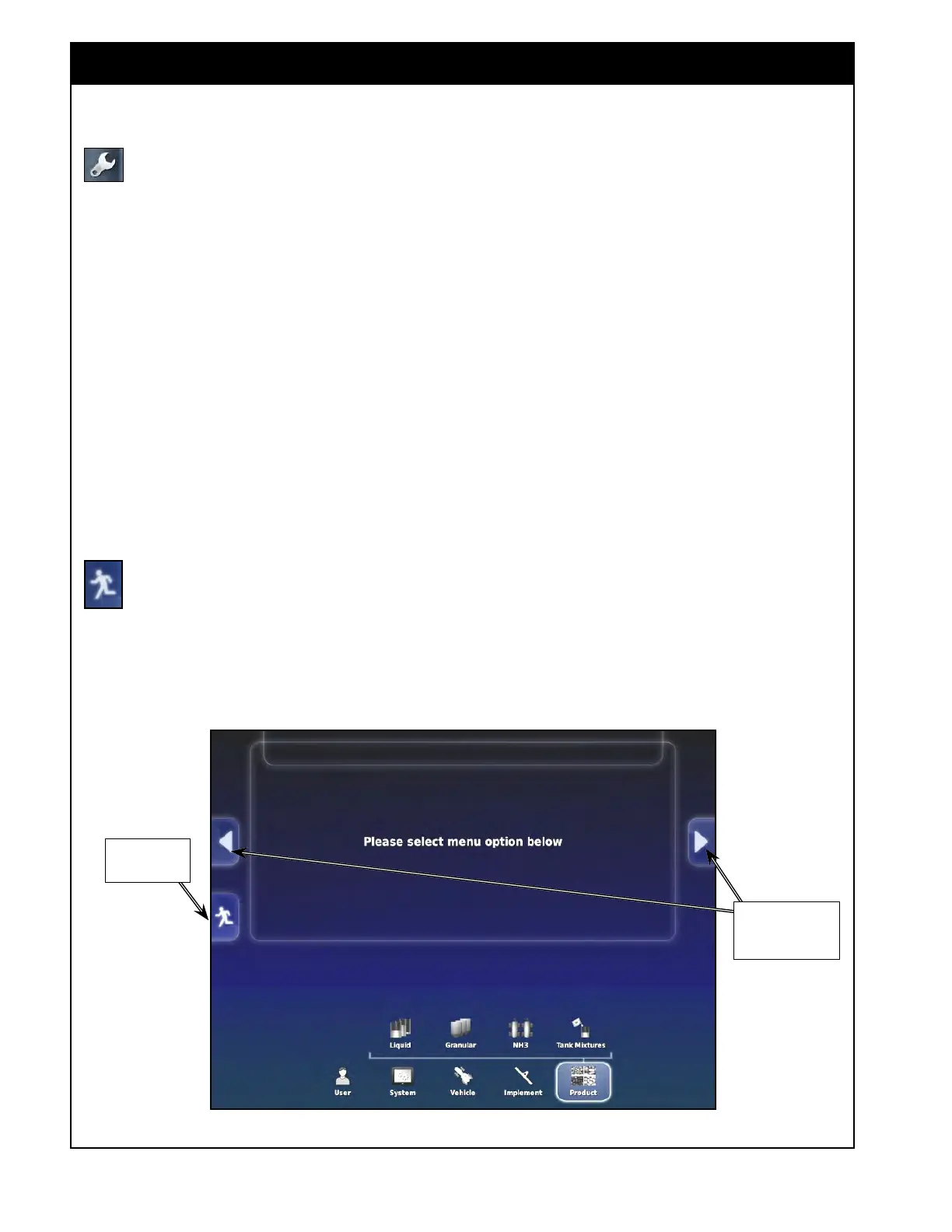
Refer
to Figure 3.1.
The
setup screen is divided into two main areas:
1. The bottom part of the screen displays the
setup menu and;
2. The upper portion of the screen displays the
parameters, features and functions to be set for
the selected item of the menu.
Arrows on the side of the screen will move
between tree menu options.
This button provides return access to the
Main Operator's Screen.
The setup menu is presented in a tree structure
with many levels.
The main level has the following items:
1. User - allows you to select language, set
date/time,
units, lightbar, console working
environment, map options and user access
levels. Refer to Section 3.2 - User Menu.
2. System
options - allows you to enable/
disable selected features, such as the auto
section control, variable rate control guidance,
cameras, area counter and others. You may
also set the GPS parameters, enable/disable and
set threshold for alarms and flag point presets.
Refer to Section 4 - System.
3. V
ehicle options - allows you to select the
vehicle profile from the existing list or create
a new vehicle type or set geometry for your
vehicle. Refer to Section 5 - Vehicle.
4. Implement
options - allows you to select
the implement from the existing list, or to
create a new implement type or to configure/
modify your implement. Refer to Section 6
- Implement Setup.
Figure 3.1 - Setup Screen
3.1 Setup Menu Explained
To return to
operator's screen
Use these arrows to
navigate between
menu options



 To Next Page