X35 Console Optional Equipment
13.29
13.8.2 Vehicle/Implement Icon
1. The vehicle/implement icon will show a
connection status symbol for each remote
machine. Refer to Figure 13.38.
a. Connected – indicated by the regular
wireless connection
icon.
b. Not connected - indicated with a
strikethrough
the wireless connection icon.
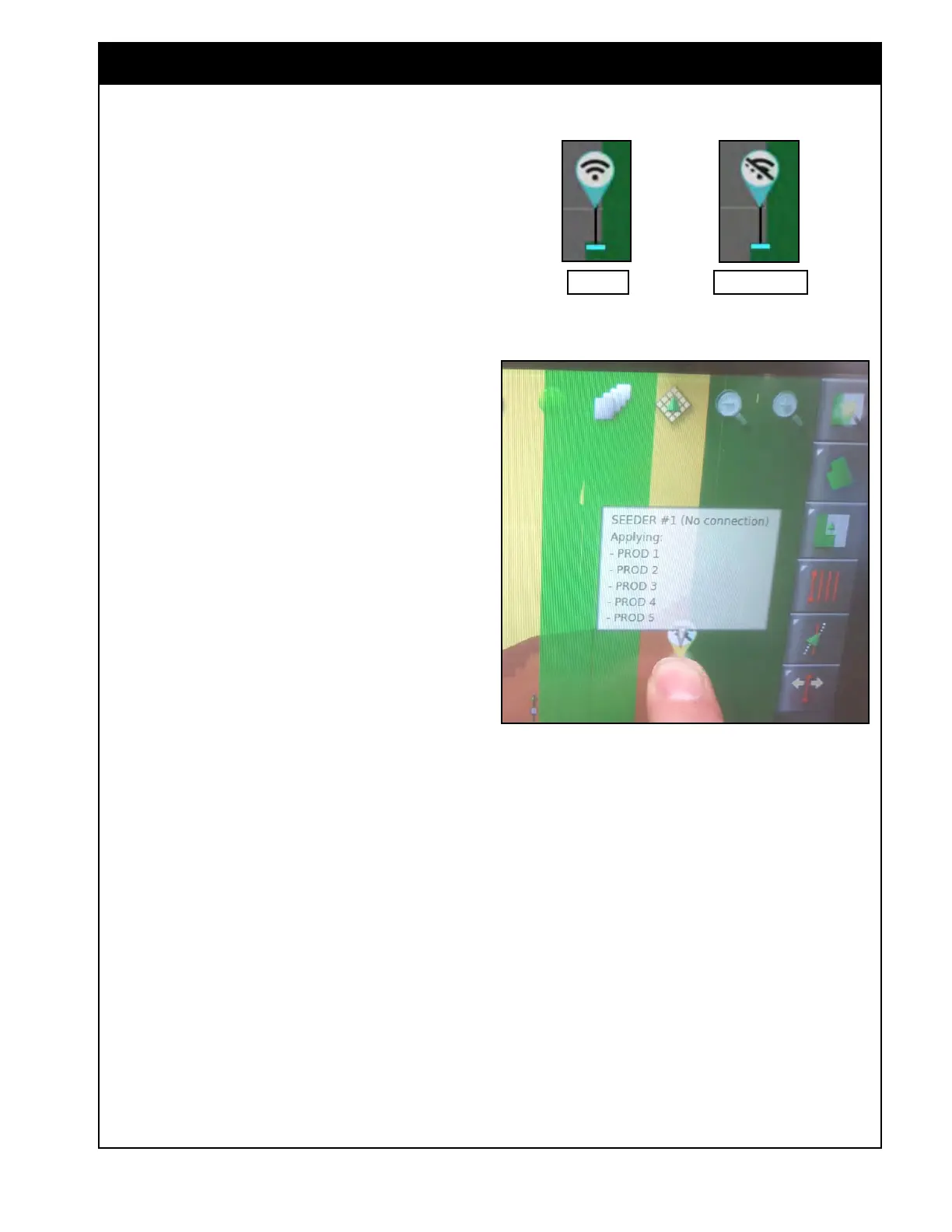
2 You can press and hold on the vehicle/
implement icon for further details. Refer to
Figure 13.39.
a. Console
Name
- displays the name of the
specific console entered under the System
tab in the settings page.
b. Status - beside the console name it will
display any
issues (if they exist) that may
be preventing proper operation of the
coverage sharing feature.
i. No connection - the implements
are
not connected so cannot share
coverage.
Either they are not connected to the
CL55 or they may be out of antenna
range.
Note
The Wi-Fi antennae will connect up to a mile (1.6
km) with a good line of sight.
- If connection is lost the vehicle/implement icon
will show this and stay in the last connected
position until connection is regained.
- Then it will appear in the actual position and
updated shared coverage will fill in.
With multiple implements if two are further apart
but both have connection with a 3rd implement, the
connection will hop through that implement so all 3
implements will access all the shared coverage.
Figure 13.38 - Vehicle / Implement Icon
Connected
Not Connected
Figure 13.39 - Vehicle / Implement Icon Details
ii. Different field - the implement does
not have the same field loaded so
cannot share coverage.
If the field is named the same and is
saved under the same client/farm but
it still says different field, then the
field file may not have been set up
correctly by copying it from a single
console to have the same unique ID.
iii. No
GPS – the implement does not
have
GPS connection so cannot apply
mapped coverage to share.



 To Next Page