X35 ConsoleField / Job
9.18
9.3.5 Exporting a Job Report
Important
This enables you to access coverage information
later. Use Quick Start to setup to do this
automatically when changing jobs, as long as a
thumbdrive is installed in the X35 console.
Note
This method of exporting the job from the
guidance screen should only be used if the job
has just been completed and before any settings
are reconfigured, otherwise some information
may be missing. If you are wanting to export
job information for a previously completed job,
it should be done using the inventory manager.
Refer to Section 10.7 - Inventory Manager. This
will ensure all the information is retained.
1. To export a Job Report to a USB thumbdrive,
ensure that the USB device is connected to
the X35 console (if not connected, the export
function will be disabled).
2. To export a Job Report select
from the
Data Exchange Menu
.
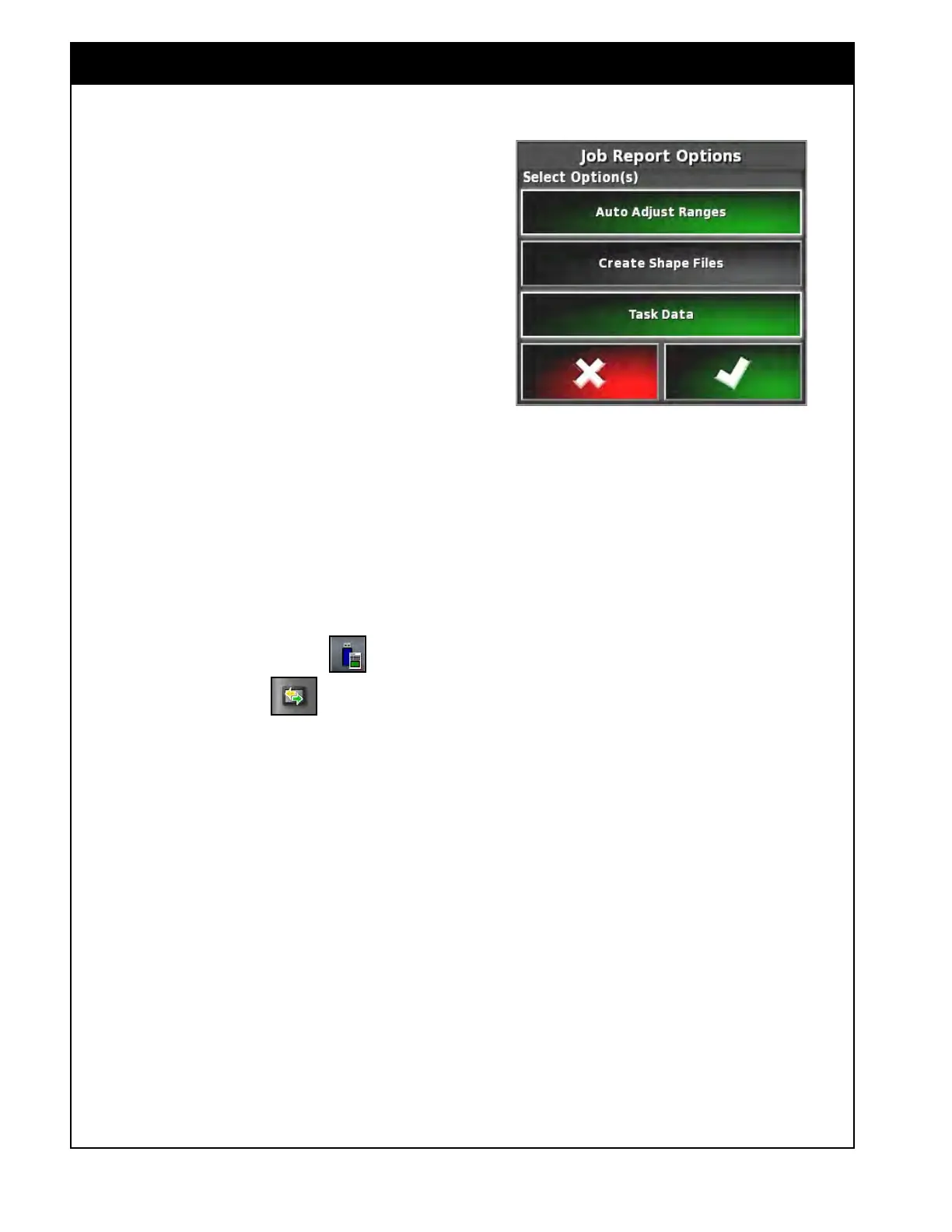
a. A window will appear to select what you
would like to export. Highlight the options
you would like performed.
i. Auto
Adjust Ranges - will auto
adjust the color map ranges for the
rates applied.
ii. Create Shape Files - will create and
export shape files for each map layer.
iii. Task Data - will export task data
(this is not required).
b. Hit the green Check Mark.
c A window with a message Export in
Progress, will appear.
d. Once done, a message that the export
completed successfully should appear.
e. Confirm the message and eject the
thumbdrive.
3.
A Job Report will be saved as a pdf file in a
folder named Reports.
4. A Job report will have:
a. A Boundary shapefile.
b. A Coverage shapefile for each tank.
c. A PDF report that includes:
i. The Job Summary (implement,
vehicle, start and finished date/time,
hours, distance travelled and etc.);
ii. Crop/Weather and Product details if
entered;
iii.
Coverage Maps for each boom;
iv. An Applied Map for each product;
v. An Area Counter Summary.
5. Alternatively, Job reports can be created/
exported through the Inventory Manager at a
later time. Refer to Section 10.7 - Inventory
Manager.
Figure 9.27 - Job Report Options



 To Next Page