X35 ConsoleGeneral Operations
8.8
8.3 Tank Optimizer
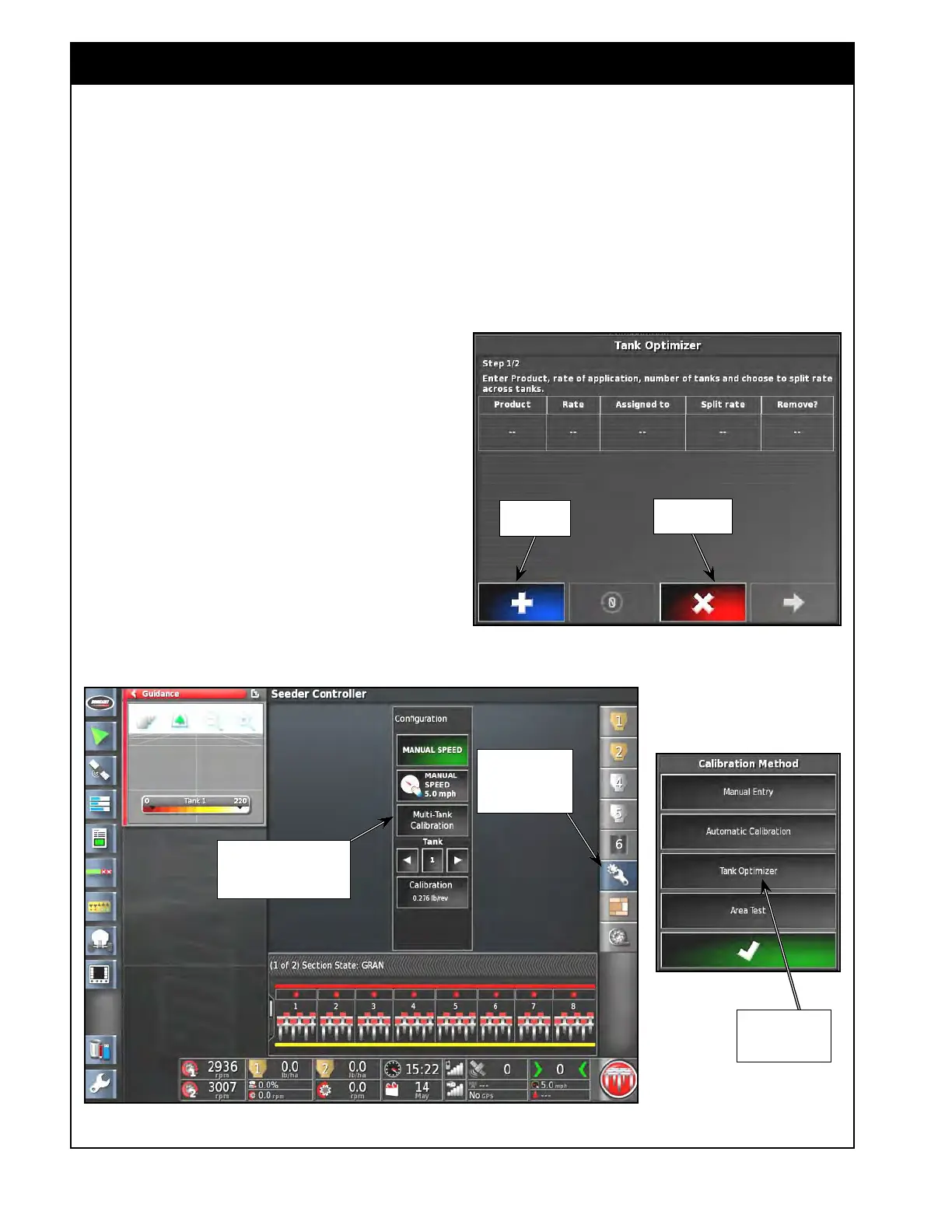
Figure 8.13 - Opening Tank Optimizer
1 - Select this
icon to open
Configuration
Panel
2 - Select Multi-Tank
Calibration to open
Calibration Method window
3 - Select tank
optimizer to open
wizard
Figure 8.12 - Tank Optimizer Wizard
Cancel Tank
Optimizer
Add Products
The X35 console provides a "Tank Optimizer" tool
to determine the product allocation to minimize
filling requirements in the field.
If there are tanks that you will not be putting
product in, you can first disable them in the
settings under Implement/Seeder/Granular/Tanks.
This will exclude them from the optimizer
scenarios. For all tanks to be considered in the
optimizer ensure they are all enabled.
1. Refer to Figure 8.13. To access the Tank
Optimizer:
a.
In the Seeder Controller window expanded
mode, from the menu on the right,
select the Configuration icon to open the
Configuration panel.
b. On the configuration panel, select Multi-
Tank Calibration. A Calibration Method
window will open up.
c.
Select Tank Optimizer and the wizard will
start up, refer to Figure 8.12.
Note
The 9000 Series does not have any
interconnected tanks so the tank optimizer will
not actual change any tank groupings. It can
still benefit in determining the appropriately sized
tank for products or how they should be split
depending on set rates.



 To Next Page