X35 Monitor System Settings
4.18
4.5.2 Seeder Alarms
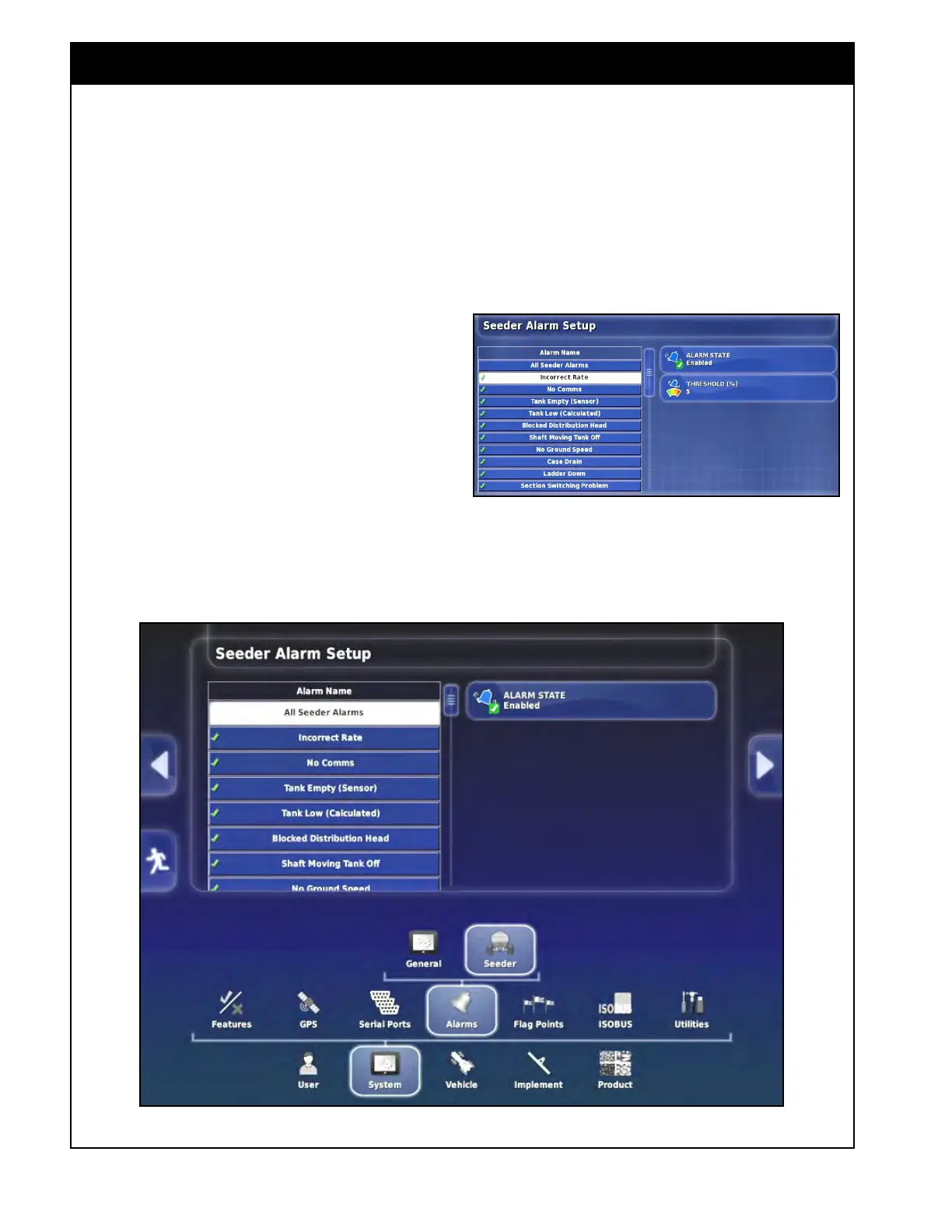
To access the seeder alarms setup, select System/
Alarms/Seeder.
All seeder alarms are displayed on the left side
of the setup screen in a scroll down list. A green
check mark next to the alarm name indicates that
this alarm is enabled; a red cross indicates that the
alarm is disabled.
1. Enabling/Disabling
Alarms - All seeder
alarms can be enabled/disabled all at once or
individually.
a. To enable or disable all seeder alarms
select All Seeder Alarms (first item in the
list).
b.
To enable or disable an individual alarm,
select that alarm from list.
c. On the right side of the setup screen select
the Alarm State button to disable or enable
the alarm(s).
Figure 4.22 - Seeder Alarms
2. Incorrect Rate - indicates that the actual
application rate is higher or lower than the
acceptable application rate range.
a. Select the Threshold button to set a
percentage value that will be used to
calculate the upper and lower application
rate range limits.
Figure 4.21 - Incorrect Rate Alarm



 To Next Page