X35 Console Setup
3.7
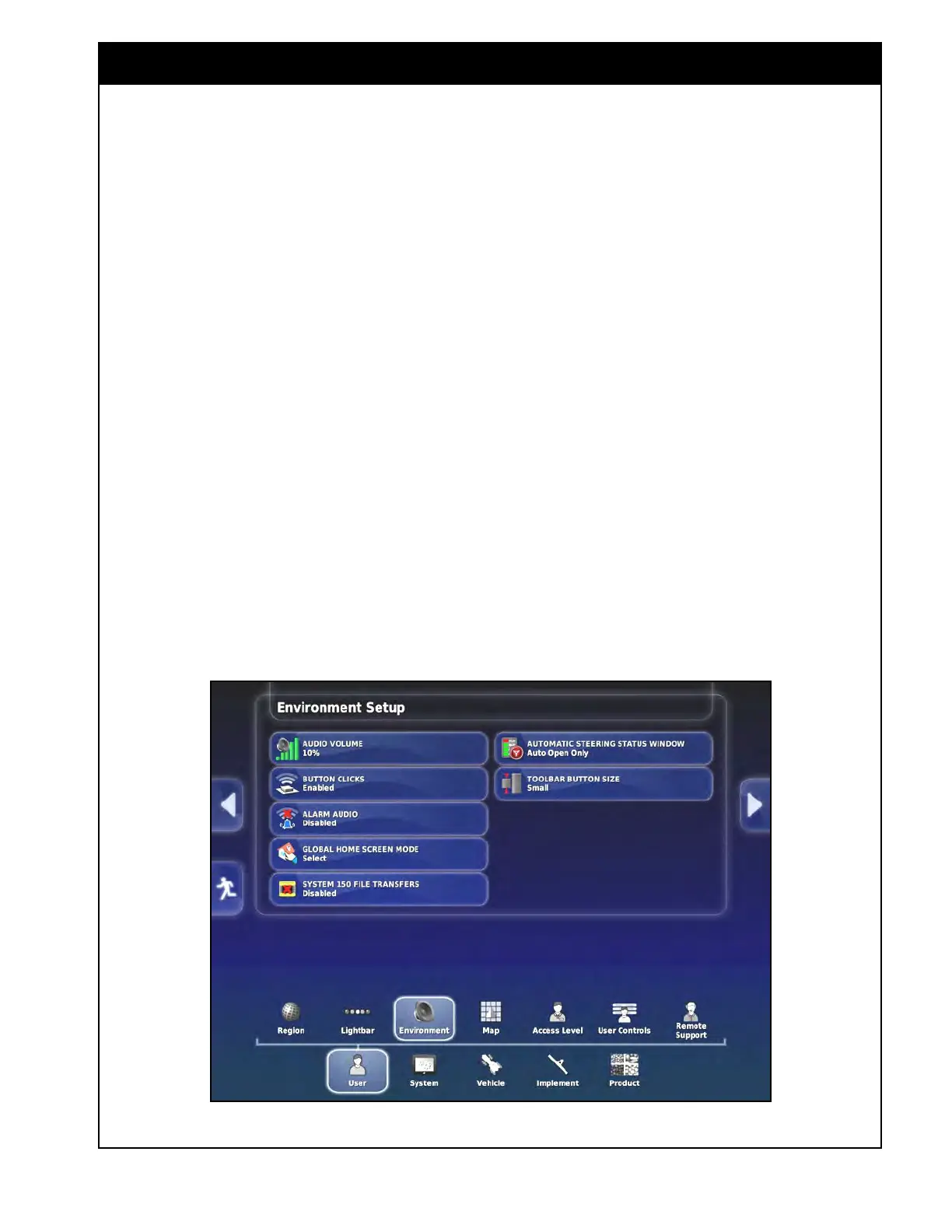
3.2.3 Environment
From the Main Setup menu select User/
Environment. There are several settings:
1. Audio
Volume - set the volume for all audio
alarms from 0 (no audio signal) to 100% (the
loudest). Using plus/minus buttons will change
volume in increments.
2. Button
Clicks - when Enabled there will be
a click with every button selection on the
console. For this to work Audio Volume must
be set to a value different than 0%. When
Disabled, the button selection on the console
will be silent.
3. Alarm
Audio - this enables or disables the
audio warning when an alarm condition occurs
and the alarm information is displayed in a
pop-up text screen.
4. Global
Home Screen Mode - can be set to:
a. Select
- pressing the Go to Home Screen
button will bring up the Load a Global
Home Screen window, where the desired
home screen can be selected.
Figure 3.12 - Console Environment Settings
b. Toggle - pressing the Go to Home Screen
button will toggle between previously
saved home screens.
For detailed instructions on how to work with
global home screens refer to Section 2.7 - Working
with
Global Home Screens.
5. System
150 File Transfers - enables or
disables file transfers from earlier Topcon
systems (110/150).
6. Automatic
Steering Status Window - enables
or disables the view of the steering status
window during operation (only for Topcon
steering equipped units).
7. T
oolbar Button Size - allows you to select
a button size for the mini-view and seeder
controller/guidance menu options that appear
on the right and left sides of the operating
screen. The available options are: small,
medium or large.



 To Next Page