X35 ConsoleField / Job
9.4
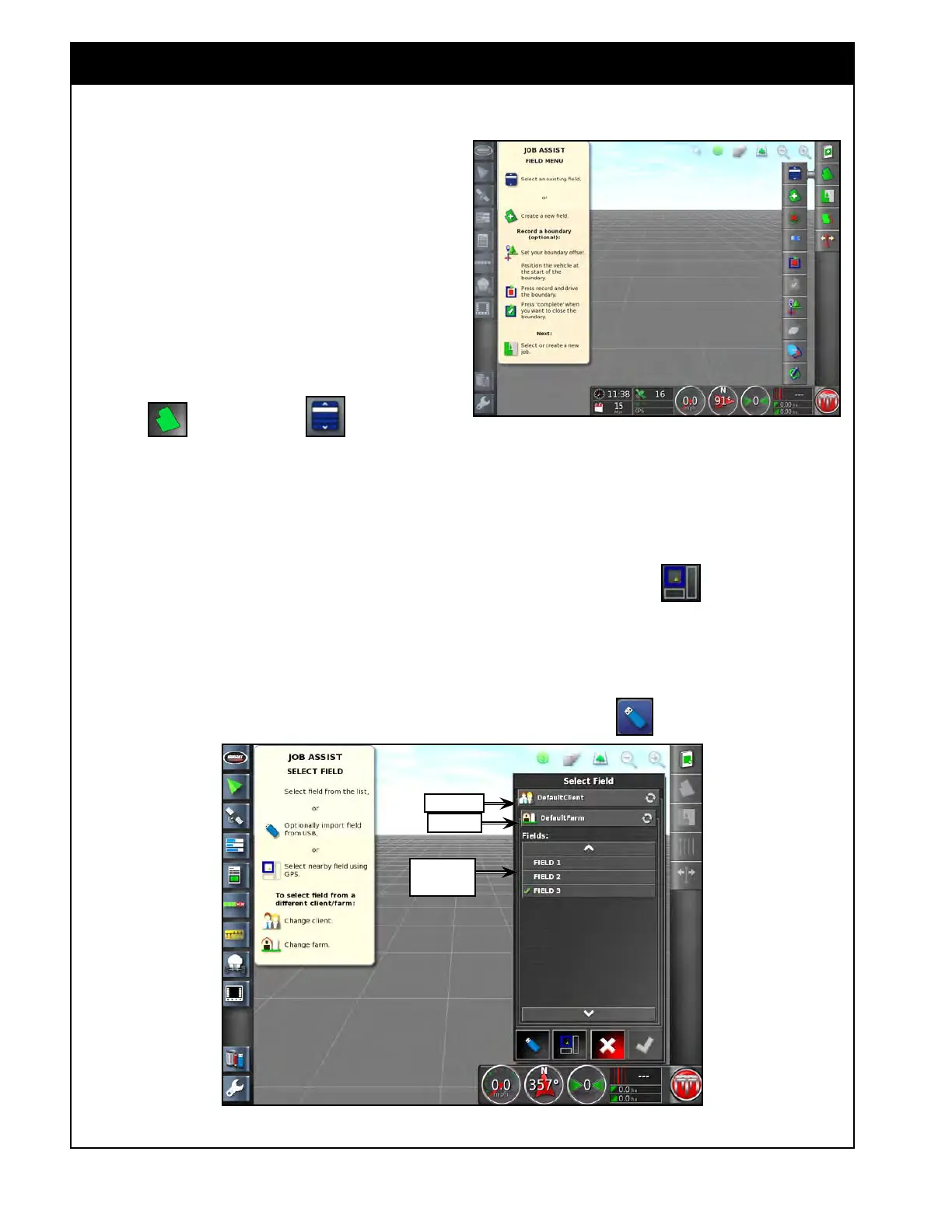
Figure 9.5 - Field Menu
9.2 Field Menu
Figure 9.6 - Select Field Window
Client Tab
Farm Tab
Select Field
Here
a. To change client or farm, select the
corresponding tab and then make a
selection from the list.
i. You also can choose the closest field
based on your current GPS location
by selecting
.
ii. Alternatively, you can select a field
from a USB device.
iii. To switch to USB memory, the USB
device must be connected. Then
select
.
The field menu provides the tools to set client,
farm, boundaries, flag points and exclusion zones.
The X35 console will store information such as
boundaries, obstacles, exclusion zones, guidelines
under the field, so it is can be easily recalled for
other jobs in the same field.
9.2.1 Selecting an Existing Field
Refer to Figure 9.5.
1. From the Job/Guidance Toolbar on the right
side of the guidance screen select the Field
icon
and then select to open up
the Select Field window, refer to Figure 9.6.
a. The list of fields for the currently selected
client and farm will be displayed in the
Field section.
2. Confirm that the right client and farm are
selected (names displayed in the corresponding
tabs) and select the required field and confirm.



 To Next Page