X35 Monitor Air Seeder Setup
6.3
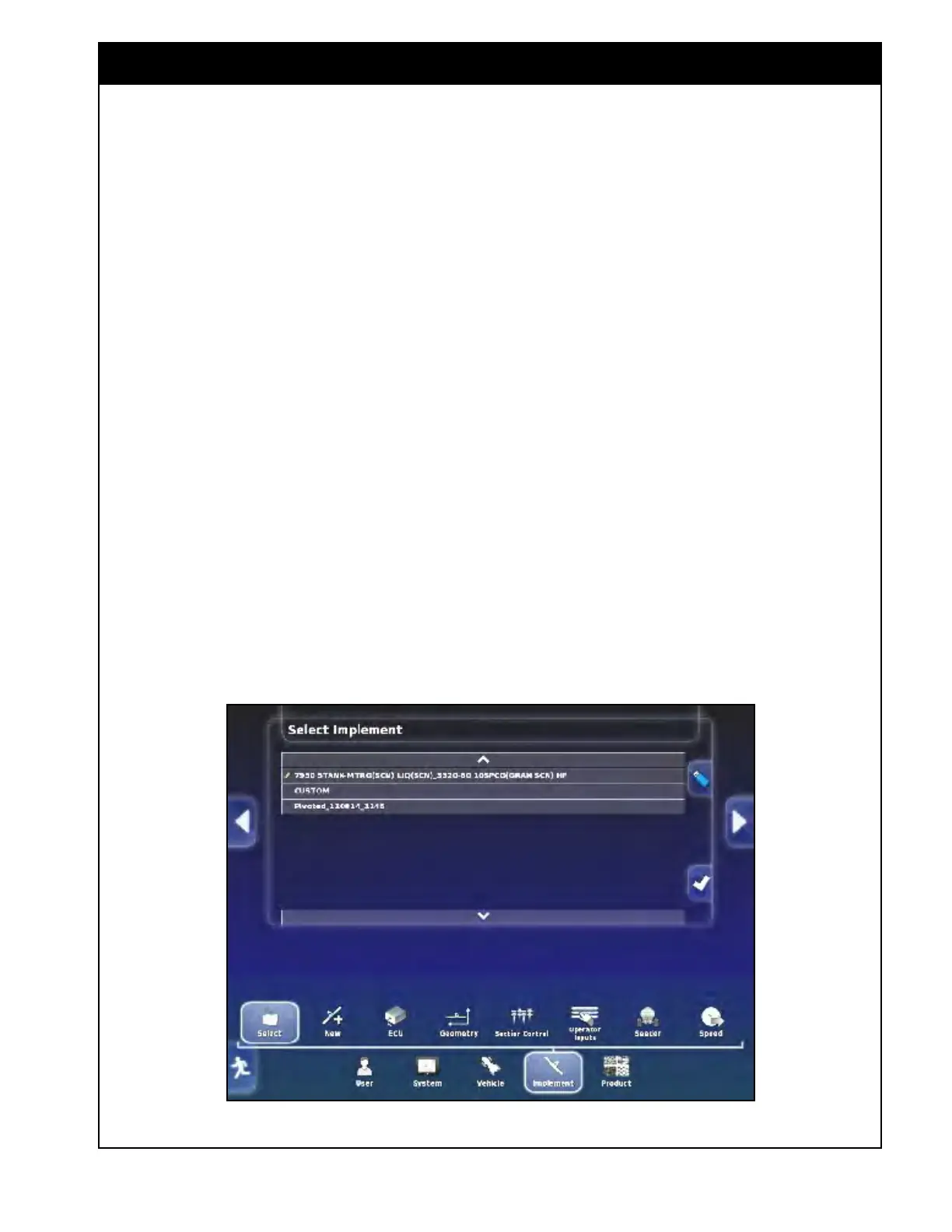
Figure 6.1 - Select Air Seeder
6.1 Implement Menu
Note
The X35 console is intended for a multitude
of applications. Equipment set-up involves "
vehicles" and "implements" which then allow the
user to move the X35 console between machines
to maximize its value.
In seeding applications:
"Vehicle" refers to a tractor that is used to pull the
seeding implement.
"Implement" refers to a seeding system that
consists of the seeding drill and the air seeder.
2. To select an implement from the USB list:
a. The USB device must be connected to
the X35 console, it will enable the USB
button.
b. Select
the USB button.
c. The window title "Select Implement"
will change to "Select Implement (USB)"
and the list of implements from the USB
device will be displayed.
d. To return to the list in the console memory,
select the USB button again.
This section explains how to set up Implement
elements such as ECU configurations, geometry,
operating parameters and many others.
6.2 Selecting an Existing
Implement
This is used when implement profiles (air seeder
and seeding drill) have been already setup on the
X35 console or will be imported from a USB
device.
1. To select an implement from the X35 console
list:
a. Scroll
to select an existing implement
profile select Implement/Select, refer
to
Figure 6.1.
b. The list of implement profiles from the
X35 console memory are displayed in the
upper portion of the screen.
i. Choose your implement from that list
and confirm your selection.



 To Next Page