X35 Monitor Air Seeder Setup
6.30
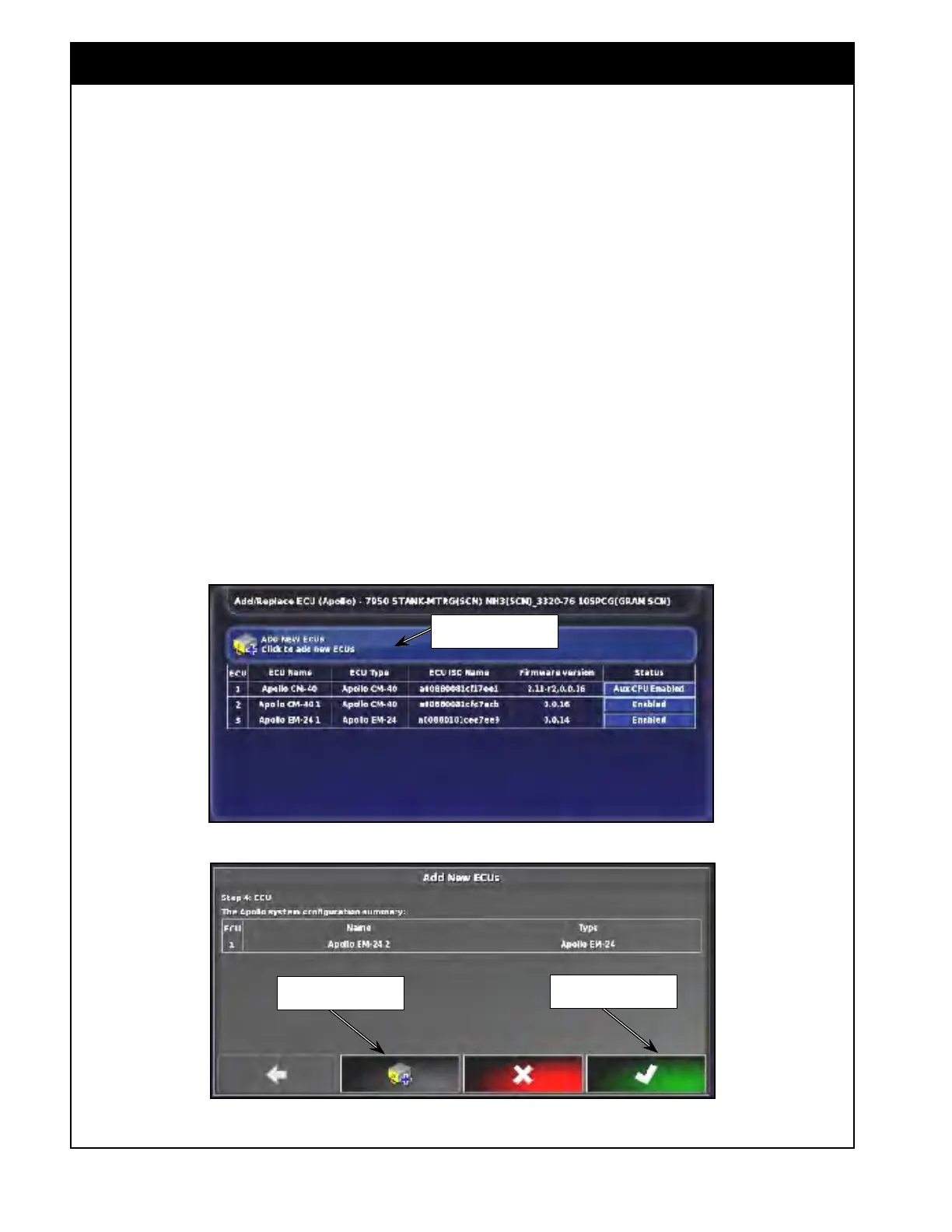
Figure 6.40 - Add New ECU
Select this button to add
new ECU
Figure 6.41 - Apollo System Configuration Summary
Select this button to add
ECU
Select this button to finish
6.4.3 Add New ECUs
To add a new ECU, select Implement/ECU/Manage
and then select the "ADD NEW ECUs" button,
refer to Figure 6.40. The wizard will start.
1. Connect the ECU.
a. Connect the ECU's COMMS connector and
press next.
2. The console will attempt to detect the new
ECU.
3.
Once
detected, a confirmation message will be
displayed. Select NEXT to continue.
4. The Apollo system configuration summary will
display the detected ECU, refer to Figure 6.41.
a.
If
more ECUs need to be added, select the
add a new ECU button from the bottom of
the screen, refer to Figure 6.41.
b. Repeat steps 1-4.
5.
When
done select the "yes" button (green
check mark) to finish and return to the Add/
Replace ECU main screen.
6. In the ECU summary table the newly added
ECUs will be displayed at the bottom.
The firmware for each ECU should come up
once everything is detected and loaded up. There
should be no ECU communication alarms popping
up on the screen.
6.4.4 ECU Upgrade
This function is designed to upgrade the ECU(s)
firmware. Please contact your dealer for the
availability of the new versions of firmware and to
request an upgrade.



 To Next Page