X35 ConsoleVehicle Setup
5.2
5.1 Vehicle Menu
This section explains how to set up vehicle
elements such as geometry and steering (if
equipped with Topcon steering).
5.2 Selecting an Existing Vehicle
Once the vehicle profiles are set in the X35
console (refer to Section 5.3 - Setting Up a New
Vehicle), they can be accessed easily.
Select the Vehicle/Select to access the vehicle
profiles that are set in the X35 Console.
Refer to Figure 5.1.
A
list of vehicle profiles from the X35 console
memory displayed in the upper portion of the
screen. Choose your vehicle from that list and
confirm your selection.
You can select a vehicle from the USB device. If a
USB is not connected, connect a USB device to the
X35 console, it will also enable the USB button.
1. Select the USB button.
2. A window with a title "Select Vehicle" will
change to "Select Vehicle (USB)" and the
list of vehicles from the USB device will be
displayed.
3.
To return to the vehicle list in the console
memory, select the USB button again.
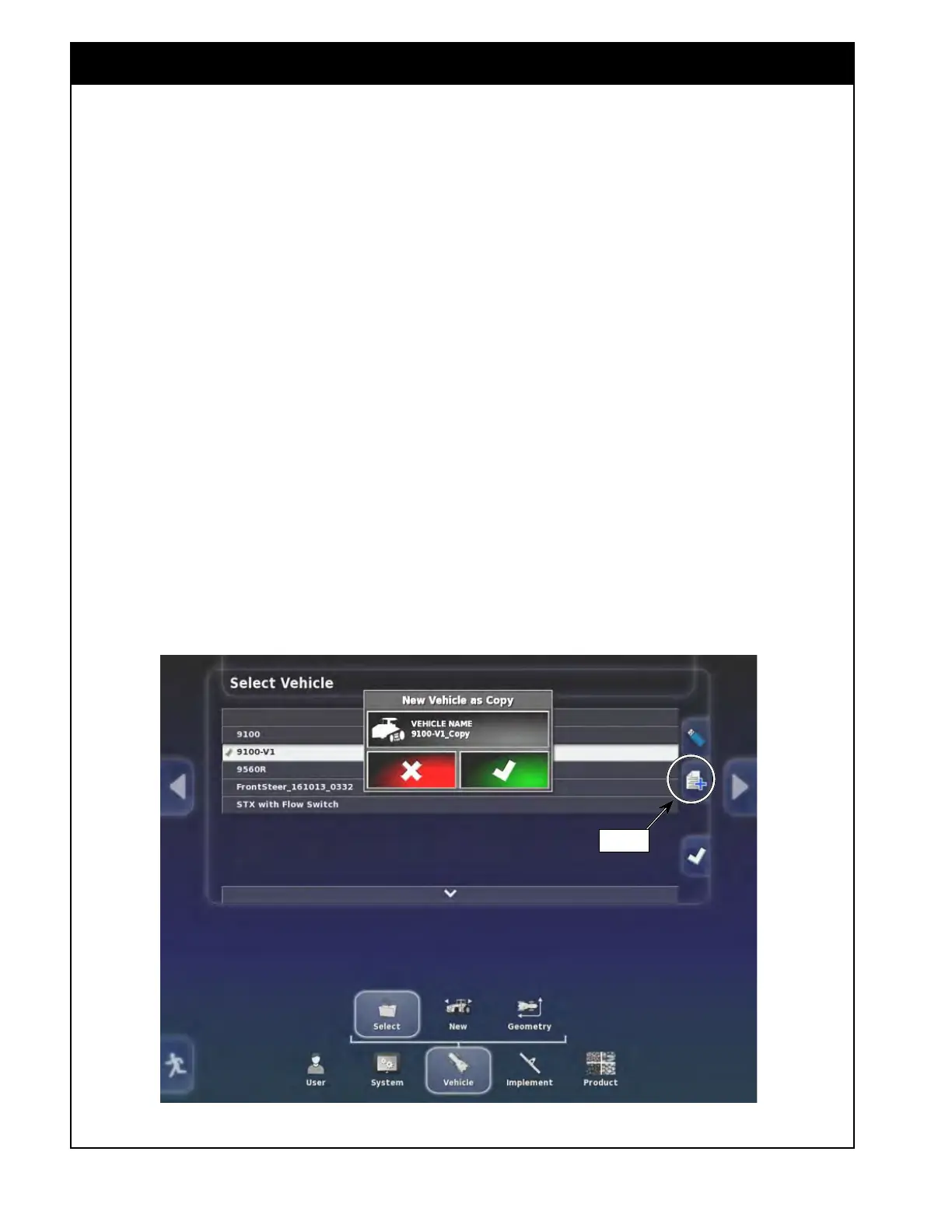
You can also copy one of the existing profiles and
make the required changes to it. To do that:
1. Select a vehicle profile you would like to copy
(it will have white background). The copy
button will appear, refer to Figure 5.1.
2.
Select the copy button.
3. The "+ New vehicle as Copy" window will
appear. Select the vehicle name button to give
a new name and confirm.
4.
If required, make changes to the vehicle
geometry settings. Steering and antenna
settings can be changed as well (only if Topcon
guidance and auto steering equipment used).
Figure 5.1 - Copy Vehicle Profile
Copy



 To Next Page