X35 Console Field / Job
9.7
9.2.5 Field Boundary
Field boundaries show up as a blue line on the
guidance screen and are recommended for extra
functionality (field area calculations, limit to
boundary, seeding headlands last, exclusion zones
etc.). Multiple boundaries can be created within a
field and each can be set to handle the areas inside
of them separately. It is not required to have a
field boundary to start a job.
There are multiple ways to create a field boundary:
1. By recording a field boundary, using the X35
console. Refer to Section 9.2.5.1 - Recording
a
Boundary.
2. From the Shapefile, if information was
previously recorded (ex. field was mapped
during preseed burnoff). Refer to Section 9.2.8
-
Creating a Field Boundary From a Shapefile.
3. From the coverage map. Refer to Section
9.2.9
- Creating A Field Boundary From A
Coverage Map.
9.2.5.1 Recording a Boundary
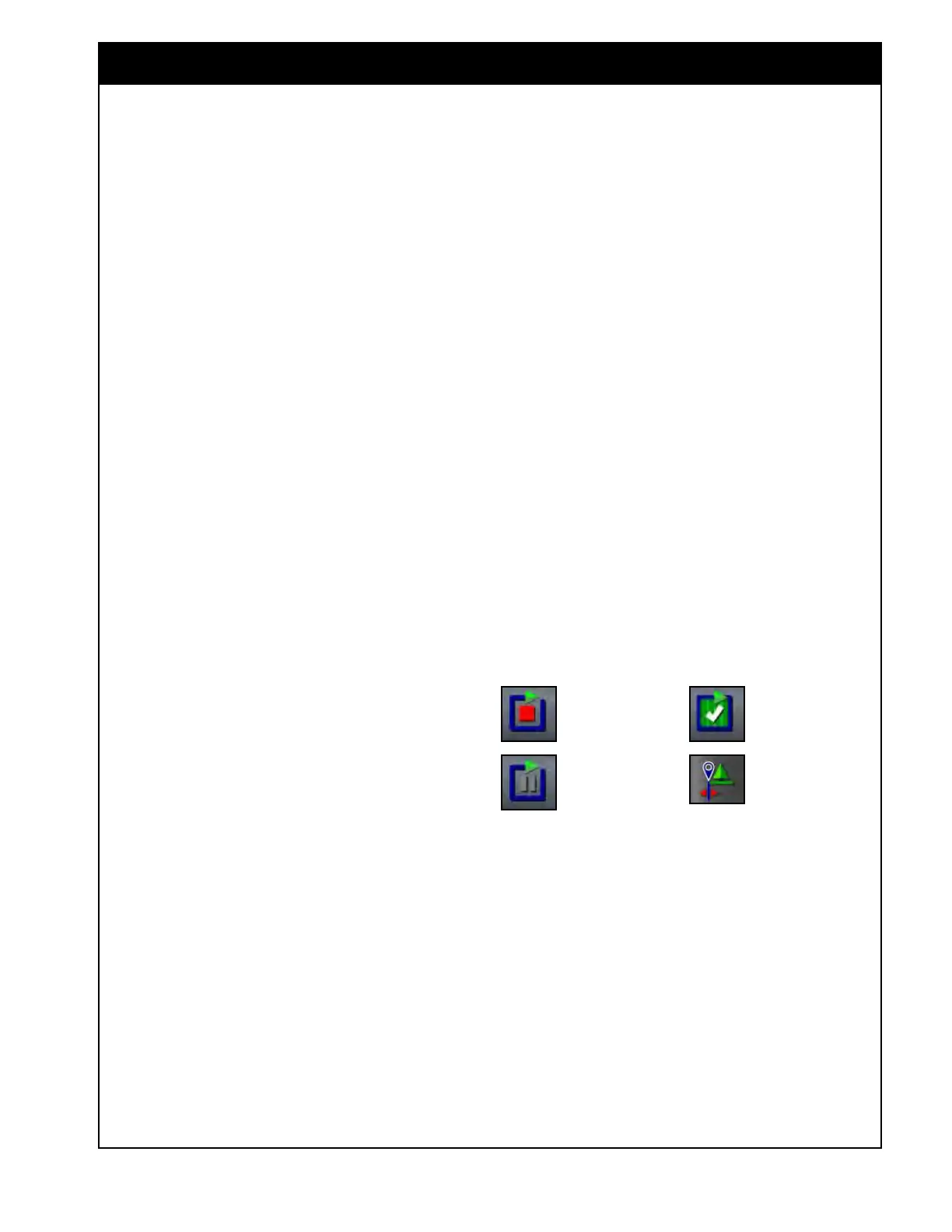
The following are controls available to create the
field boundary, refer to Figure 9.10.
1.
Drive the vehicle to the edge of the field and
follow the steps to establish a boundary for the
field:
a. Boundary
Offset - this is the distance
from the centre of the vehicle to the actual
boundary to be worked. This accounts
for any obstacles (fences, tree line and
etc.) that do not allow the vehicle to drive
exactly on the boundary.
b. To enter the boundary offset window, from
the Field menu select the Boundary offset
icon.
i. Recording
Offset - set to left or
right depending on which side of the
implement the boundary will be on.
ii. Additional
Offset - add a distance
to shift the boundary in or out. A
positive value will shift the boundary
outwards. A negative value will shift
the boundary inwards.
iii. Recording
Position - select the
point on the implement to record the
boundary. This will affect how the
curve of a boundary is mapped when
turning.
iv. Additional Front Offset - enter a
value to further shift the recording
position forward. A negative value
will shift the recording position
rearward.
Note
An implement needs to have been established
during setup, but the actual implement does not
need to be physically attached to the vehicle for a
boundary to be created.
Figure 9.10 - Field Boundary Control Icons
- Record Boundary
- Pause
- Complete Boundary
- Boundary Of
fset



 To Next Page