X35 ConsoleField / Job
9.8
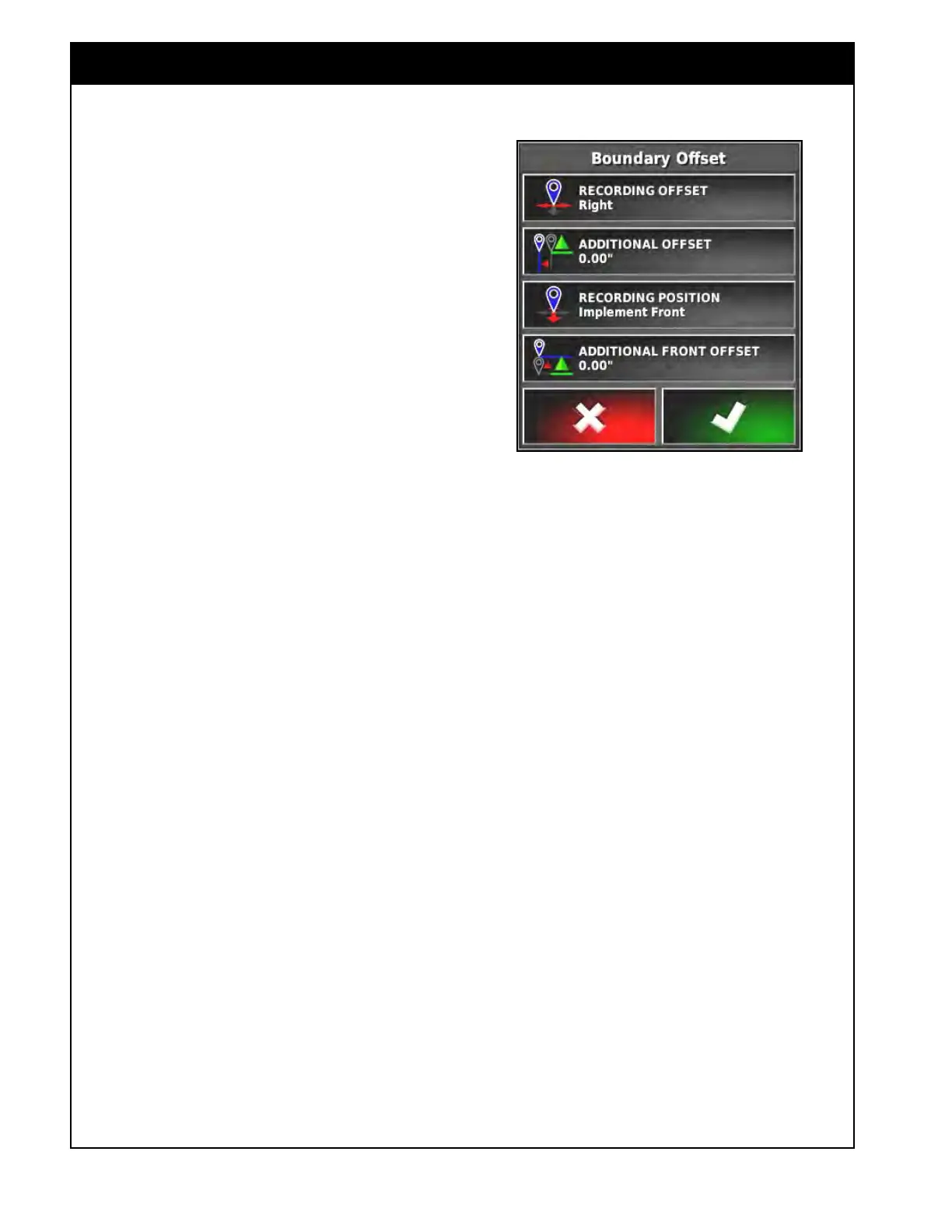
Figure 9.11 - Boundary Offset Menu
2. Position the vehicle at the start of the
boundary.
3. Press the Record Field Boundary icon.
4. Drive the vehicle around the boundary of the
field.
a.
The recorded boundary will be displayed
as a blue line.
b. The Record icon will change to Pause.
5. Use the Pause icon to pause the boundary
recording.
a.
This is useful if an obstacle prevents
driving on the boundary.
b. The Pause icon will change back to the
Record icon.
c. Select Record to resume.
d. The boundary will record a straight line
between the paused and resumed points.
6. Alternatively, the Pause Boundary Recording
with Master option can be enabled and that
will pause and resume the boundary recording
with the master switch, refer to Section 3.2.4
-
Map to enable.
7. As you are approaching the start point, select
the Complete Field Boundary Recording icon
to automatically complete the boundary.
a. This will draw a straight line between your
current location and the starting point.
8. This can be repeated to create multiple
boundaries.



 To Next Page