X35 ConsoleOverview
2.10
5. Selection Mode
By pressing and holding for half a second
on the guidance screen, you enter the
selection mode. Then, by sliding your
finger over features such as boundaries and
flag points you can view info on them and if you
release over them you bring up an edit window.
The pointer in the top panel is highlighted when in
selection mode.
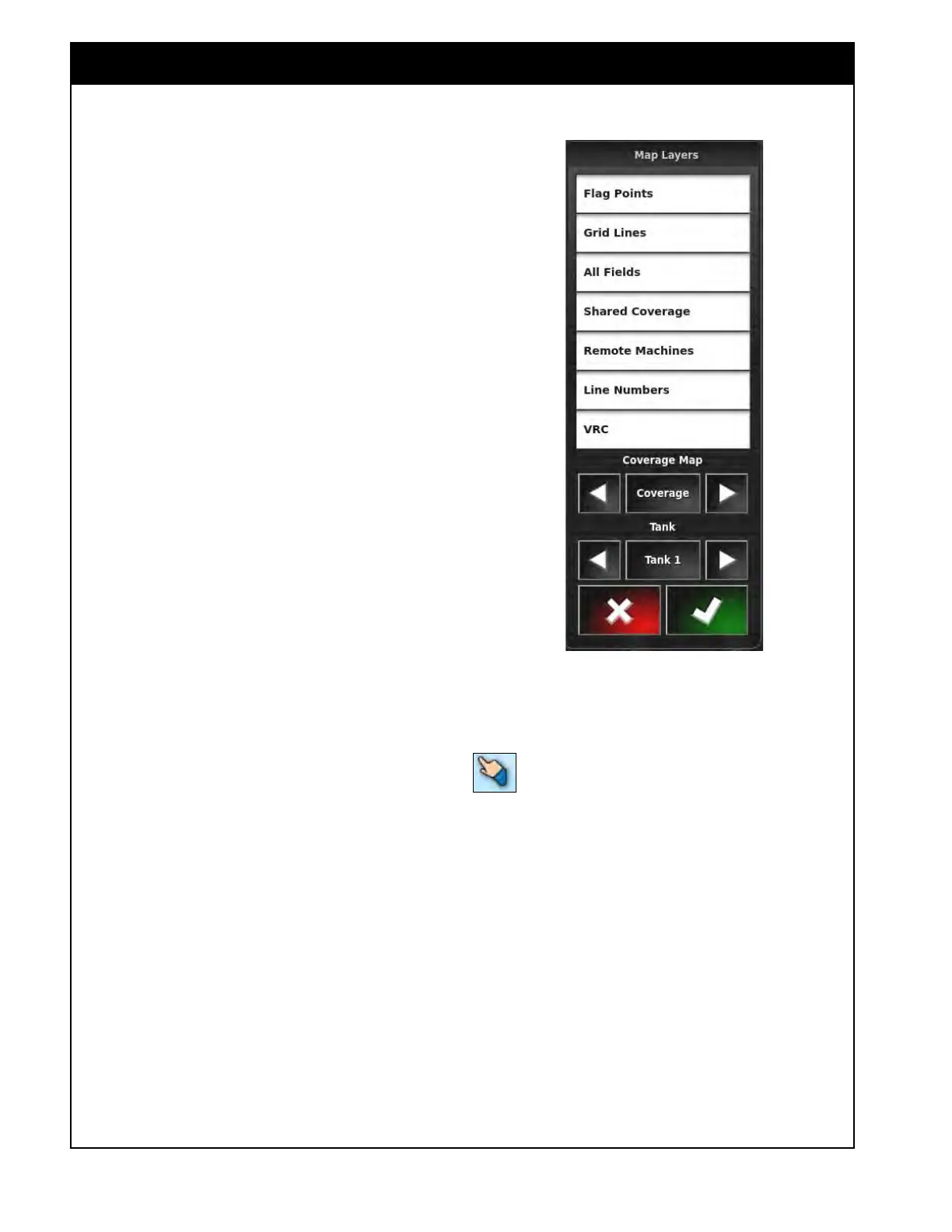
4. Map
Layers
In this window you can select what will be
displayed in the main area of the guidance screen,
refer to Figure 2.14. The selected items will
have
white background. There are several layers
available:
a. Flag
Points - will display obstacles and
other items if marked in the field.
b. Grid
Lines - will display grid lines on the
guidance screen.
c. All
Fields - will display boundaries of any
other existing fields as a grey outline.
d. Shar
ed Coverage - will display the
coverage of other linked units that are in
the same field applying the same products
when the I2I coverage sharing feature is
enabled.
e. Remote
Machines - will display other
linked implements when the I2I coverage
sharing feature is enabled.
f. Line
Numbers - will display all steering
guidelines.
g. VRC - displays the VRC prescription map
in
the background.
h. Coverage
Map
i. Coverage - displays the coverage
map
for the selected tank.
ii. Applied Rate Map - displays the
applied rate map for the selected
tank.
iii. GPS Quality - not used.
i. T
ank - allows you to select which layer
will be displayed on the guidance screen.
Select any tank or Packmaster layer.
Figure 2.14 - Map Layers



 To Next Page